How nonprofits can get connected to a client
How to get connected with a client who already has an account on LegalAtoms
If you are a professional (Advocate, Lawyer, Nonprofit) on LegalAtoms and want to get connected to a client who already has an account on LegalAtoms, then this article is for you
Nonprofits can connect to clients in two common ways: either create the client case and notify them, or ask the client to share a case via Share my application with a professional. Below are both options.
Option 1
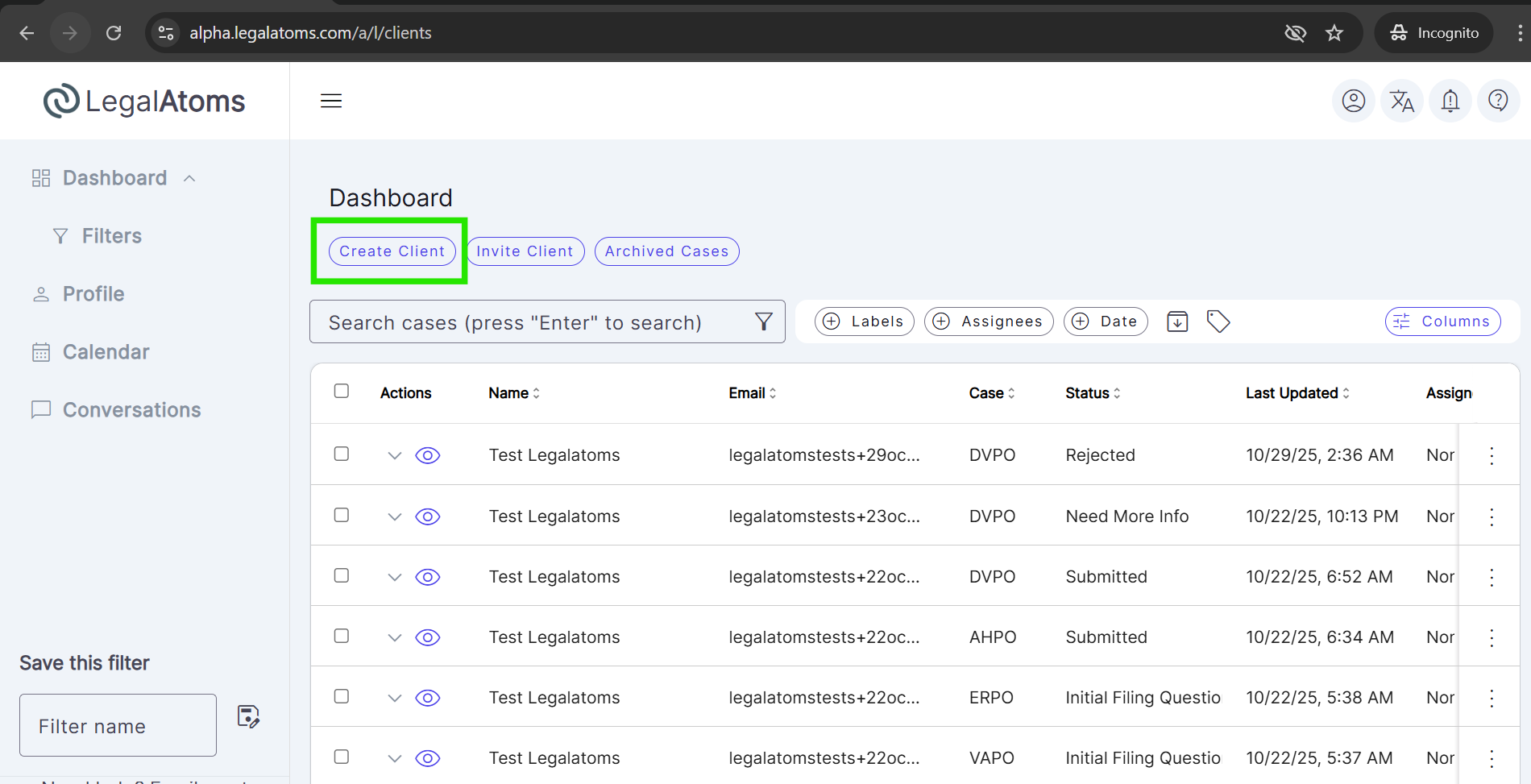
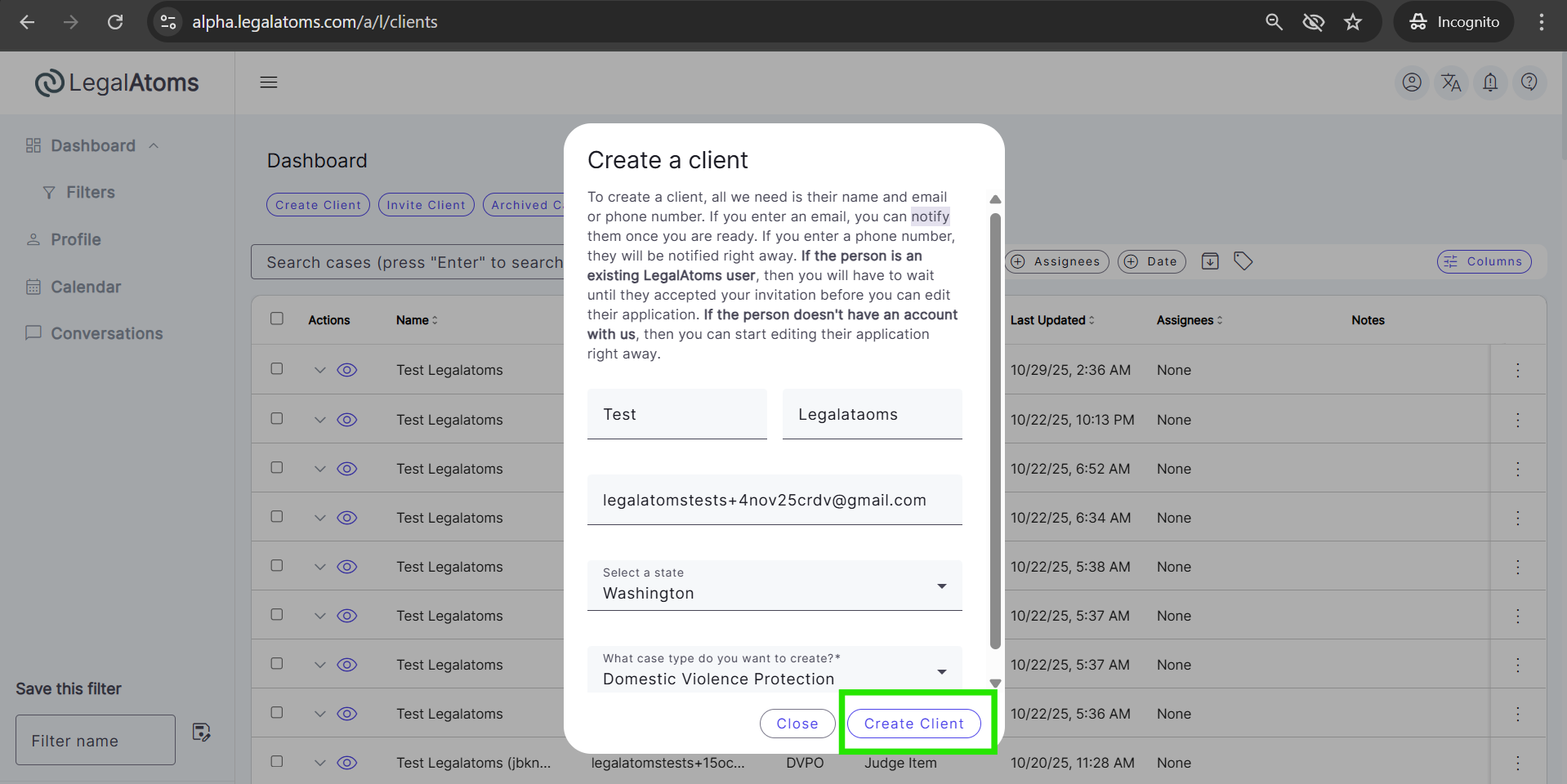
Step 1: Click on “Create Client” on your dashboard
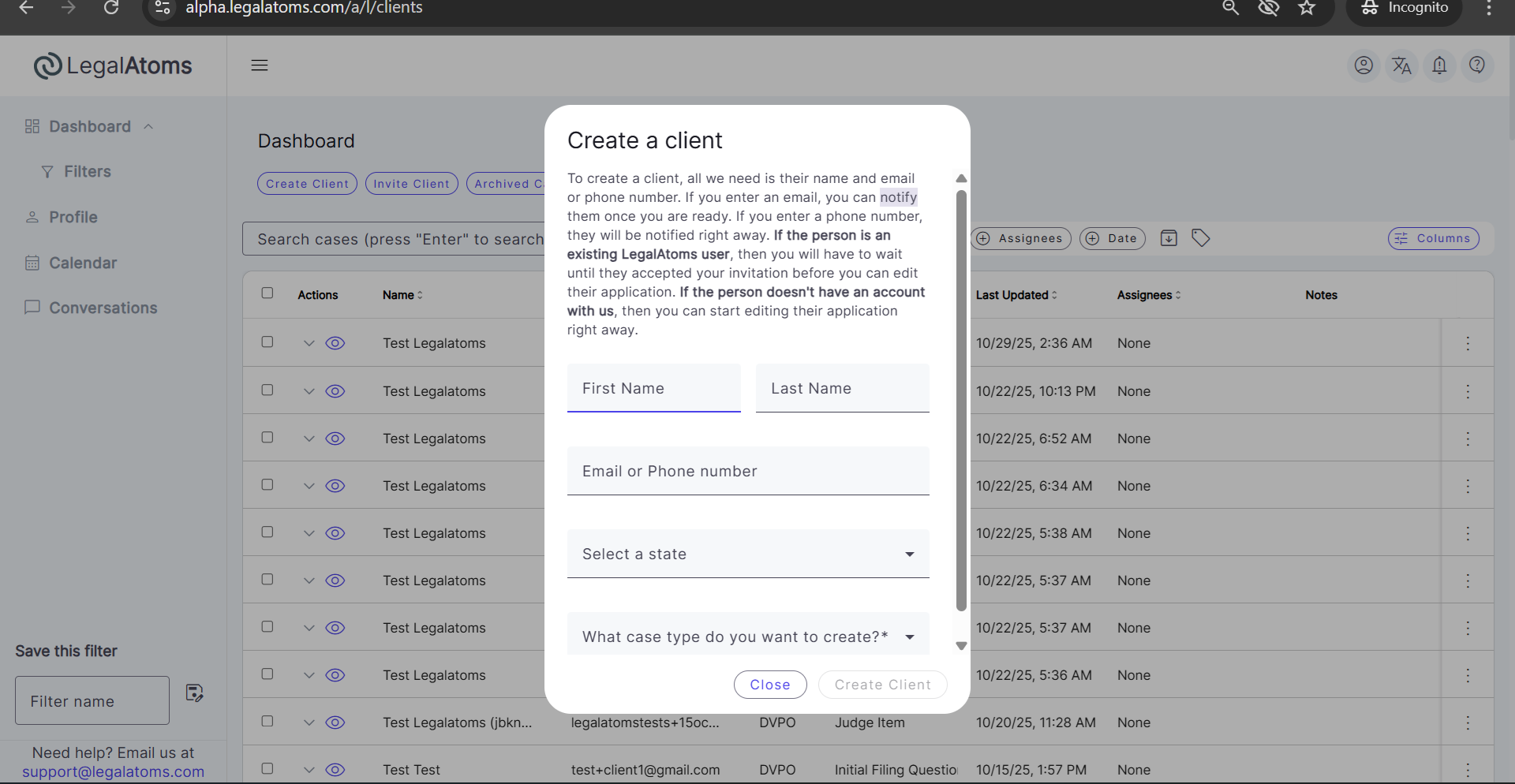
Step 2: Enter the Client name, and email or phone number, select the state, and case type.
Important: Enter the email address or phone number as the one the client used to register
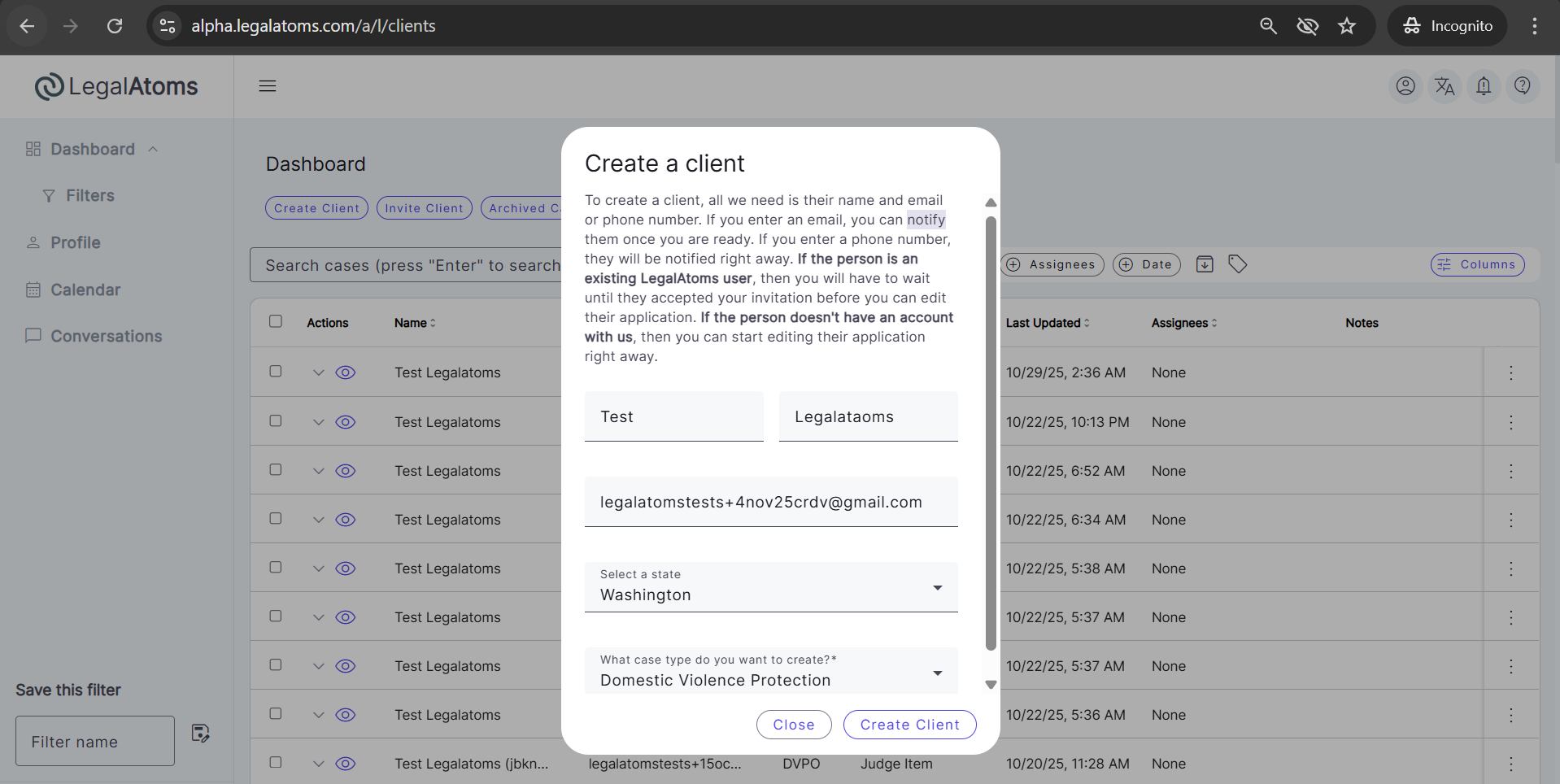
Step 3: Click Create Client
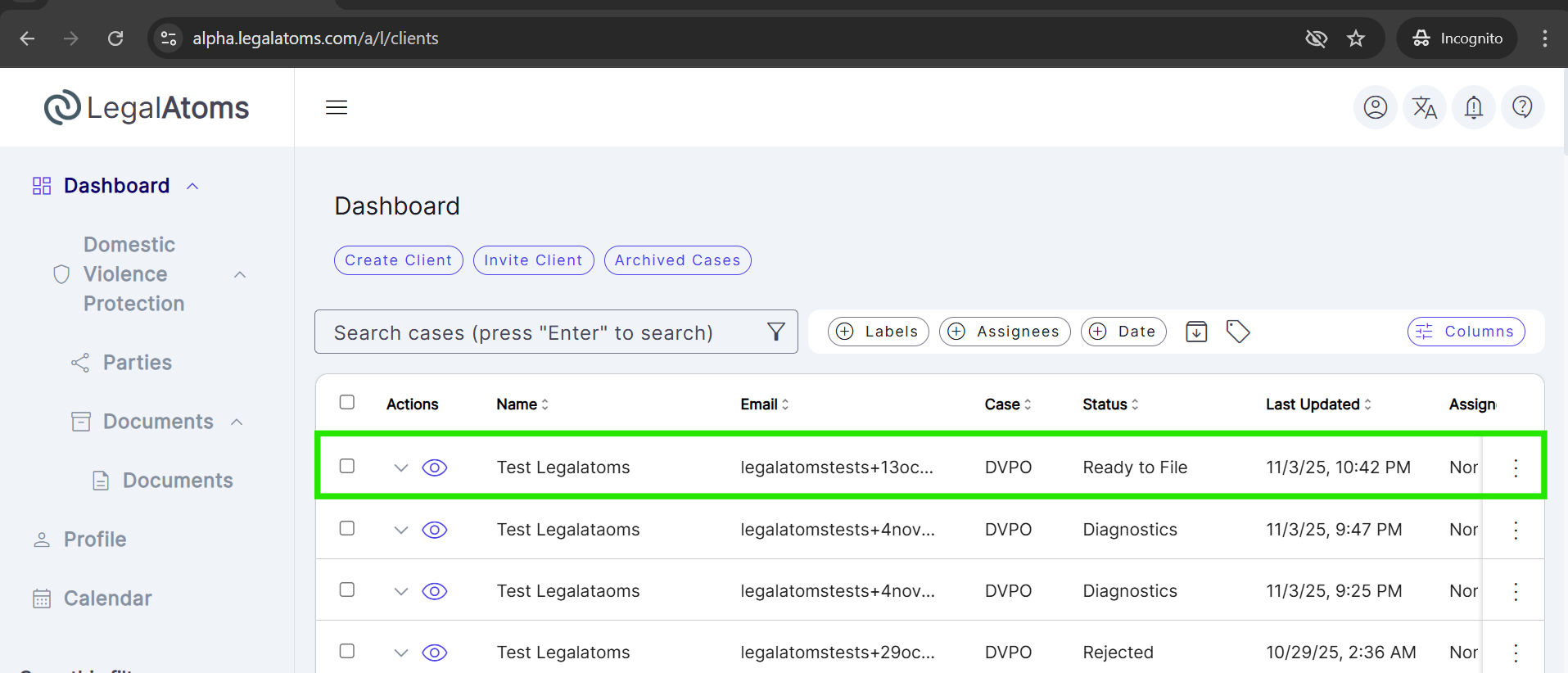
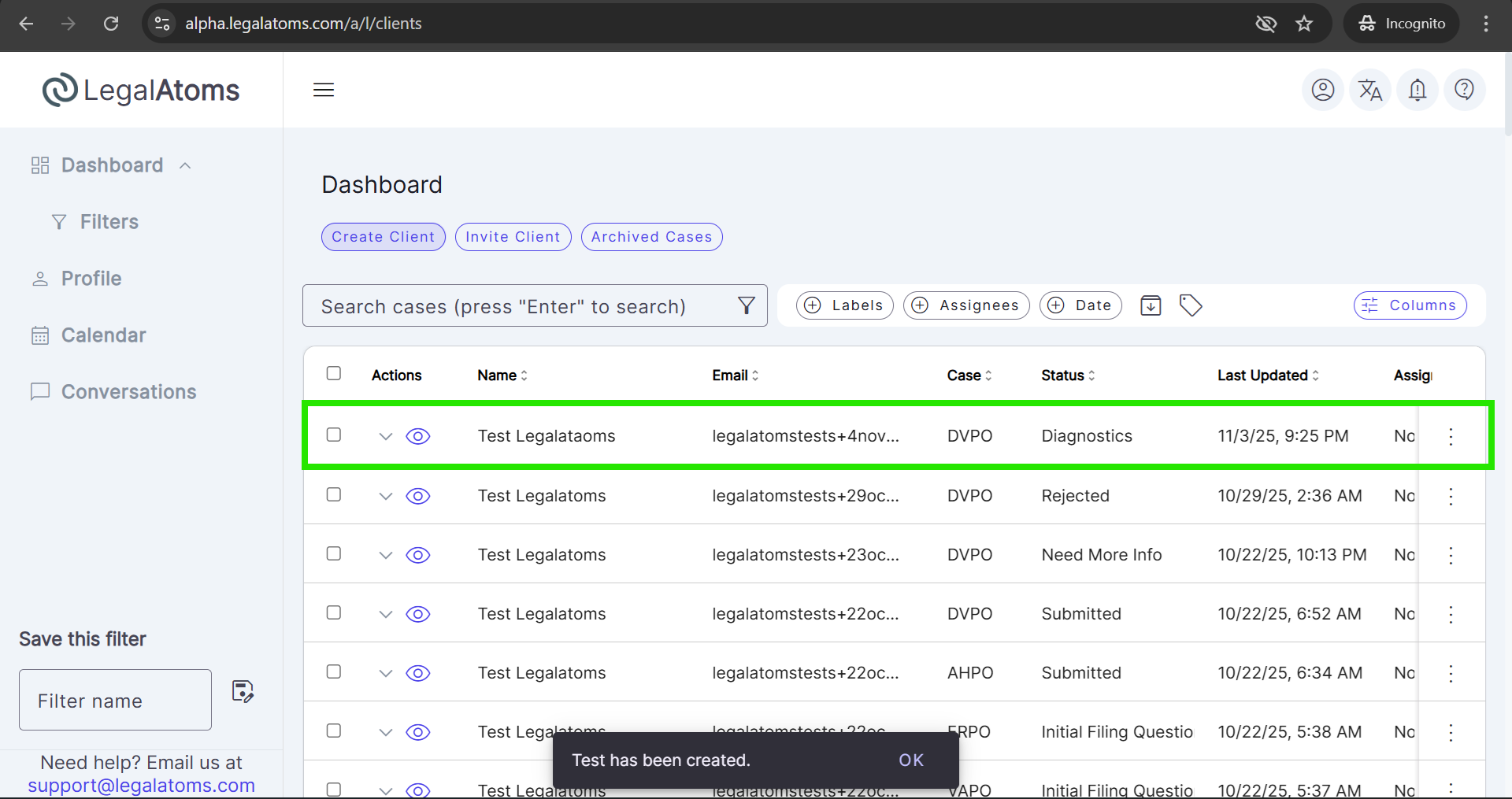
At this point, you will see the created client appear on the dashboard.
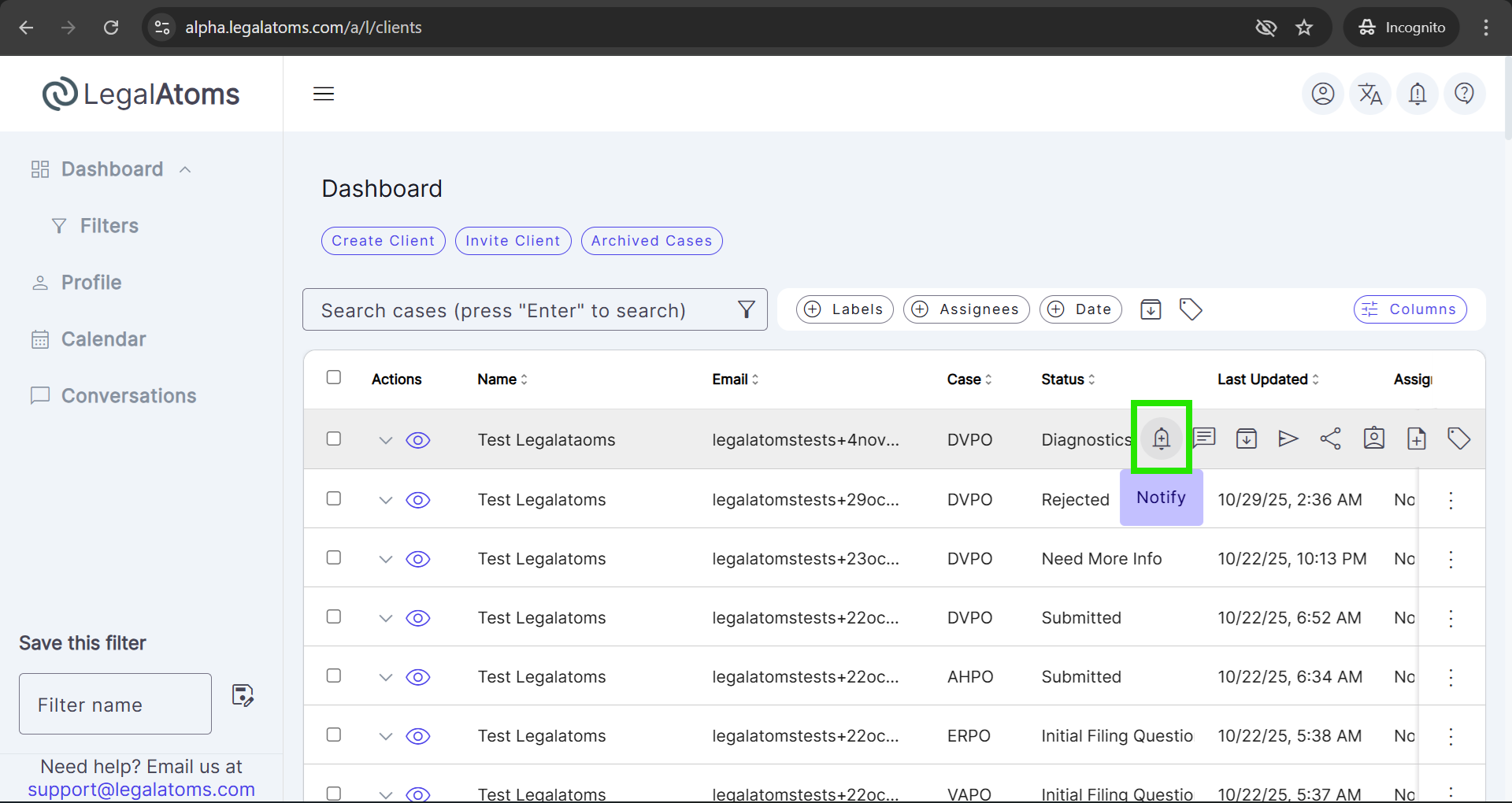
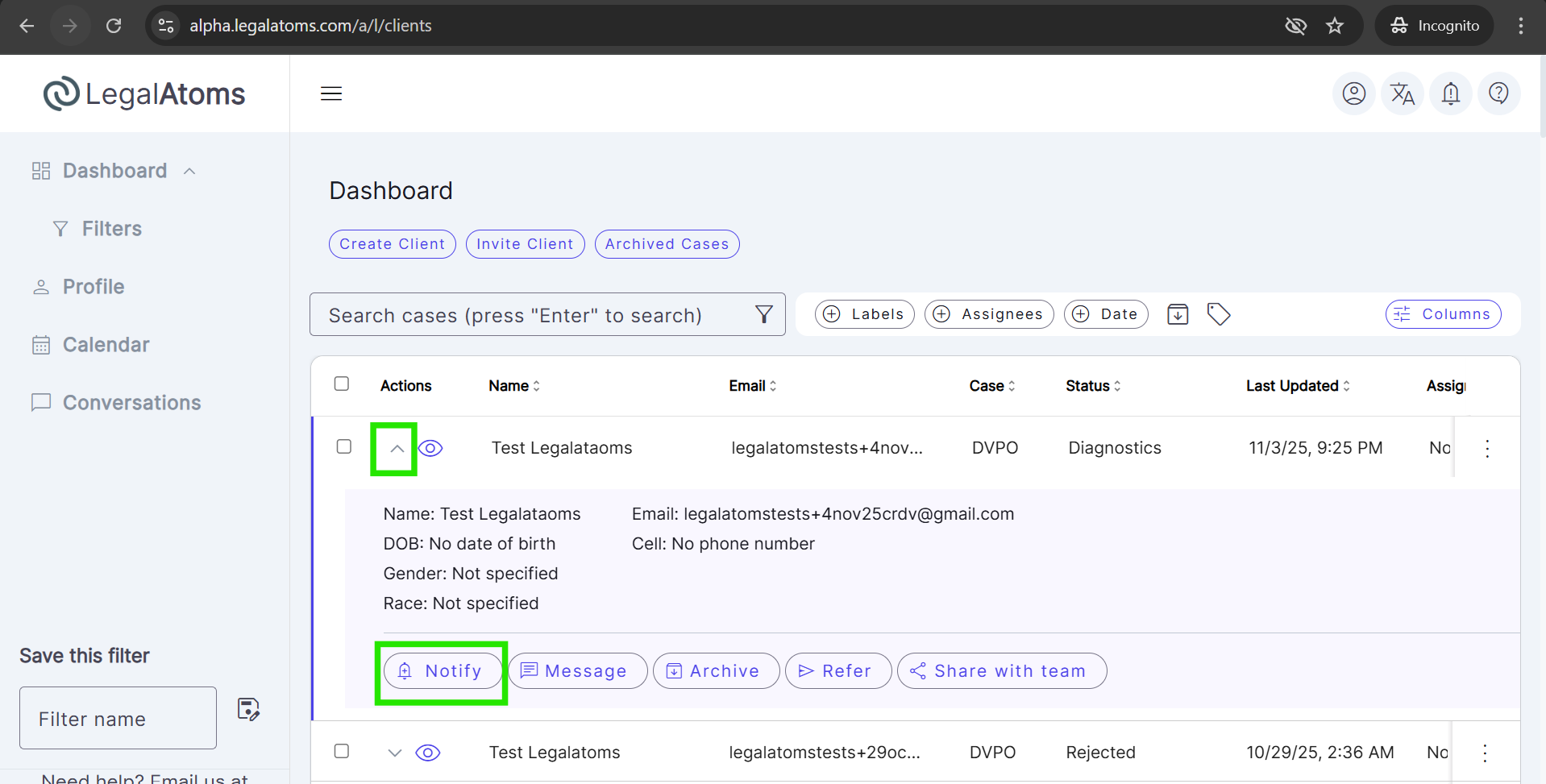
Step 4: You can notify the client in two ways:
-
Hover over the row, and a Notify bell icon will appear. Click on it.
-
Click the arrow icon to expand the row. A Notify button will appear. Click on it.
Step 5: (Optional) Customize the message for the client
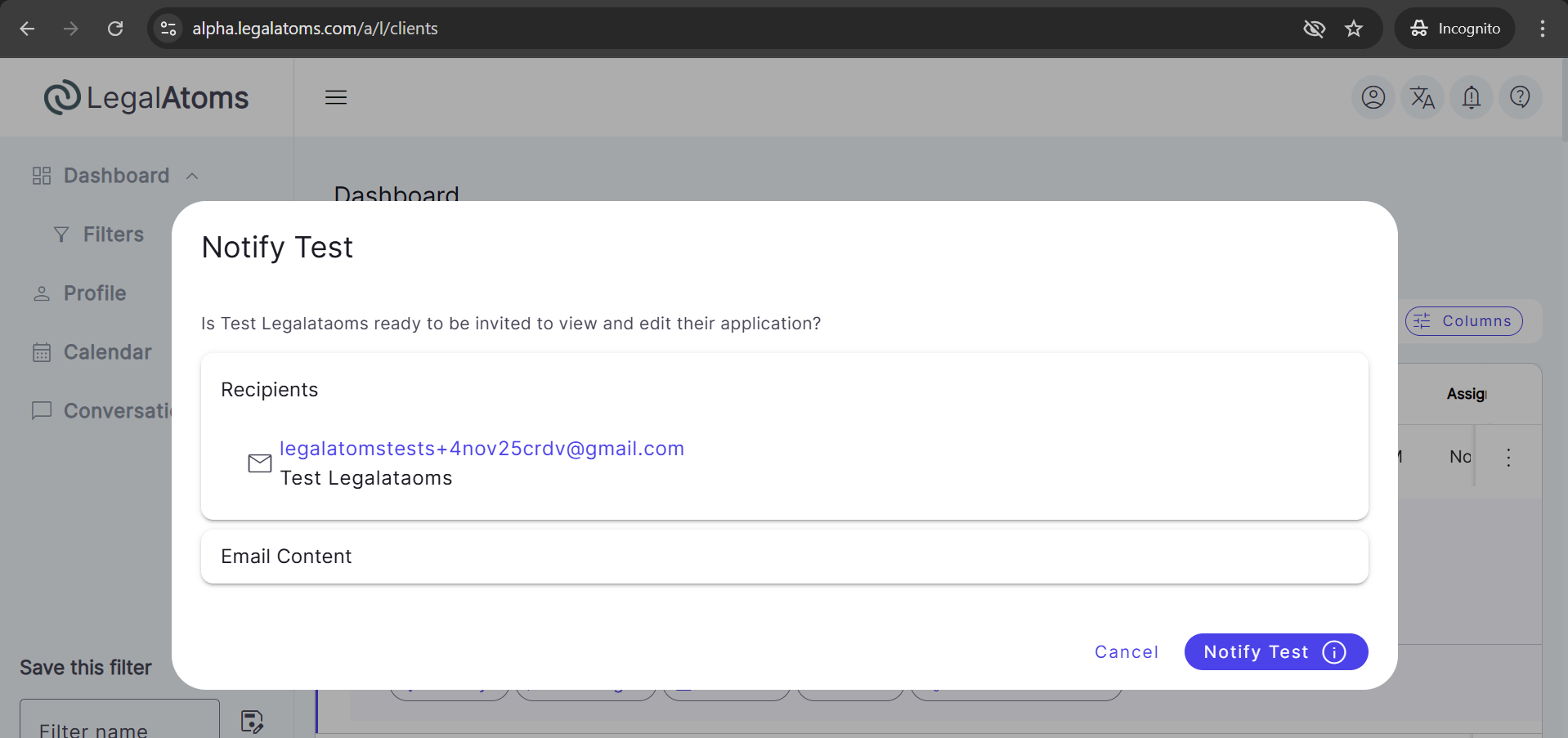
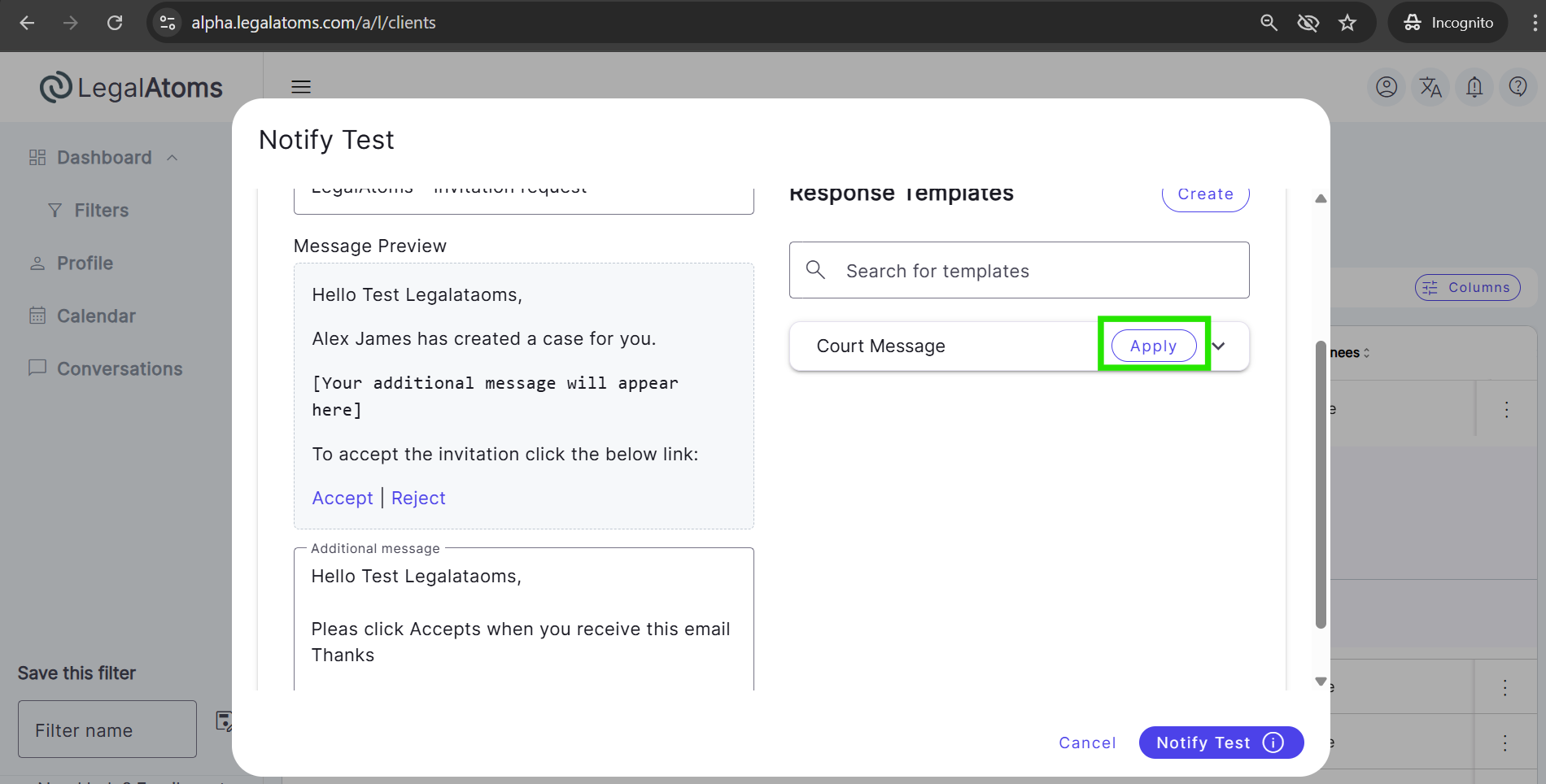
Step 6: Click Notify Client
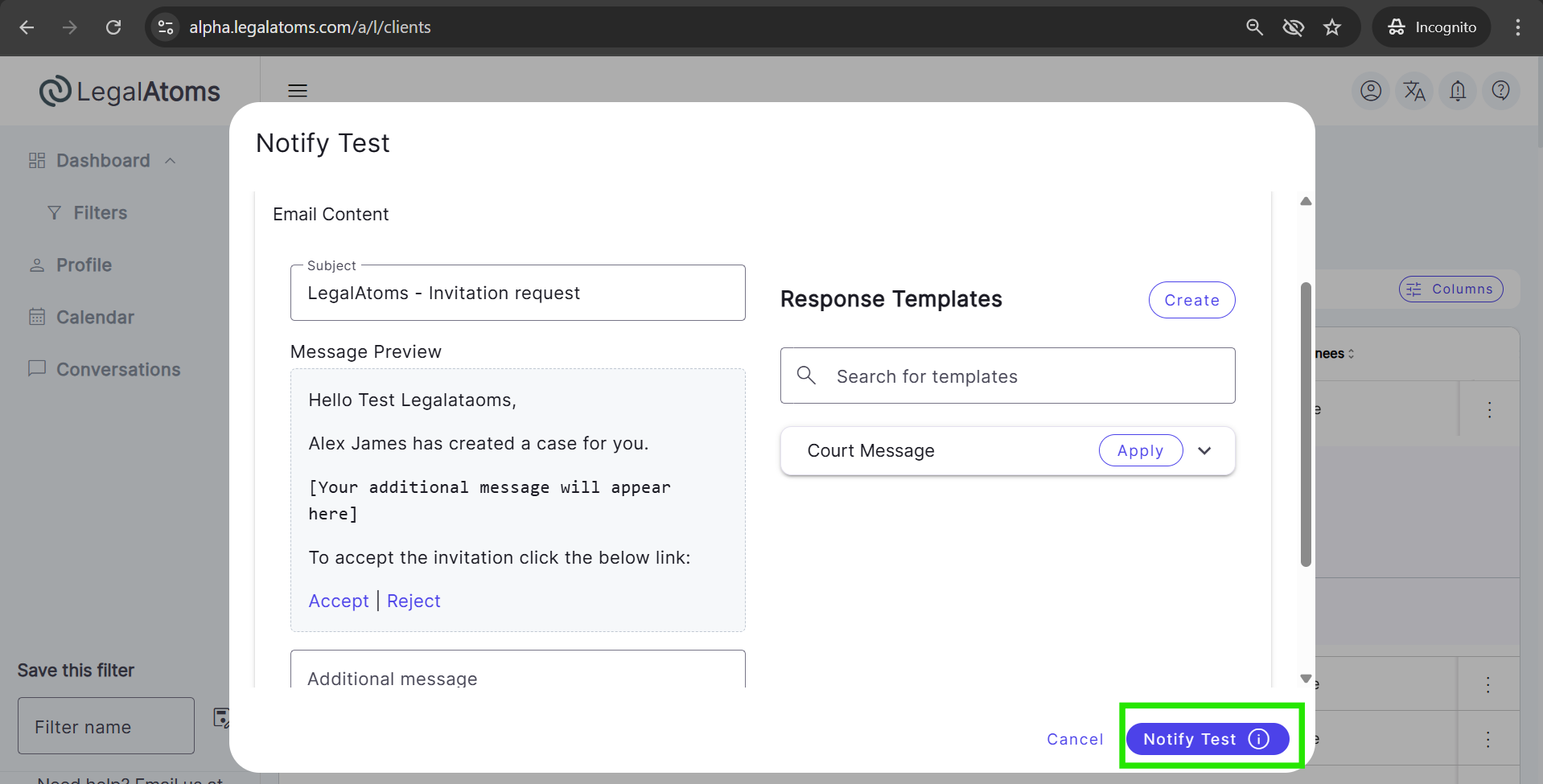
The client can click Accept in their email or directly from LegalAtoms notifications At this point, LegalAtoms
- Sends an email to the client. This is a sample email received by the client
- Send a notification on their dashboard
Here’s the notification
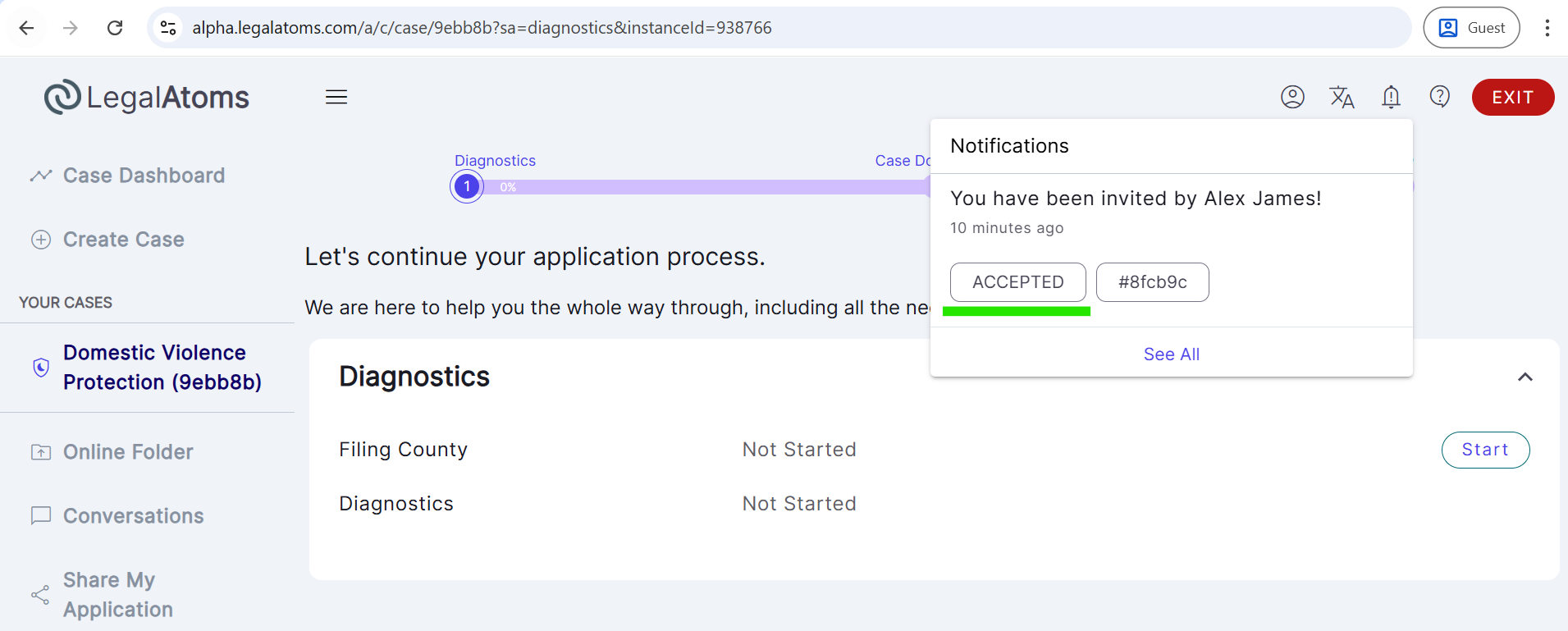
At this point, the client needs to do is click Accept in any one of the locations i.e. the e-mail or in the notification.
Option 2
Step 1: Log in
Ask the client to log in to their LegalAtoms account using the same email address they used when registering.

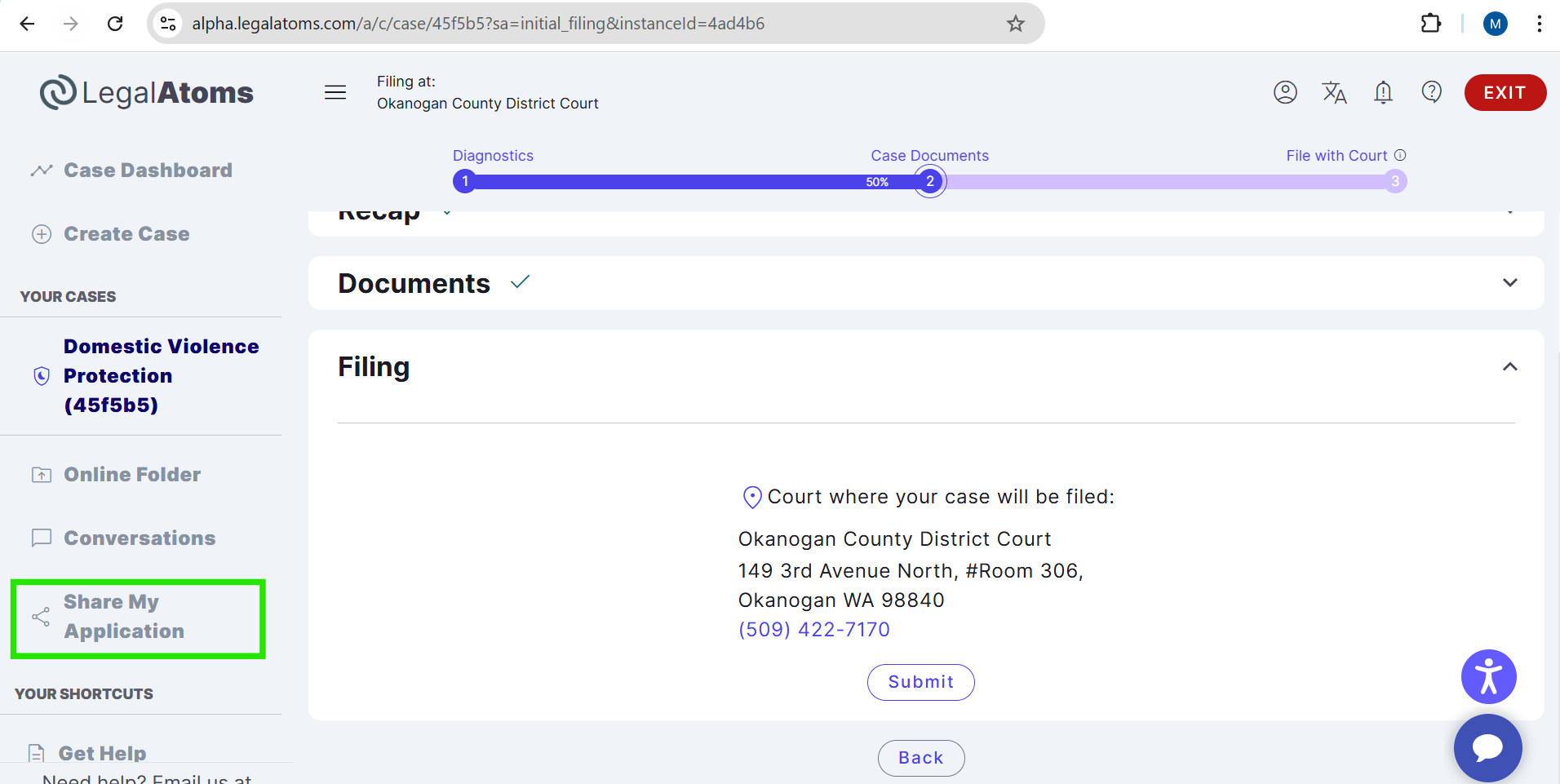
Step 2: Click on Share My Application Once signed in, the client clicks “Share My Application” from the menu on the left side of their dashboard.
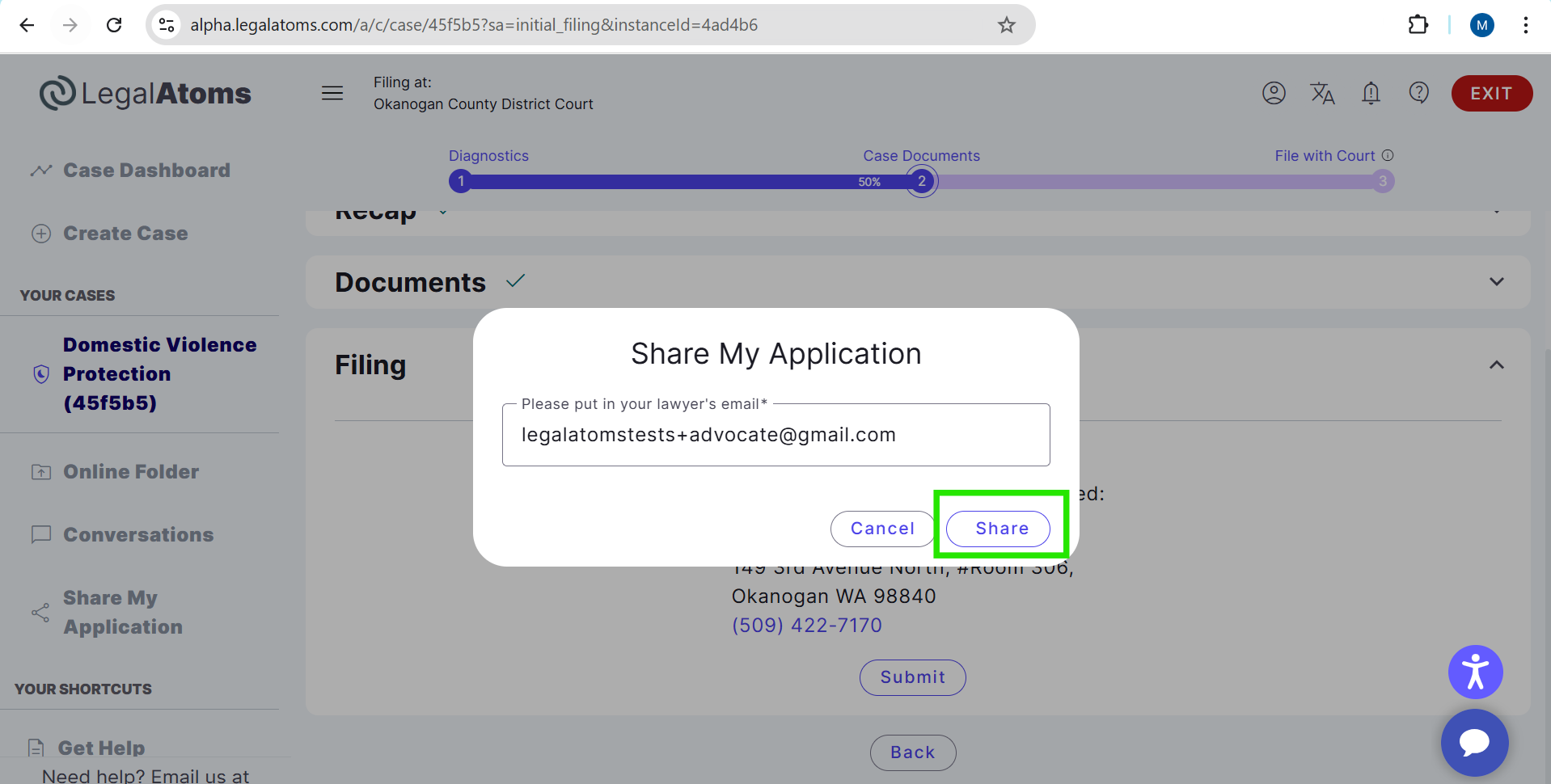
Step 3: Enter nonprofit email
A pop-up window appears. In the provided field, the client enters the email address of the nonprofit or advocate they wish to connect with. After entering the email, the client clicks Share to send the connection request.
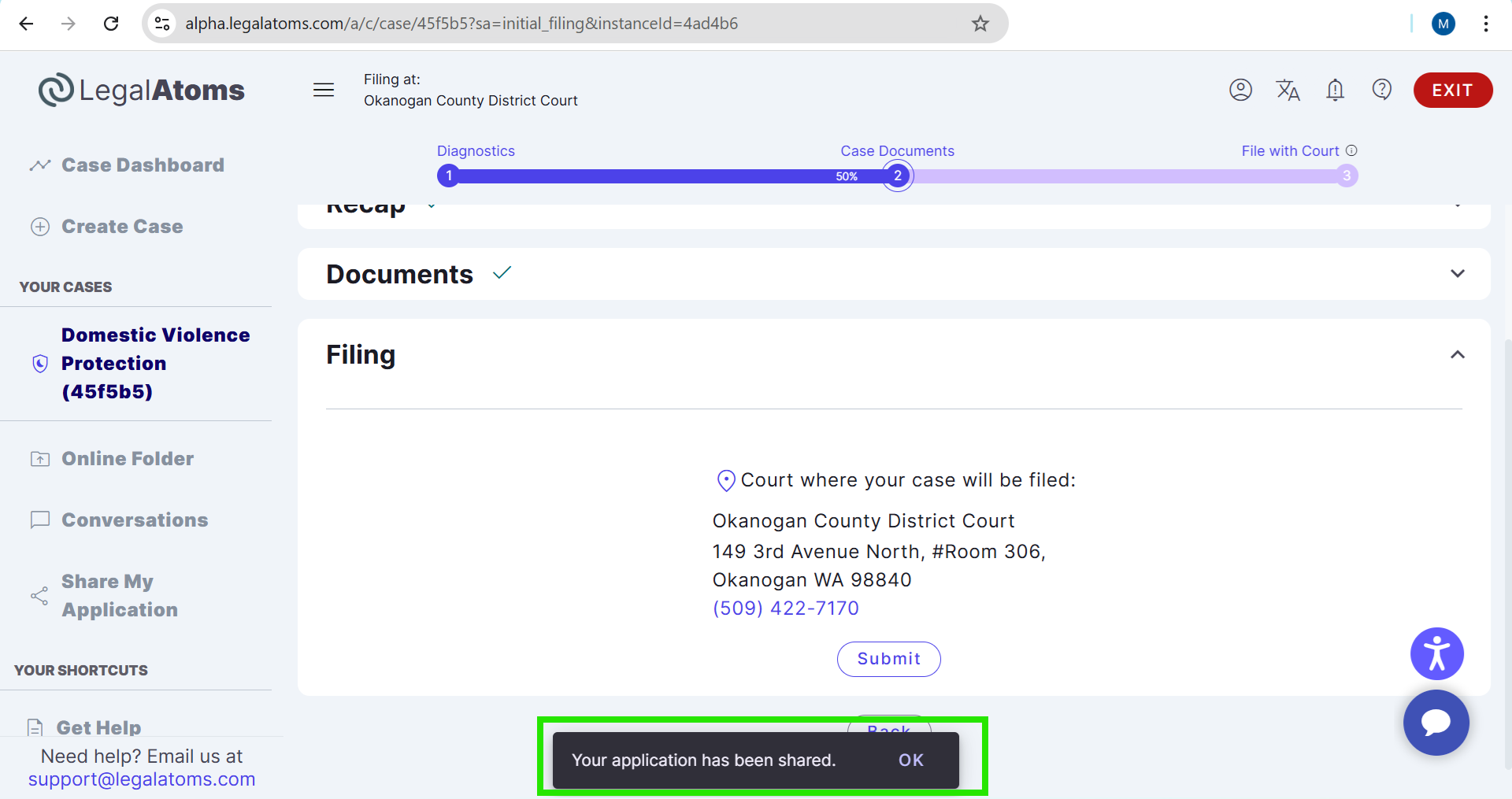
Step 4: Notification sent
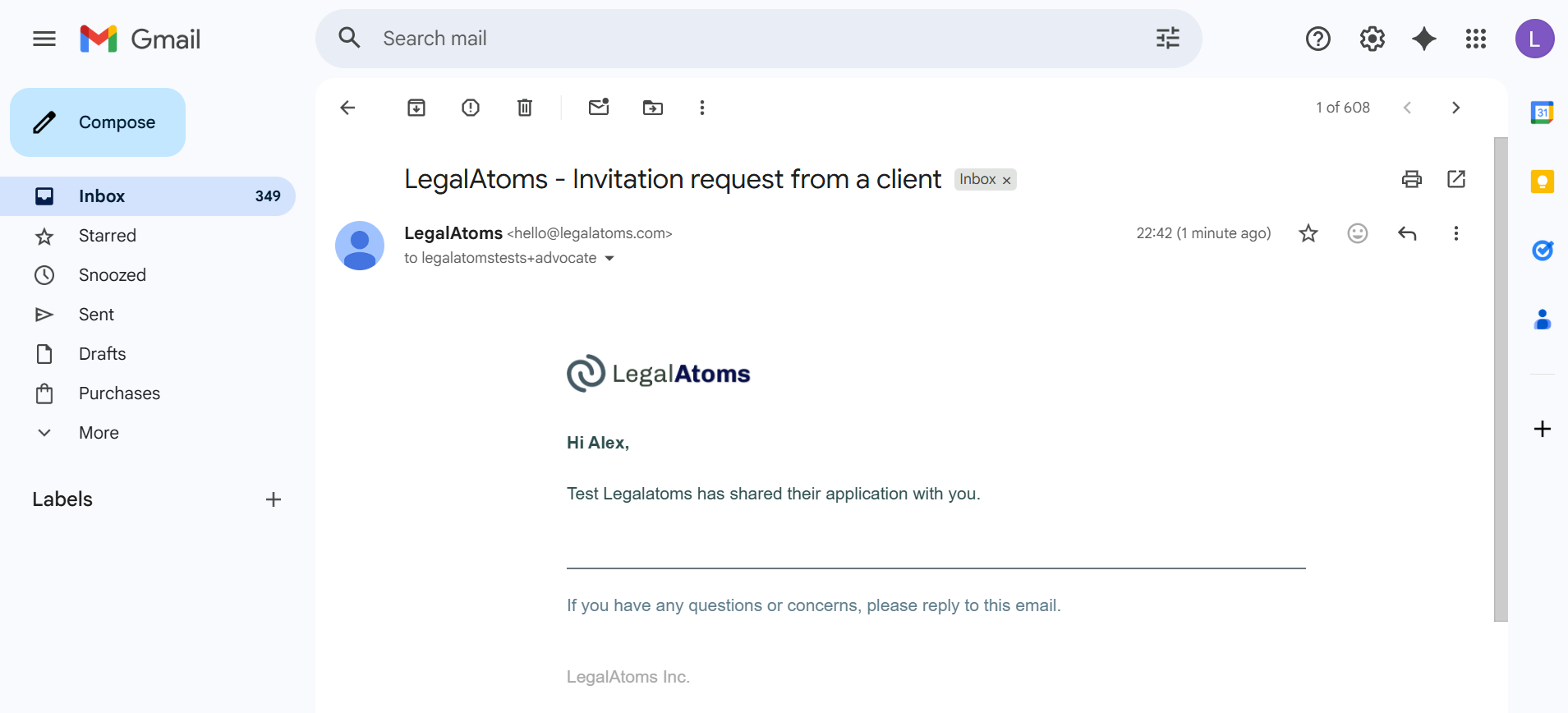
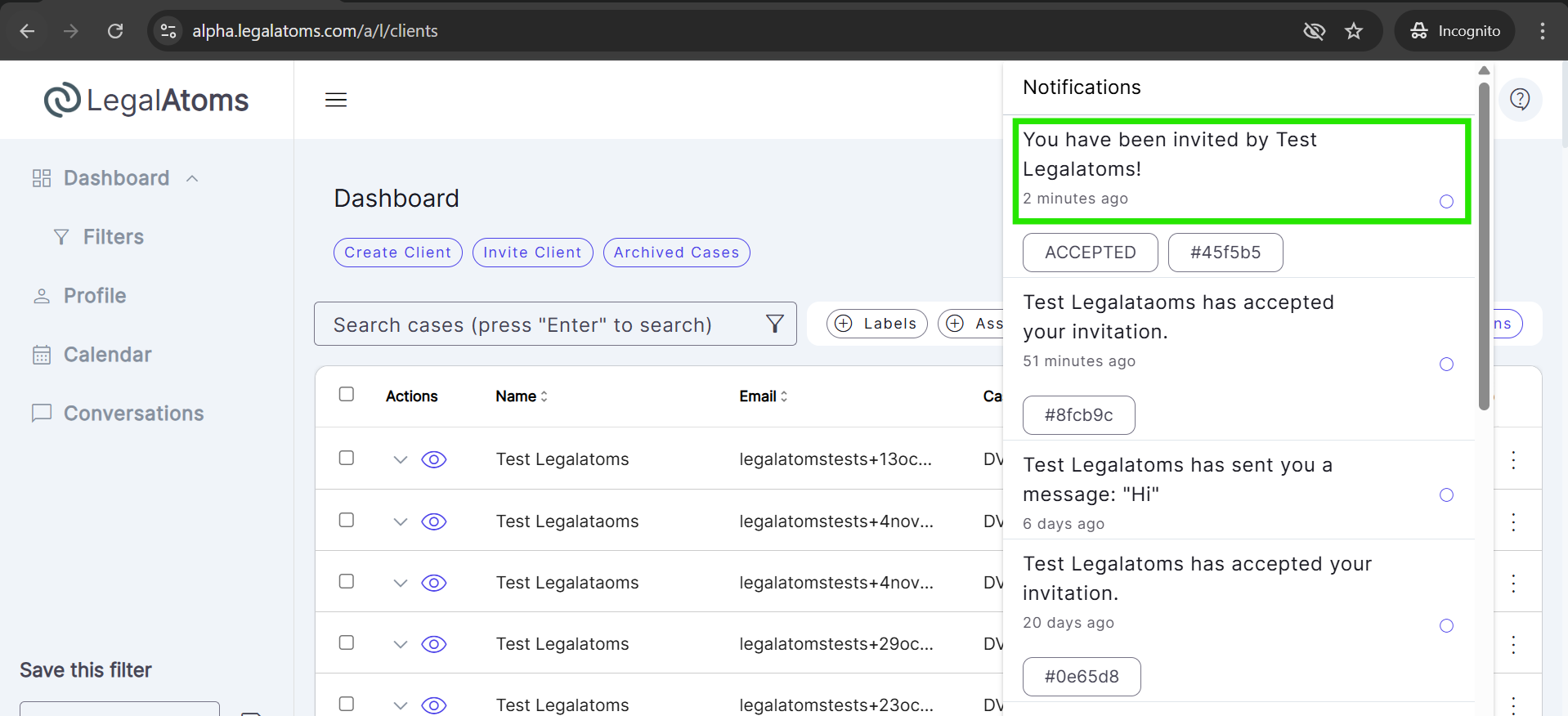
LegalAtoms automatically sends both an email and an in-app notification to the nonprofit’s account, informing them that the client has shared their application.
Step 4: Nonprofit view
As soon as the client shares their application, the case automatically appears on the nonprofit’s dashboard. The nonprofit can then open the client’s application, review details, and begin assisting them.