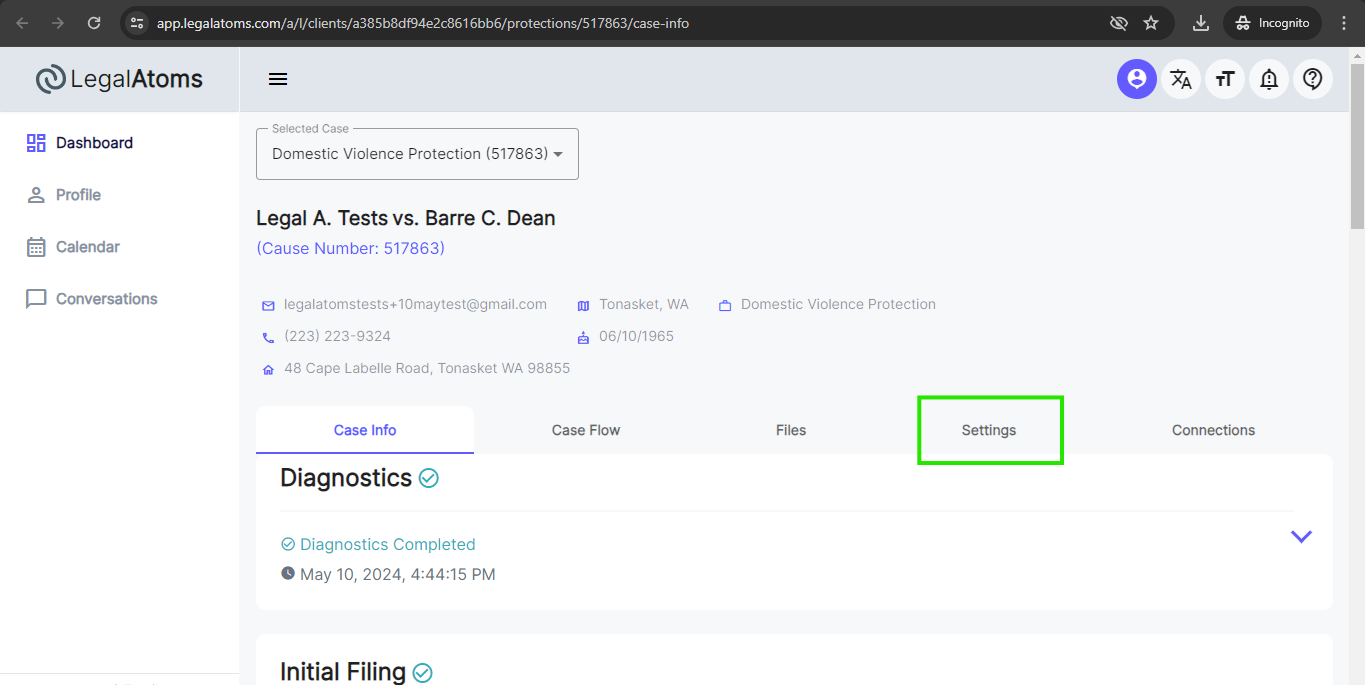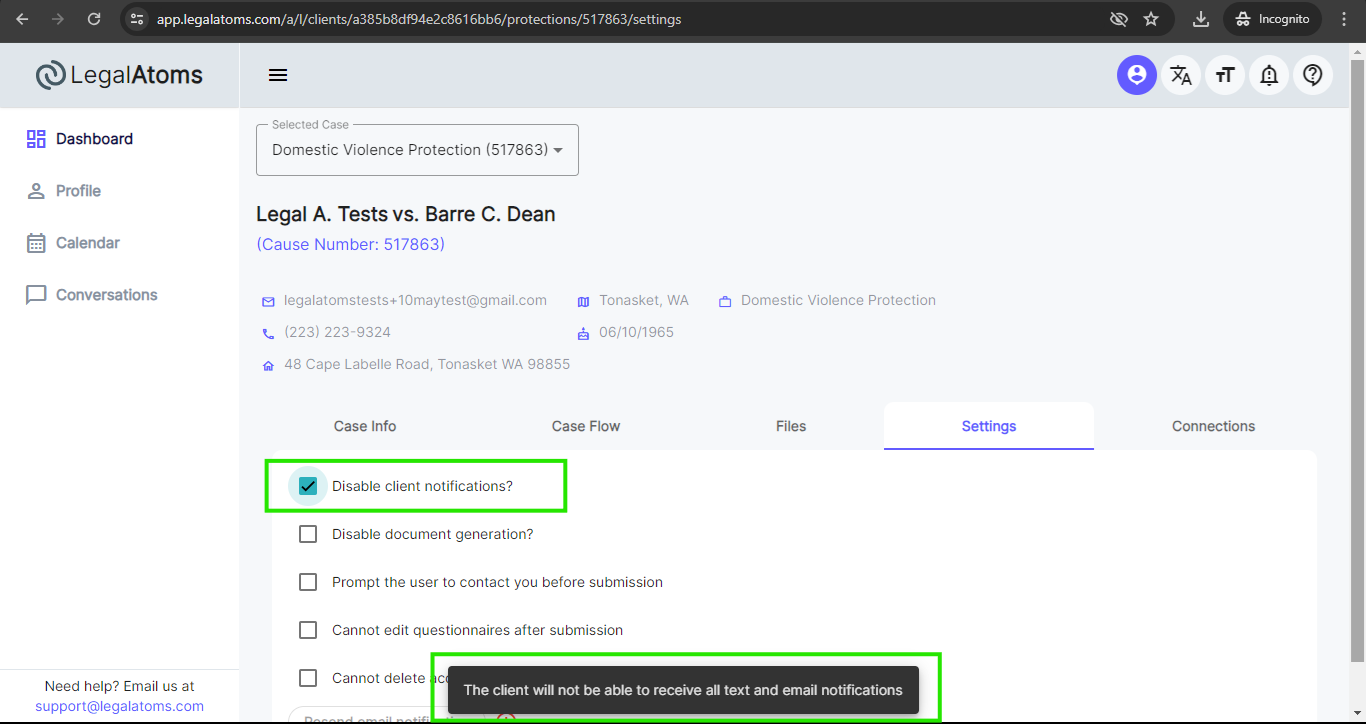
How to disable client notifications
LegalAtoms allows legal professionals to disable client notifications for a specific case/account.
To disable client notifications from the case info page in LegalAtoms, follow these steps:
Step 1: Login to LegalAtoms
Navigate to https://app.legalatoms.com/
You will see the login screen where you can enter your credentials and hit login to access your account.
Step 2: Navigate to the Case Info Page
From your dashboard, locate and select the specific case for which you want to disable client notifications. This will open the case info page.
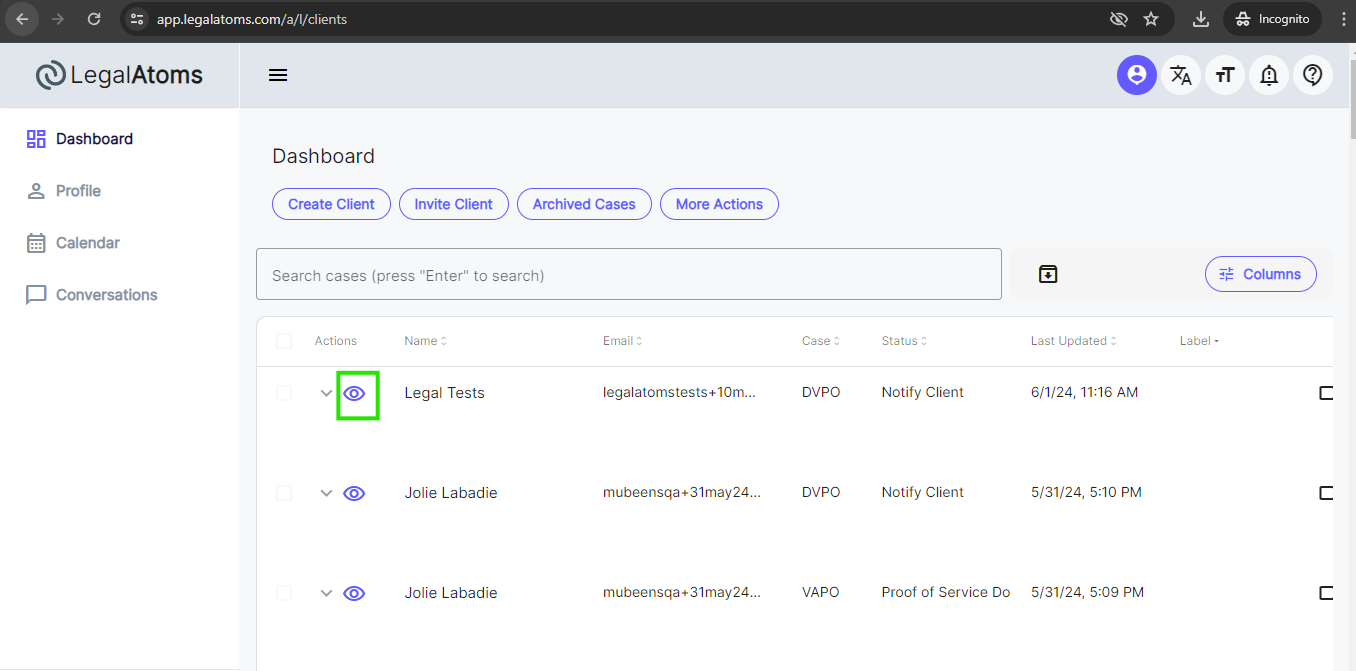
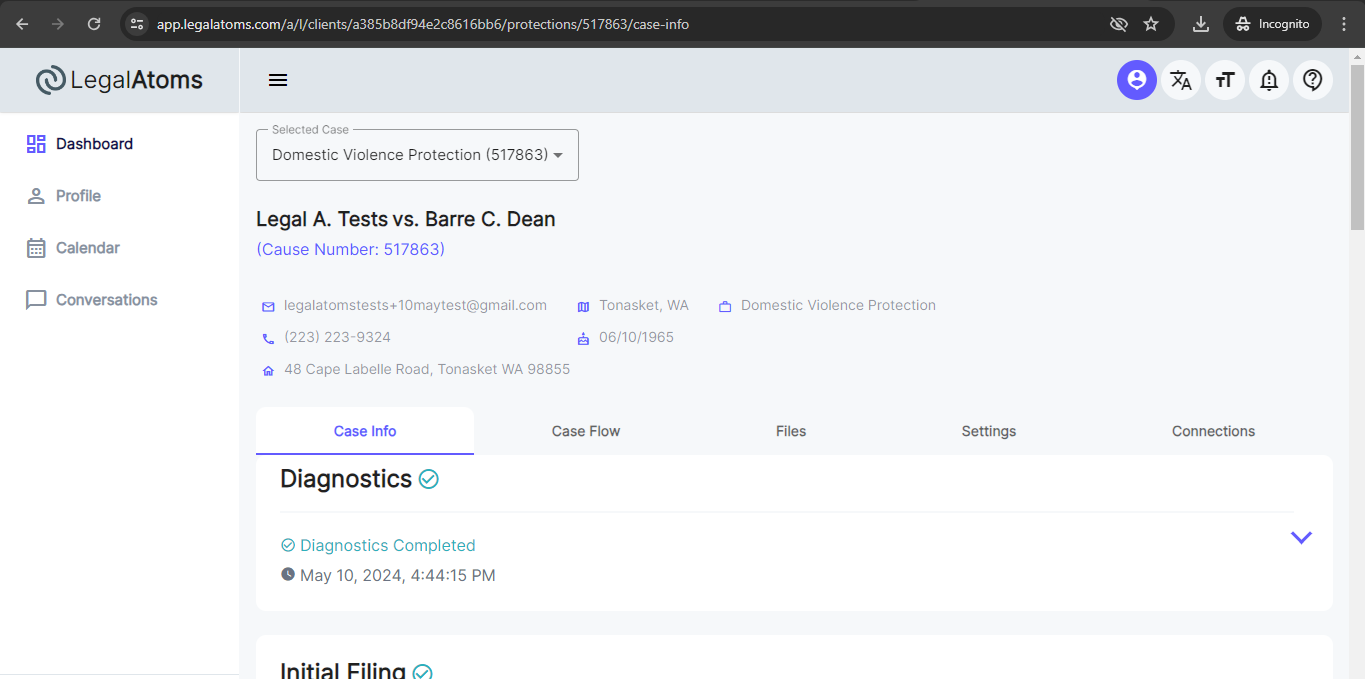
Step 3: Disable Notifications
- On the case info page, move to the notification settings tab. There should be an option to manage or disable client notifications related to this specific case.
- Toggle the notifications off. This action will disable notifications for the client regarding this particular case/account.