
How a Client Can Upload Attachments in Statement Builder
Published
This manual explains how a client or user can upload attachments as supporting evidence while completing their statements during the case document stage. This feature allows users to attach files directly to their statements, ensuring that all relevant evidence is included with the case filing.
The guide covers both available attachment methods
- Uploading files directly from a computer or browser
- Uploading photos or files from a mobile phone using a QR code
Step 1: Login to Client Account
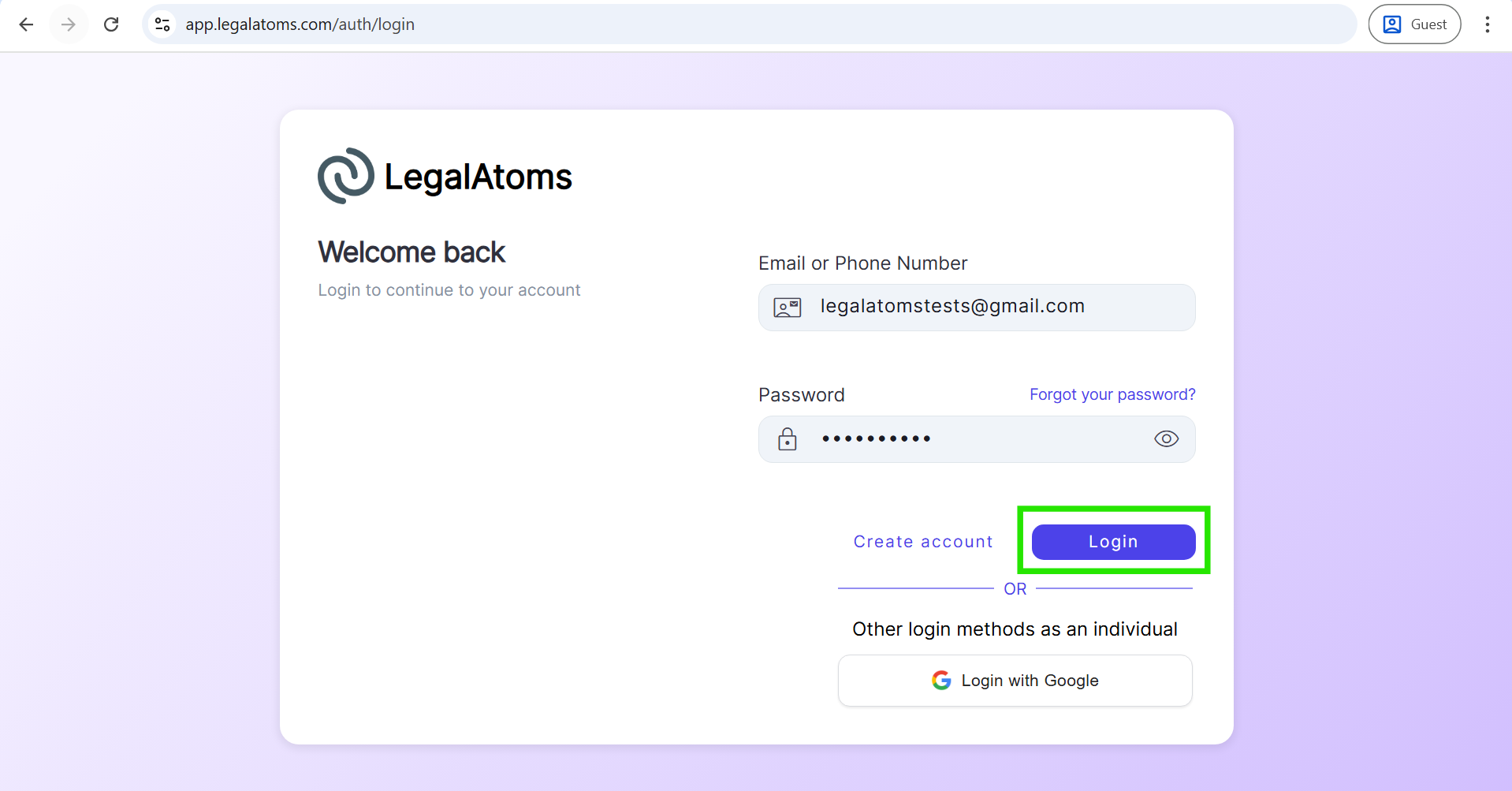
- Open this URL link in your browser. https://app.legalatoms.com/auth/login
- Enter your registered email and password.
- Click on Login.
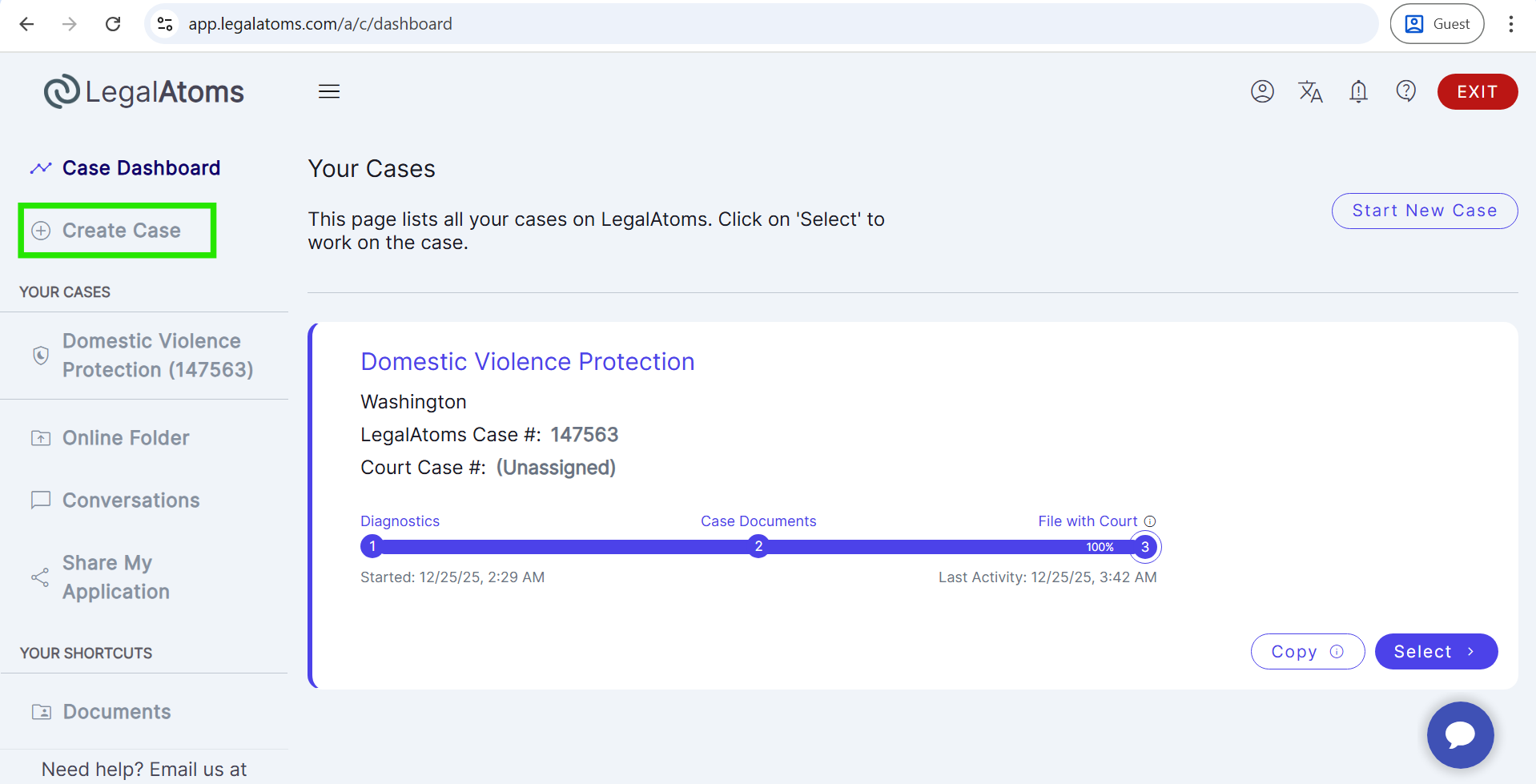
- You will land on the Client Dashboard.
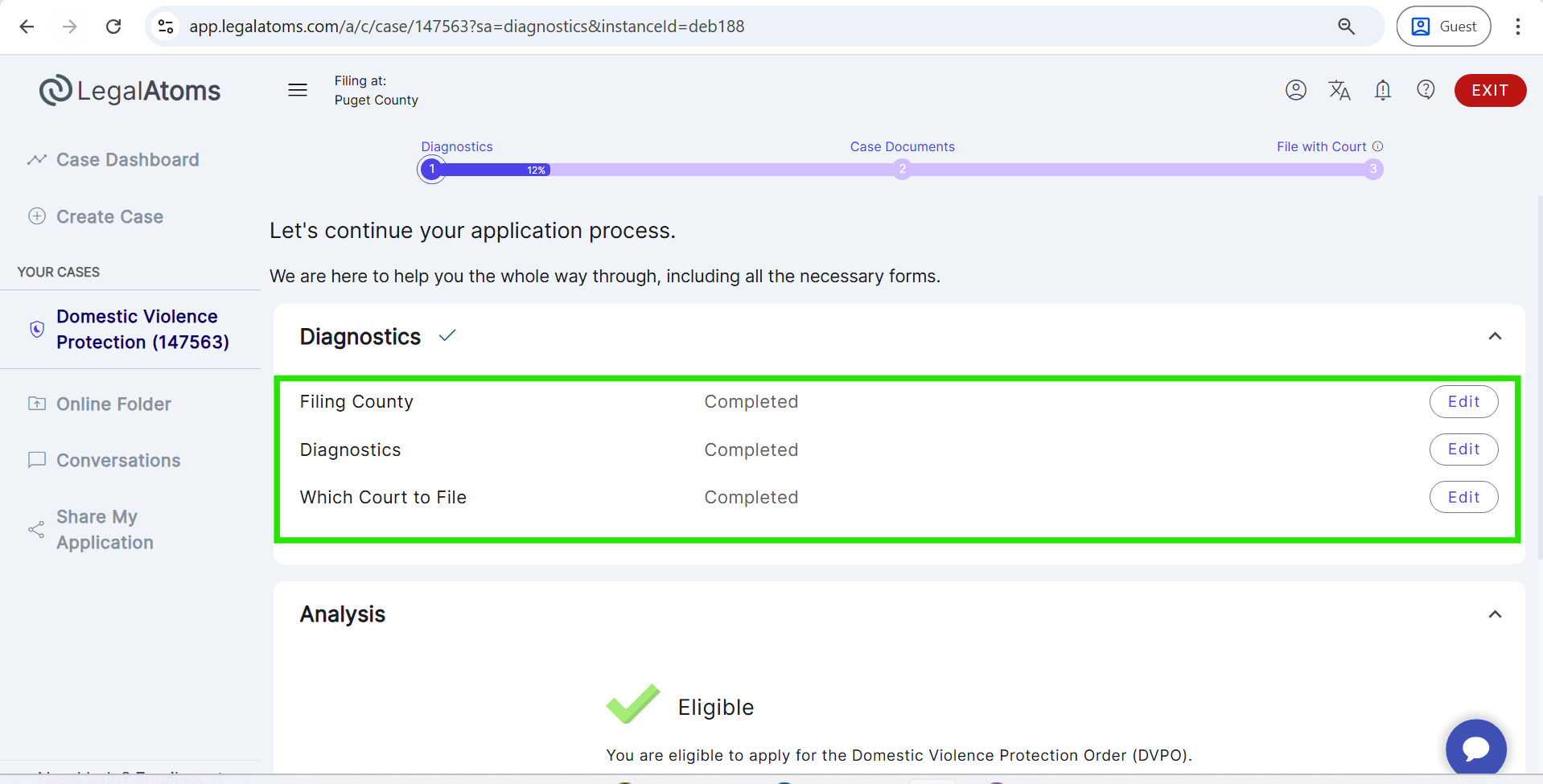
Step 2: Navigate to the Case Documents Stage
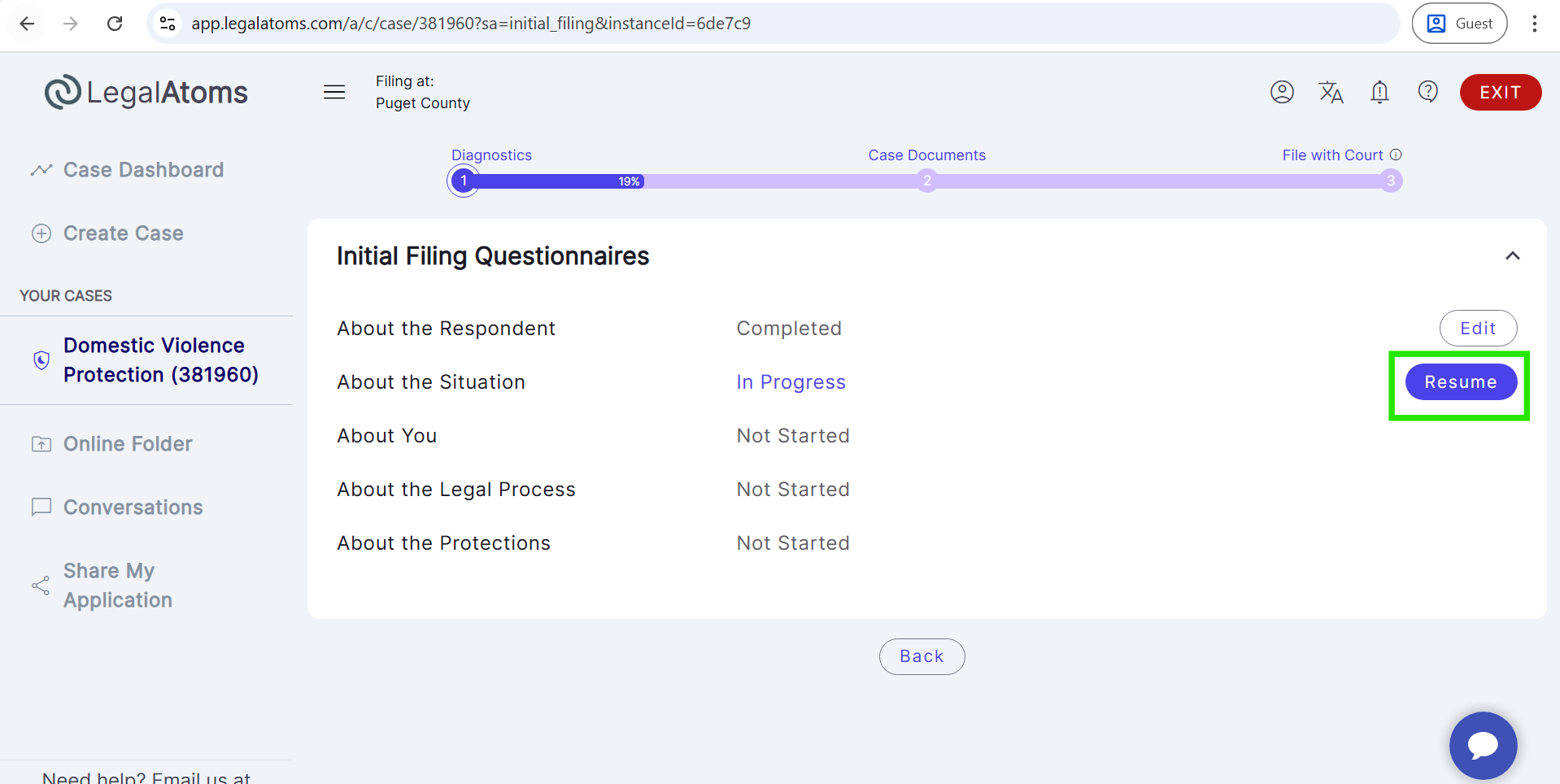
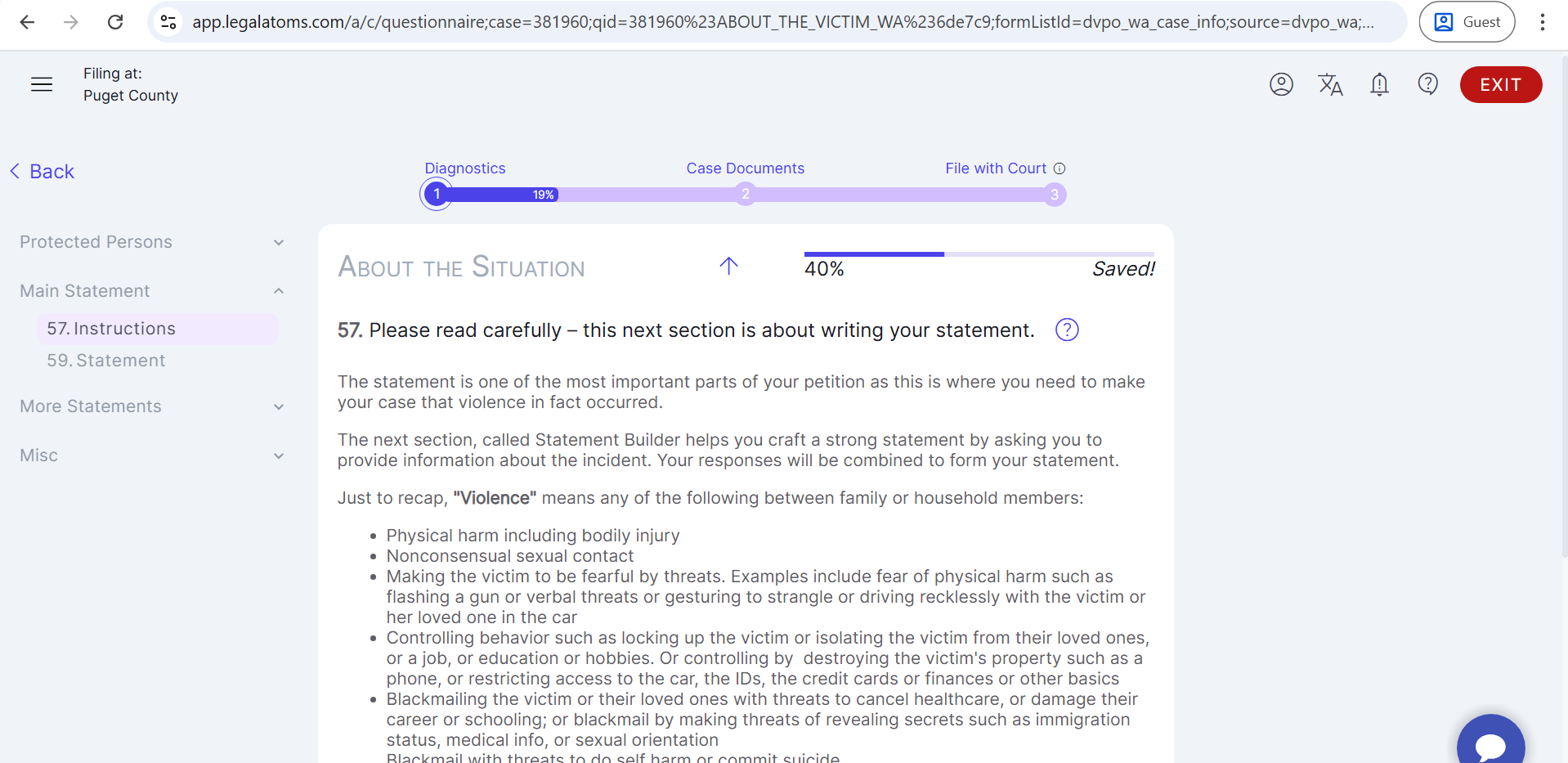
- Complete the About the Respondent Questionnaire.
- Fill out the About the Situation Questionnaire.
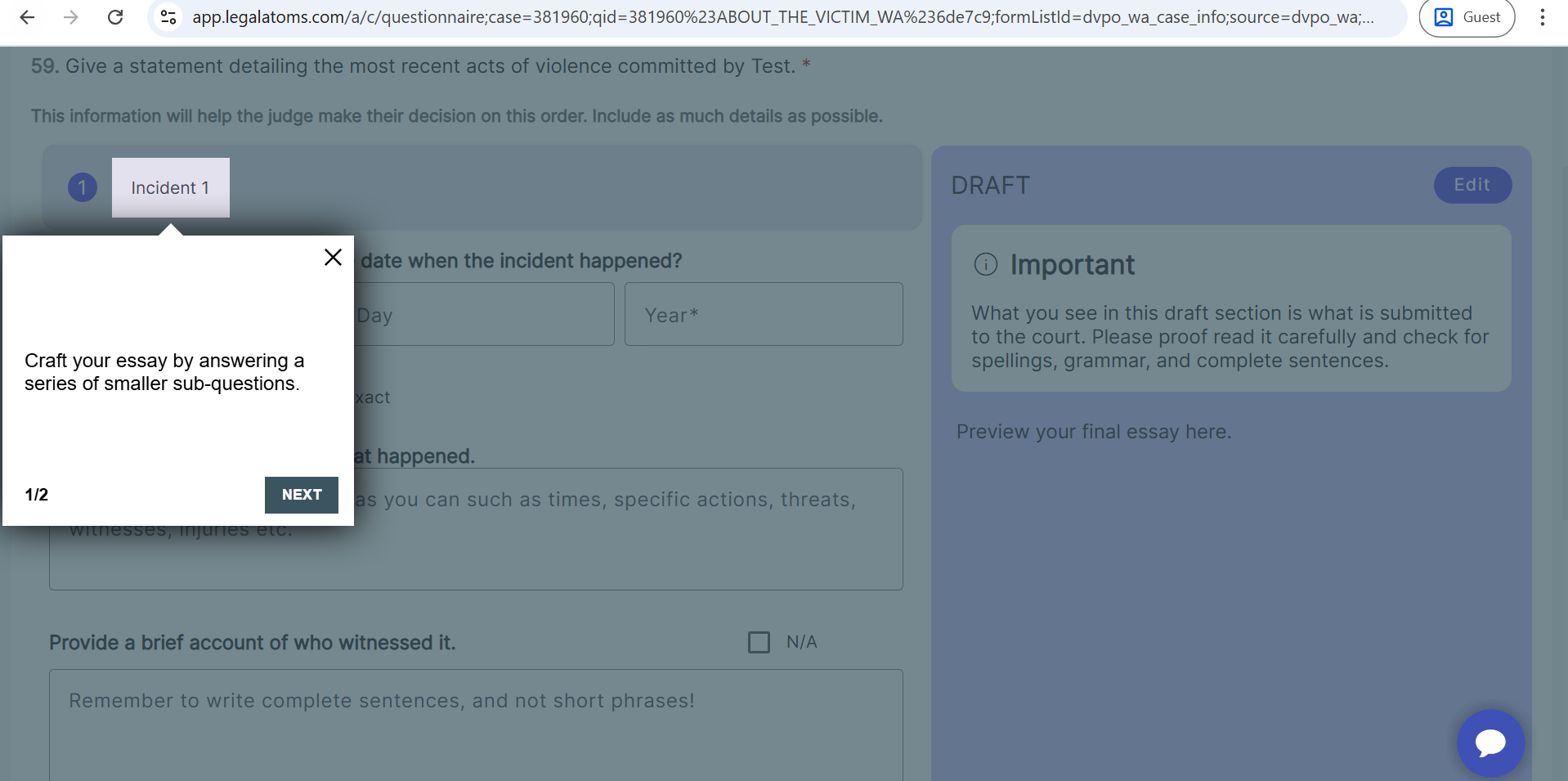
- Click Next to proceed to the Statement Builder Questions.
Step 3: Attach Supporting Evidence (Upload from Computer)
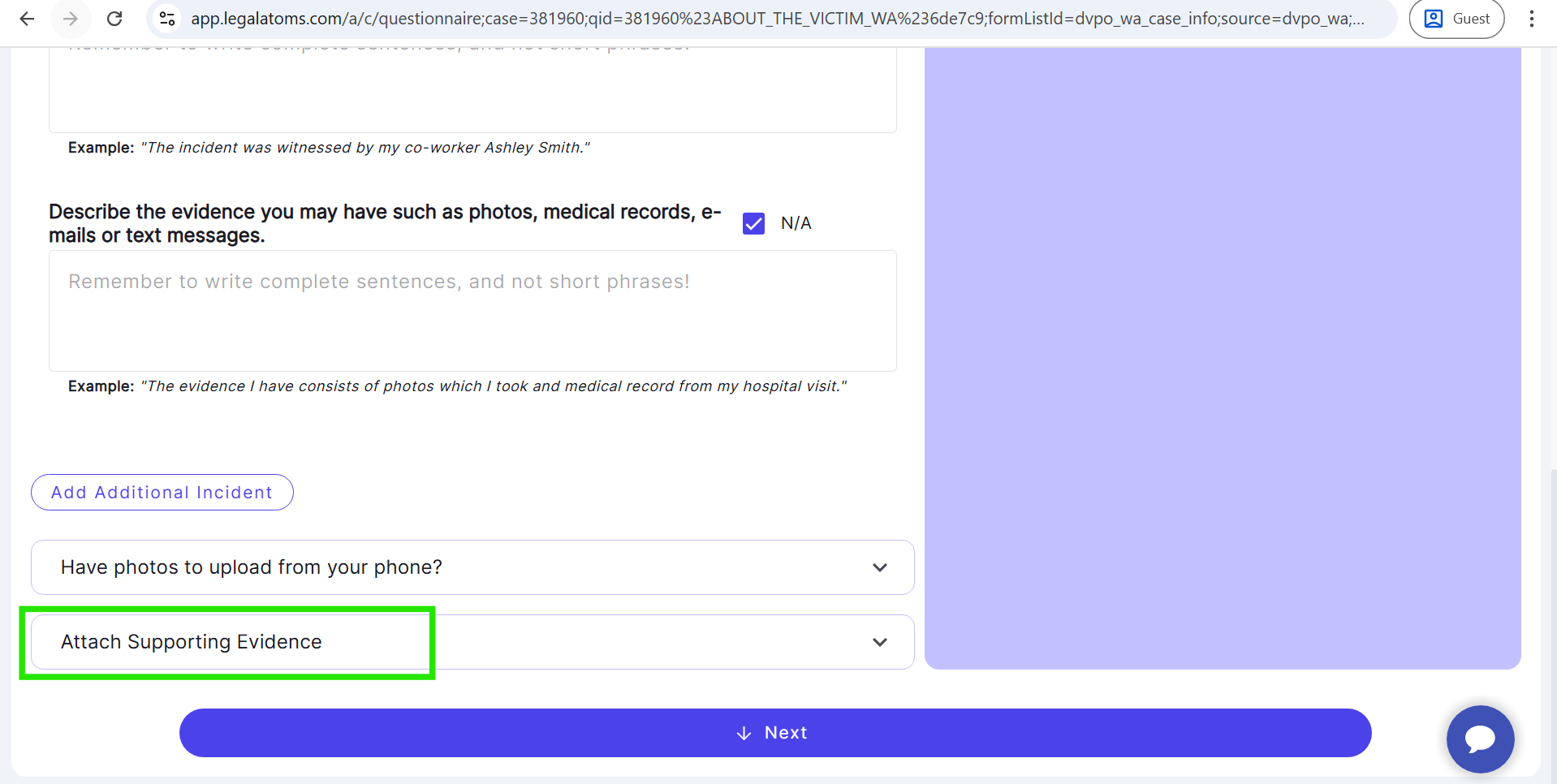
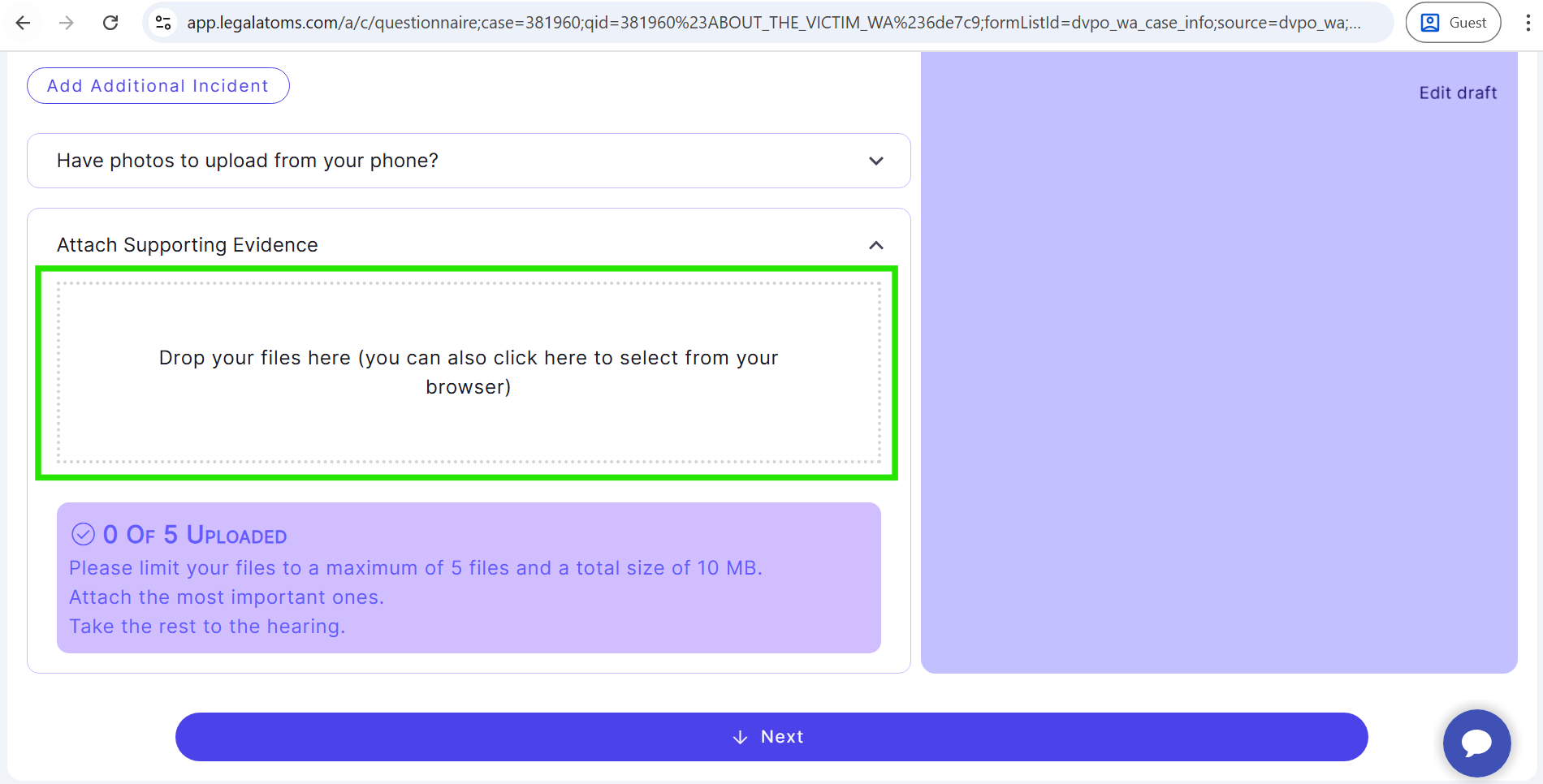
- Click on Attach Supporting Evidence.
- A dialog box appears with the message:
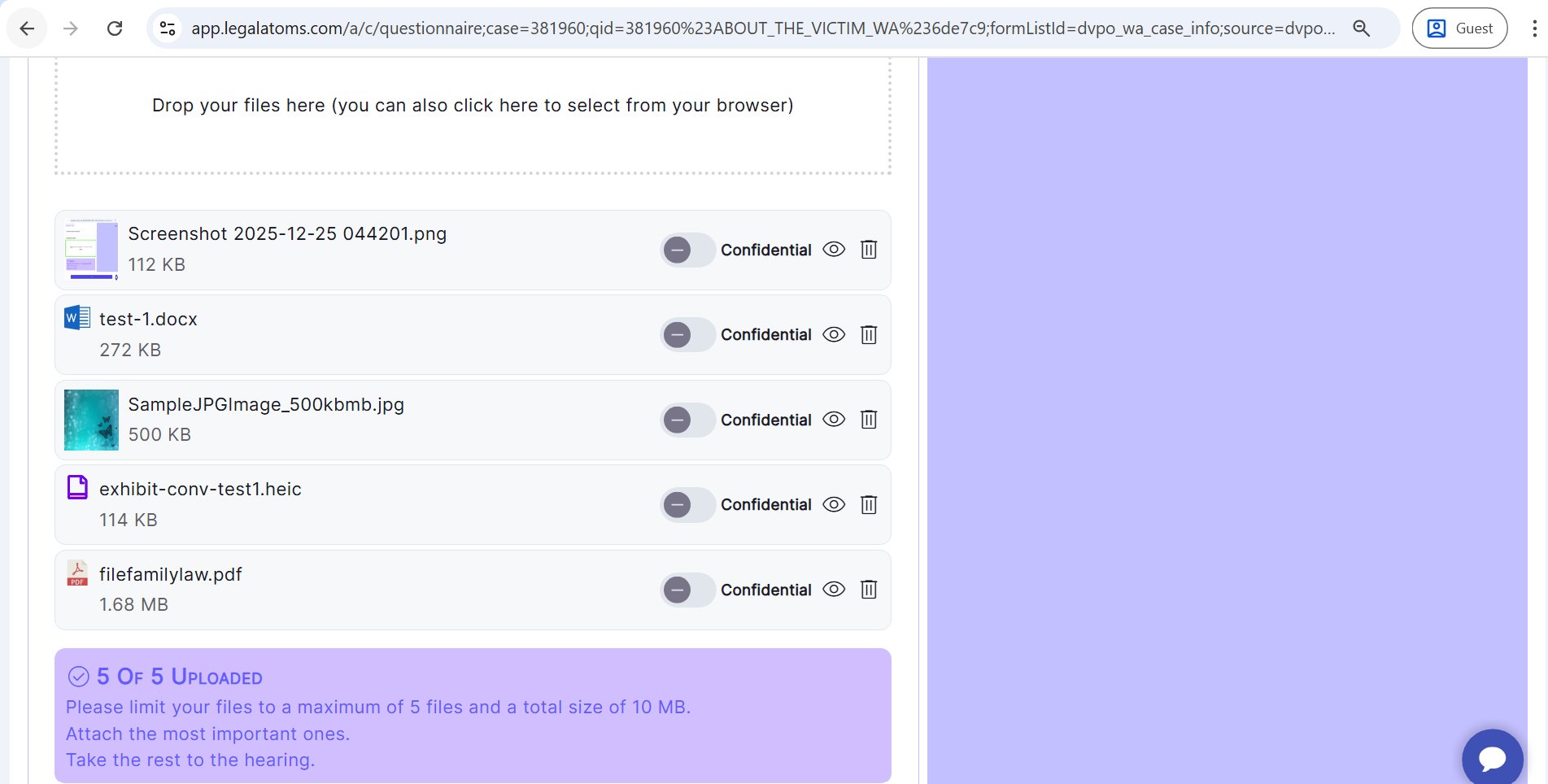
“Drop your files here (you can also click here to select from your browser)”
- Upload files using one of the following methods:
- Drag and drop files into the dialog box
- Click inside the dialog box and select files from your computer
- Supported file types for upload: PDF, DOC, DOCX, PNG, JPEG, JPG, BMP, and HEIC
- Wait for the upload to complete.
- Once uploaded, the user can view or delete the file. After deletion, the user can re-upload the file, and the attachments will then be associated with the statement.
Step 4: Upload Photos from Your Phone (QR Code Method)
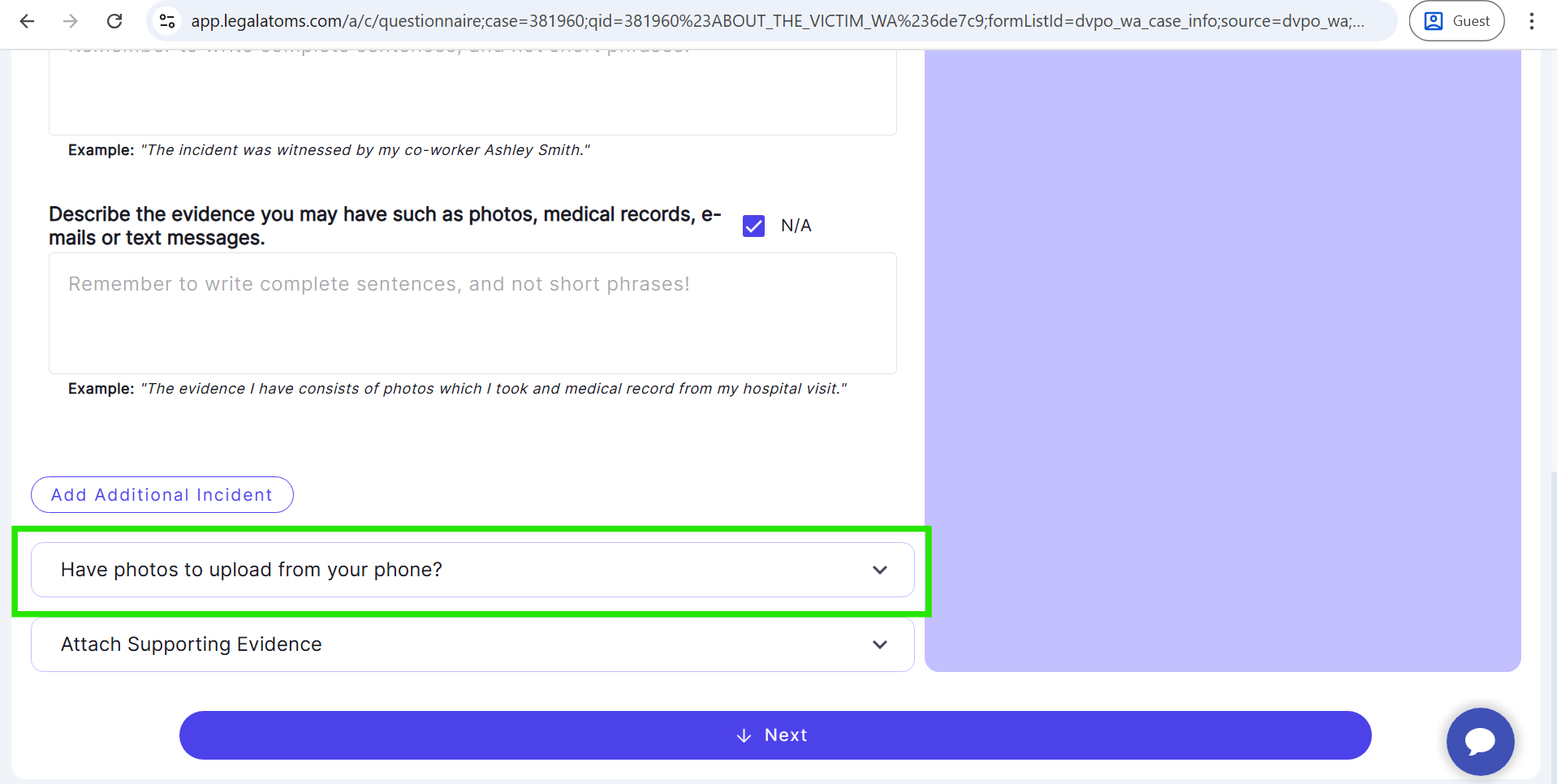
- Click on Have photos to upload from your phone?
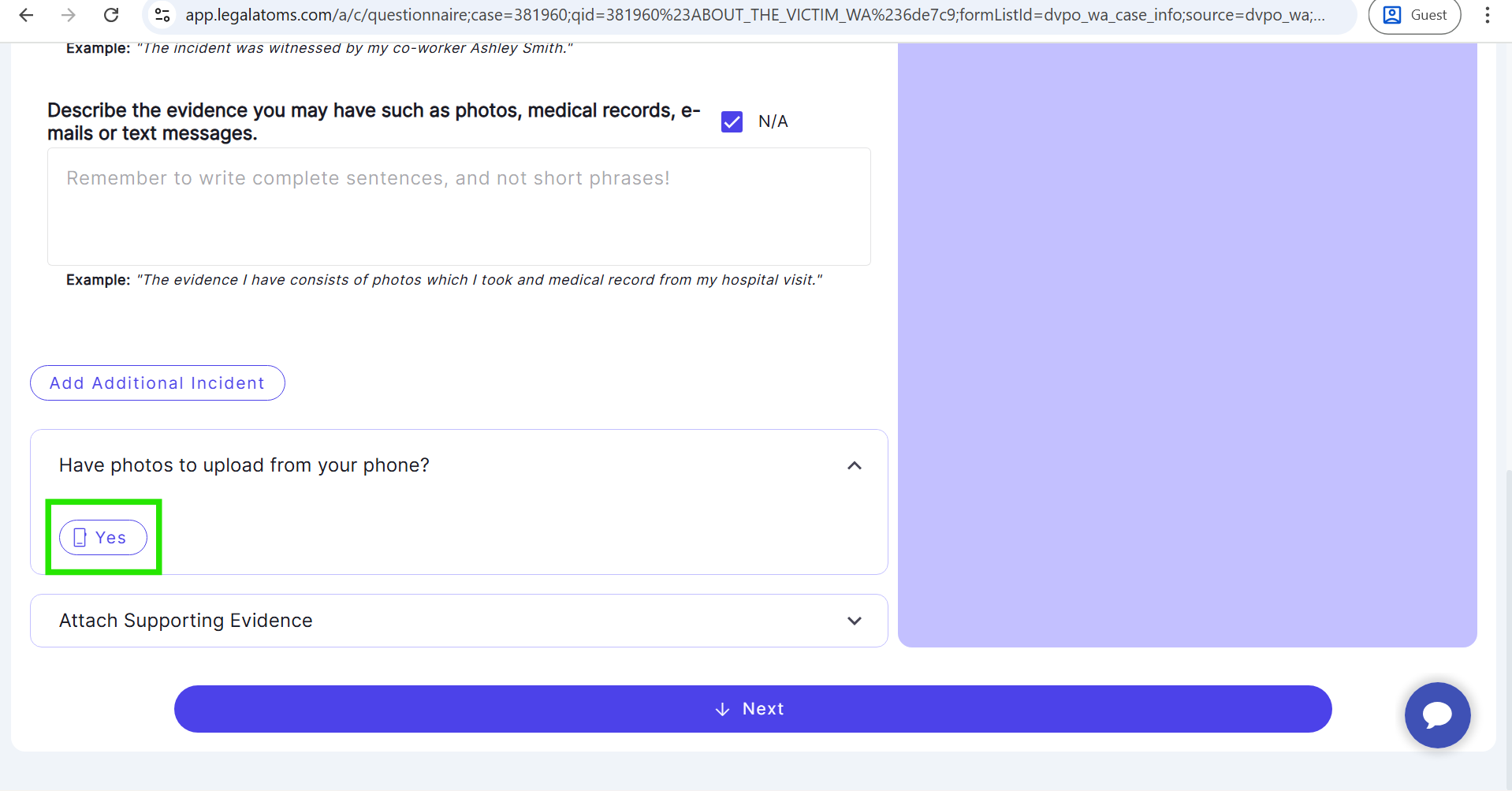
- A Yes button will appear.
- Click the Yes button.
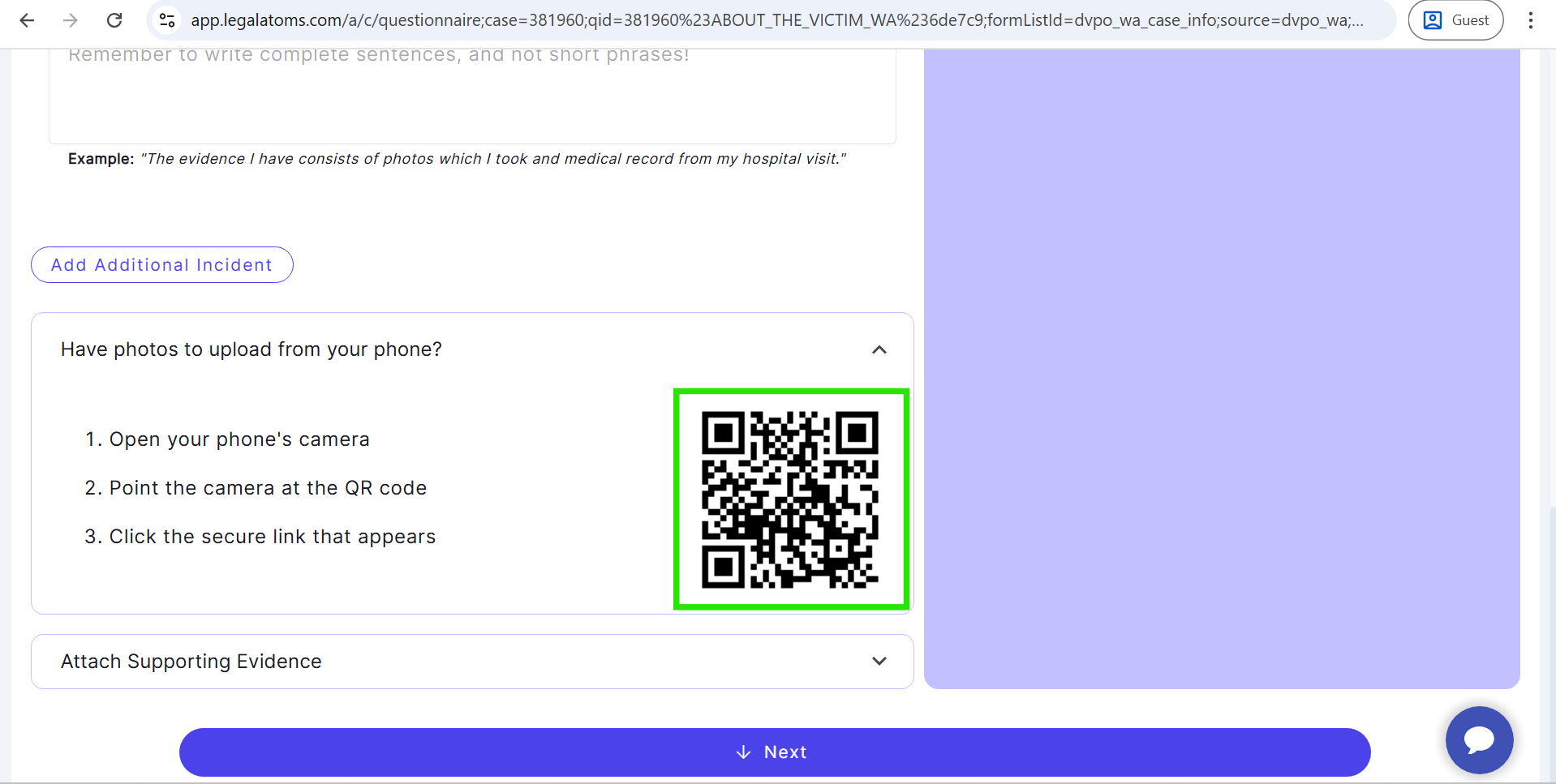
- A QR code is displayed along with the following instructions:
- Open your phone’s camera
- Point the camera at the QR code
- Click the secure link that appears
- Scan the QR code using your mobile phone camera.
- Open the secure link shown on your phone (for example, https://go.legalatoms.com/OKIEgH). The link will open directly without logging in.
- Upload photos or files directly from your mobile device.
- Supported file types for upload: PDF, DOC, DOCX, PNG, JPEG, JPG, BMP, and HEIC
- After a successful upload (via phone), the attachments will automatically appear in the Statement Builder questionnaire.
Step 5: Continue Case Preparation
- Once all statements and attachments are completed, click Next.
- Fill out the remaining questions and generate the document.