
Working in a Court Organization
Published
In a court organization, your court’s clerks, judges, and law enforcement work from one shared case list. Each person signs in with their own account and signs documents with their own signature, but every case belongs to the court. Anyone in the court can open any of its cases and pick up the work.
Each case has one assignee: the person whose turn it is to act. As a case moves through your court’s steps, LegalAtoms assigns it to whoever acts next, and anyone in the court can reassign it by hand.
Do your case work from your own login. The court’s organization account lists the whole team and every case, but accepting filings, sending notifications, and signing orders belong under your own name.
Who is in your court
Sign in to the organization account and open Dashboard to see the Your Team page. It lists everyone in your court with their email address.
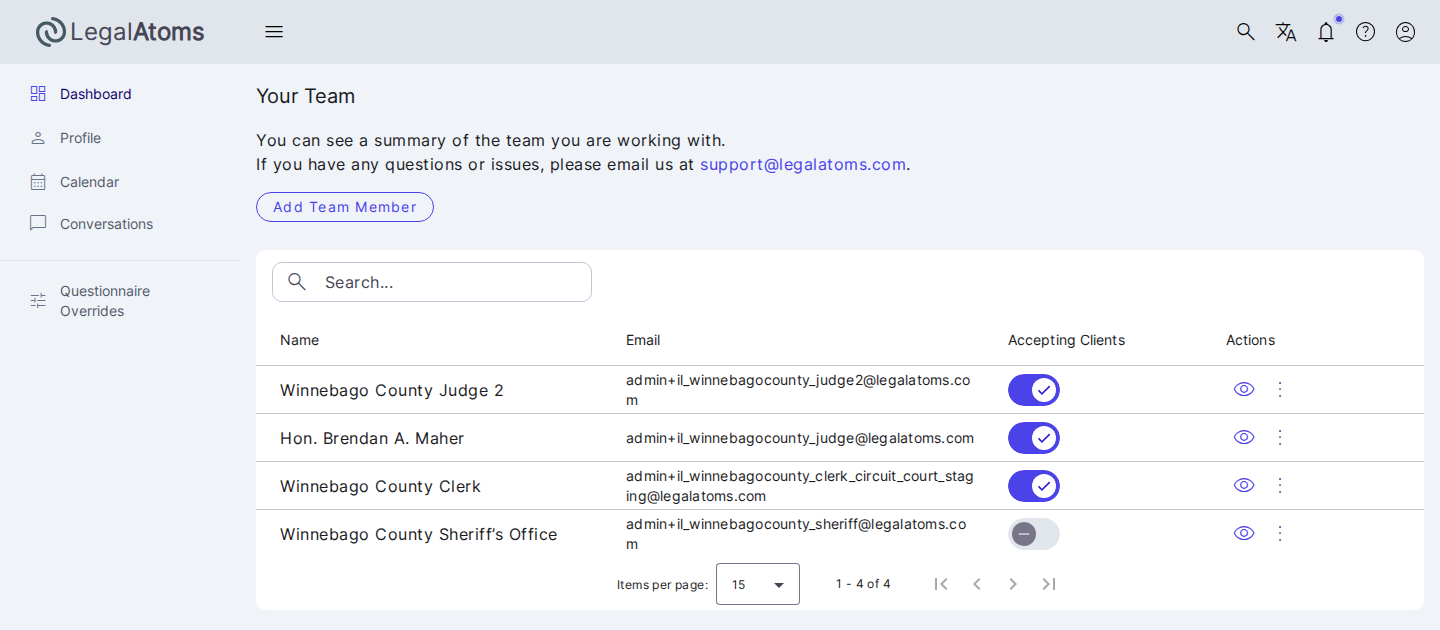
If someone joins or leaves your court, email support@legalatoms.com.
Your dashboard opens on “Assigned to me”
Your dashboard starts out showing only the cases assigned to you. While this filter is on, the Assignees field in the Filters panel reads Assigned to me. Judges and law enforcement see their own lists the same way.
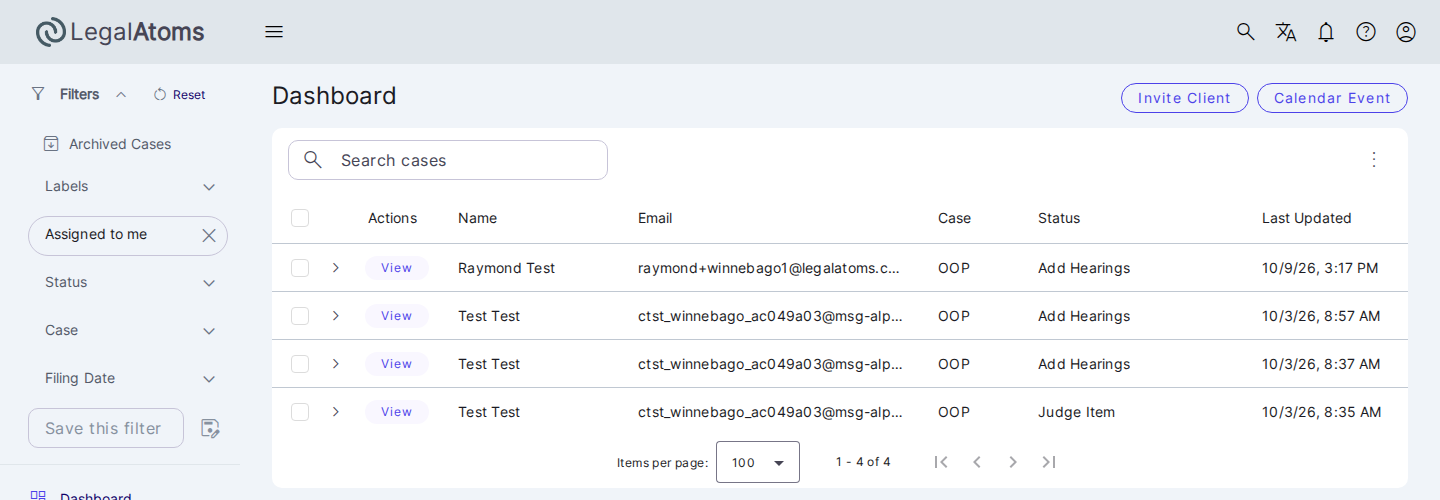
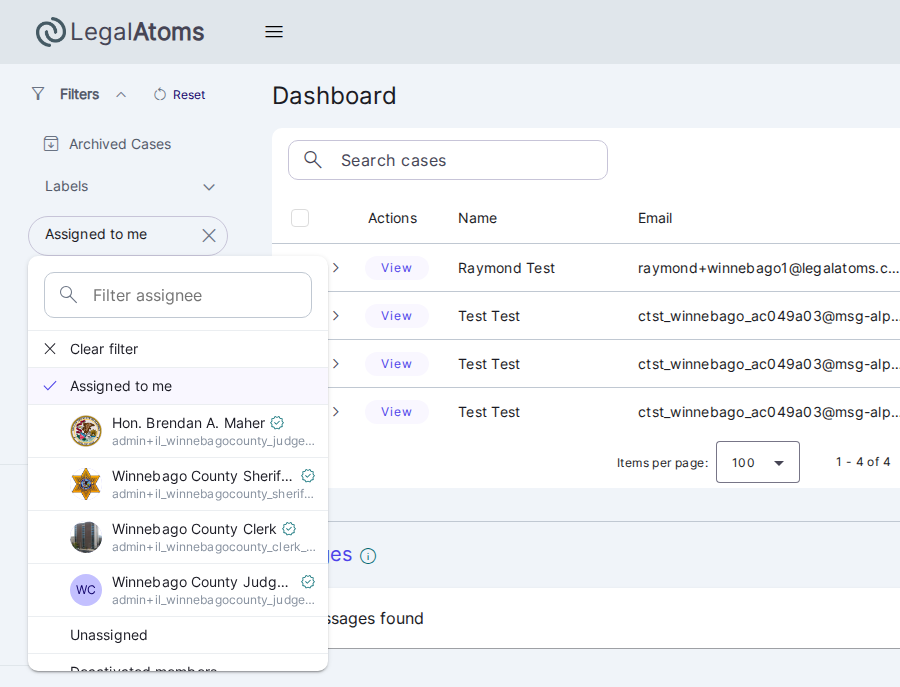
- To see every case in your court, click the × in the Assignees field.
- To see one colleague’s cases, click the Assignees field and choose their name. Unassigned and Deactivated members are in the same list.
- The filter turns back on each time you return to the dashboard.
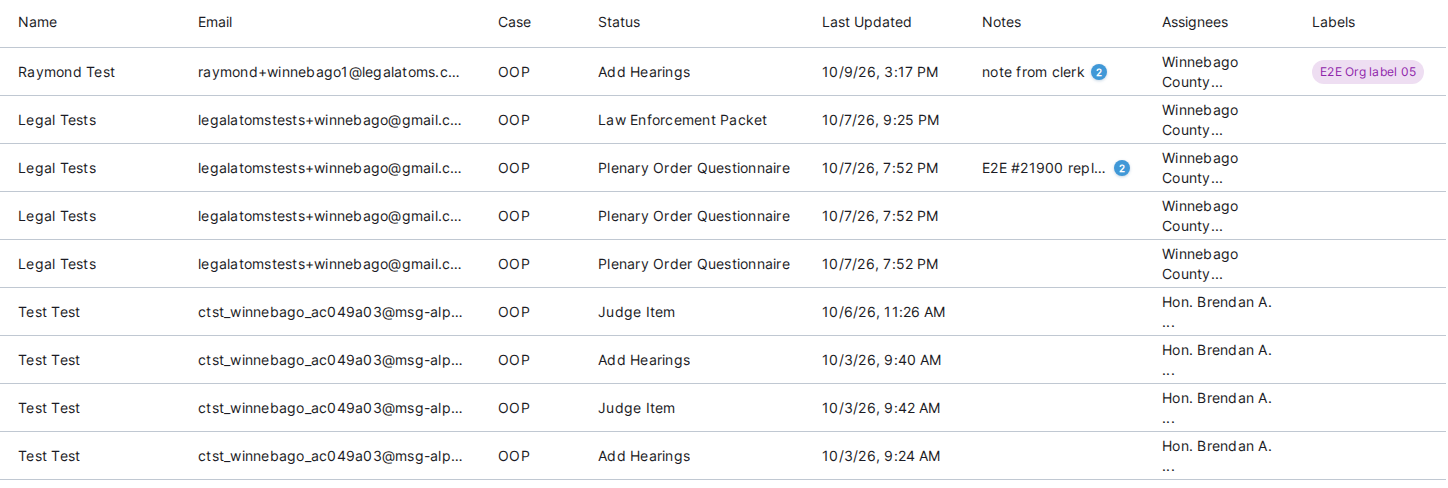
When you view all cases, the Assignees column shows who holds each one. If the column is missing, open the ⋮ menu at the top right of the case list, choose Columns, and turn on Assignees. It sits near the right end of the list, so you may need to scroll sideways to reach it.
How a case moves through the court
You don’t forward cases yourself. When someone finishes a step, LegalAtoms assigns the case to the person who acts on the next one:
| When this happens | The case is assigned to |
|---|---|
| A petitioner files | A clerk. If your court has more than one clerk, one is picked at random. |
| The clerk clicks Submission Received | The judge the clerk picks |
| The judge sends a notification to the clerk | The clerk who last had the case |
| The clerk sends the case to law enforcement | A member of law enforcement, picked at random |
| Law enforcement sends the affidavit of service | The judge who last had the case |
| The judge sends the full order to law enforcement | A member of law enforcement, picked at random |
A case returns to the person in that role who last worked on it, so the judge who issued the temporary order usually handles the full order too. If that person has left the court, someone else in the same role gets the case. While a case waits on the petitioner, for example after Need More Info, it stays with the clerk.
Emails about a case go to the person who holds it after each step. When a clerk picks you as the judge, or a colleague assigns you a case by hand, you also get an email titled “A case was assigned to you” and a notification in LegalAtoms.
Accepting a filing and choosing the judge
New filings arrive assigned to a clerk. To accept one:
- Open the case and scroll to the Filing section.
- Click Submission Received.
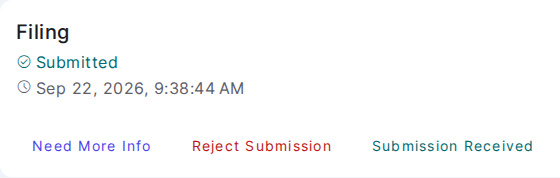
- Enter the cause number.
- In the Judge field, choose the judge who should get the case. Your court has more than one judge, so Next stays unavailable until you pick one.
- Click Next, review the email to the petitioner, and click Approve & Email.
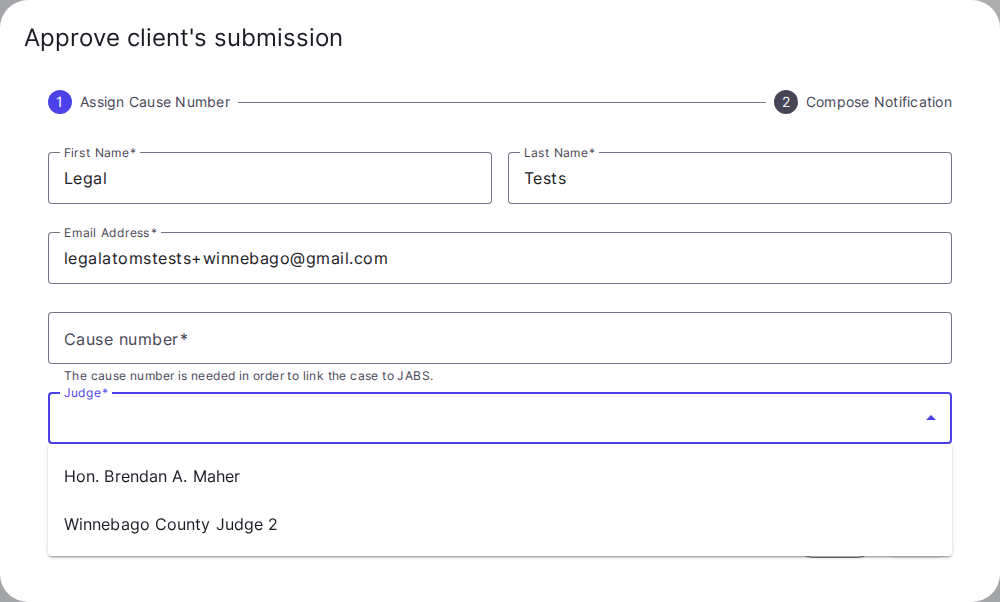
The judge you picked becomes the case’s assignee and gets an email saying the case is theirs. Only clerks can accept a filing, reject it, or ask for more information.
Giving a colleague a case
To give someone in your court a case, assign it to them. Anyone in the court can assign a case to anyone else in the court, which is also how one judge hands a case to the other judge.
- On the dashboard, hover over the case and click Assign. On a case page, click the pencil next to Assignees instead.
- Search for the person or pick them from the list. The current assignee has a check mark.
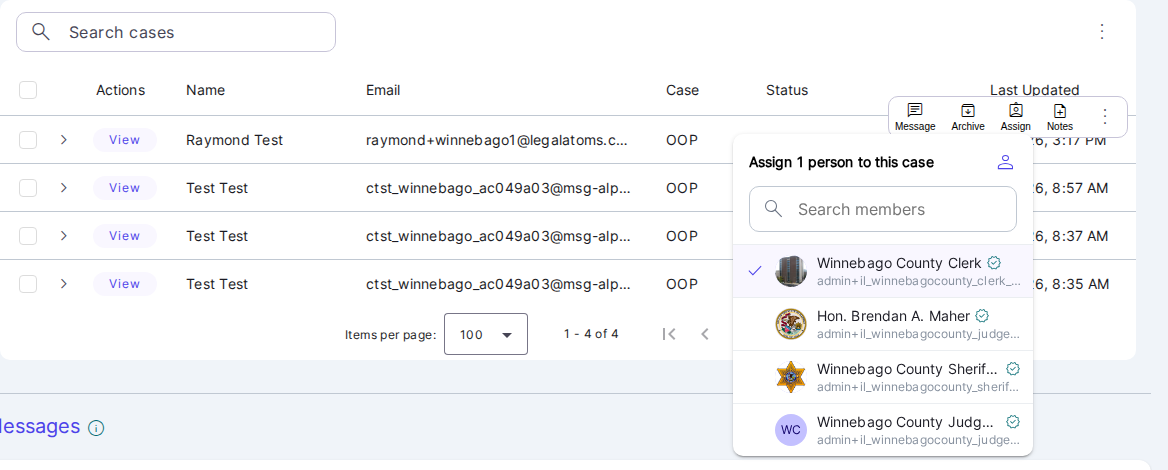
The case moves to that person right away, and they get an email and a notification in LegalAtoms. To leave a case with no assignee, click the check mark next to the current assignee. The list only offers people in your court, so you can’t type in a new name.
Referring a case outside your court
Refer sends a case to a professional who isn’t part of your court.
- On the dashboard, hover over the case, click ⋮, and choose Refer.
- Enter the email address the professional uses to sign in to LegalAtoms, and click Refer.
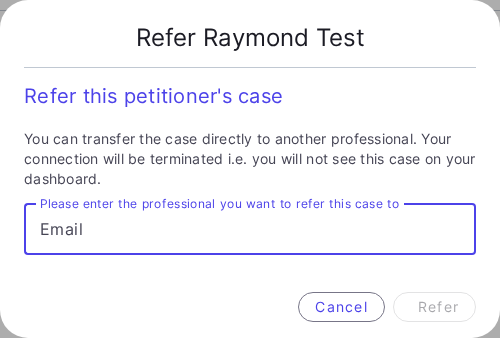
The case leaves your court’s case list right away, and no one in your court can open it after that. The other professional receives it as a referral to accept, and you, the other professional, and the petitioner each get an email. You can’t refer a case to someone in your court. Assign it to them instead.
Notes, labels, and calendars
- Notes are shared. Everyone in the court sees the same notes on a case, and each note shows who wrote it. Petitioners never see notes.
- Labels belong to the court. A label one person creates is available to everyone, and a label on a case shows for everyone.
- Hearings added to a case appear on the calendar of everyone in the court. Events you add without a case stay on your own calendar.
- Messages with a petitioner are still between you and that petitioner.
Things to keep in mind
- Court stamps show the court’s name and time zone, not the name of the clerk who accepted the filing.
- Clerks can’t act on judge steps, and judges can’t accept or reject filings.
- If someone leaves the court, the cases assigned to them keep their name, marked deactivated, until someone reassigns them. Choose Deactivated members in the Assignees filter to find those cases.