How Clients Can Upload Files Securely Using the Online Folder
Published
The Online Folder is a secure space within LegalAtoms where clients can manage and store files related to their cases. It allows you to upload supporting evidence, view previously uploaded files, and keep all case-related materials organized in one place. This feature helps ensure smooth communication and document sharing between you and the professional connected to your case.
Accessing the Online Folder
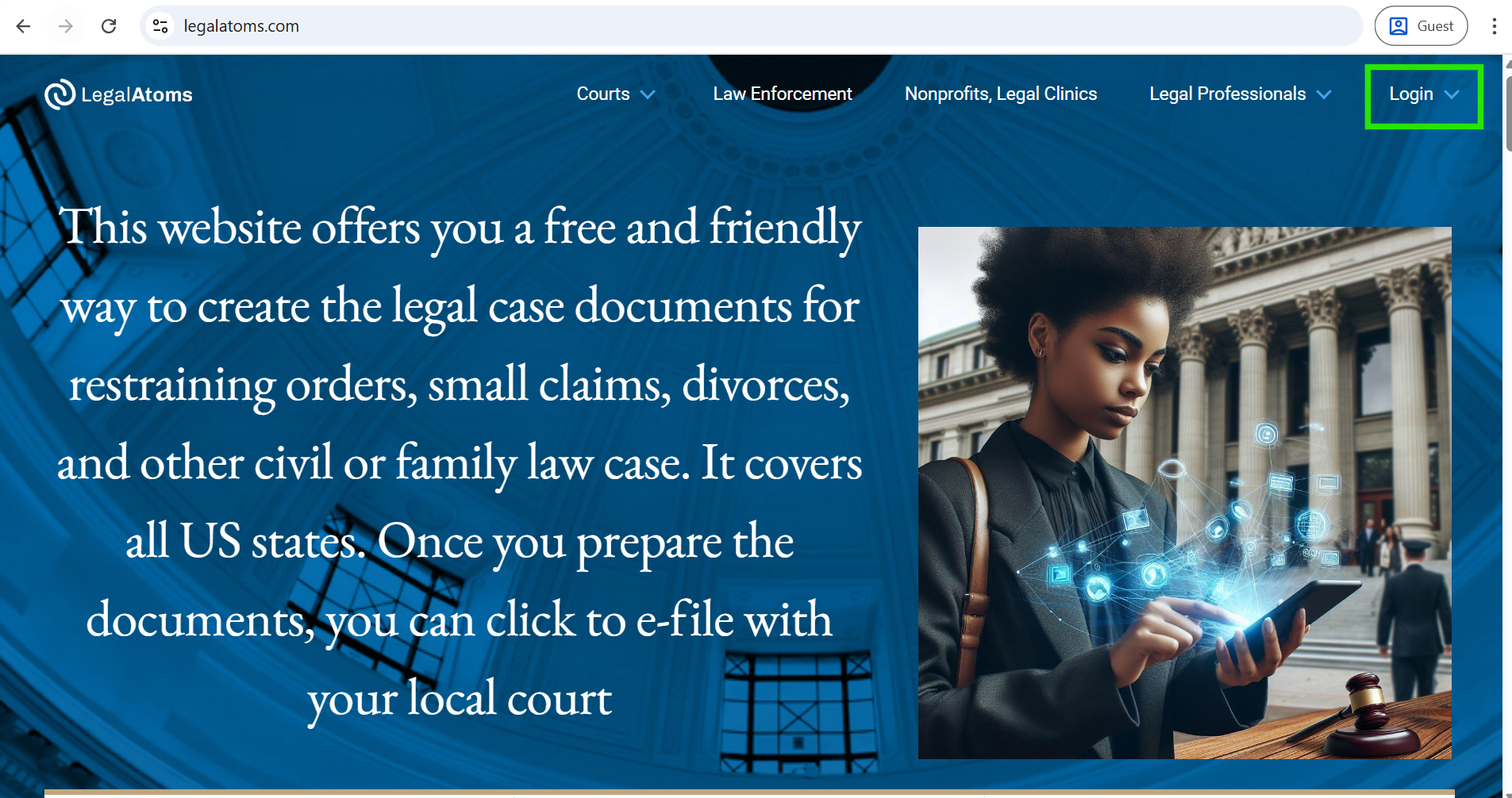
- Open this URL link in your browser. https://legalatoms.com/
- Click on the Login button
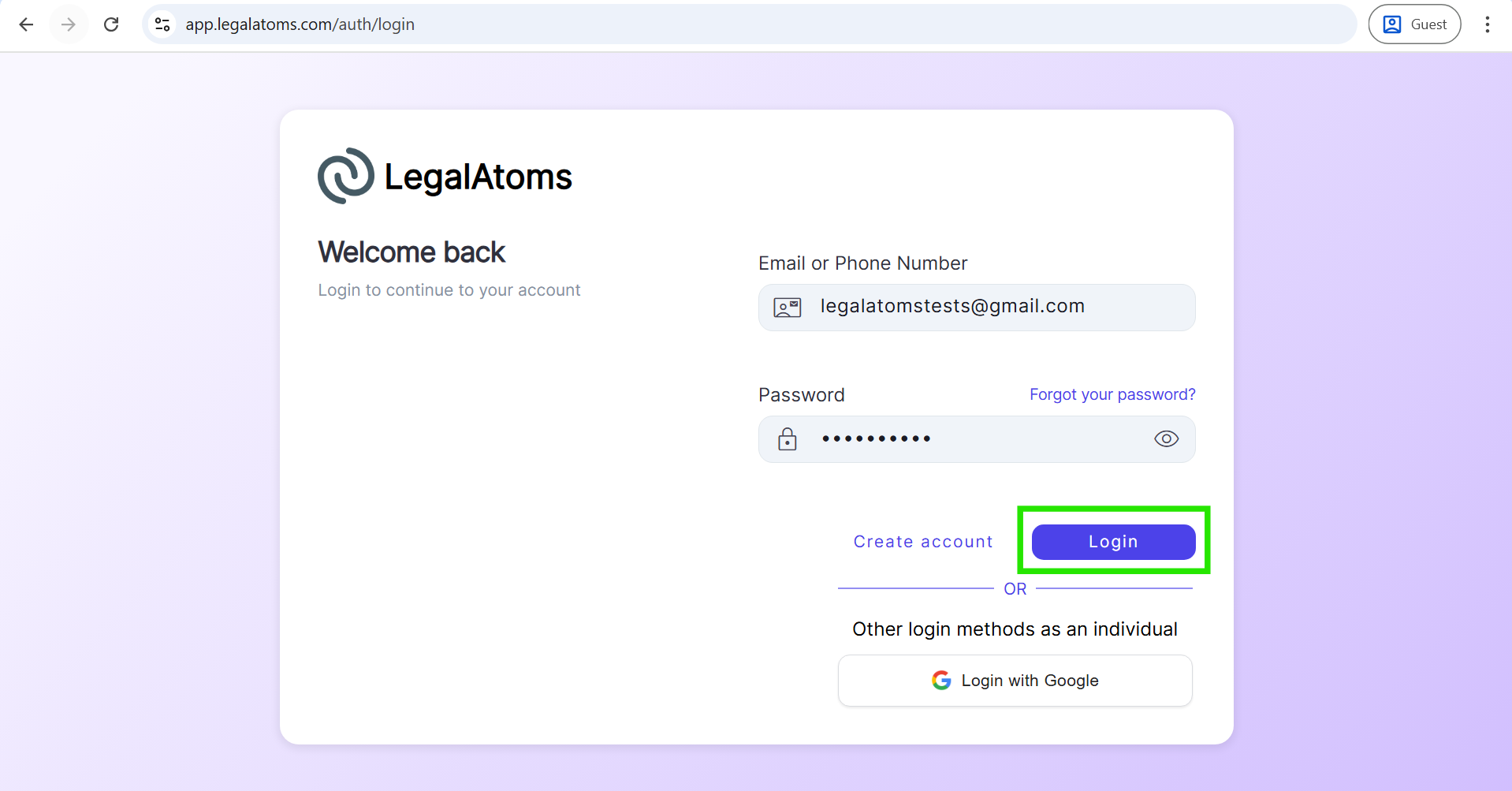
- Enter your registered email and password.
- Click on the Login button.
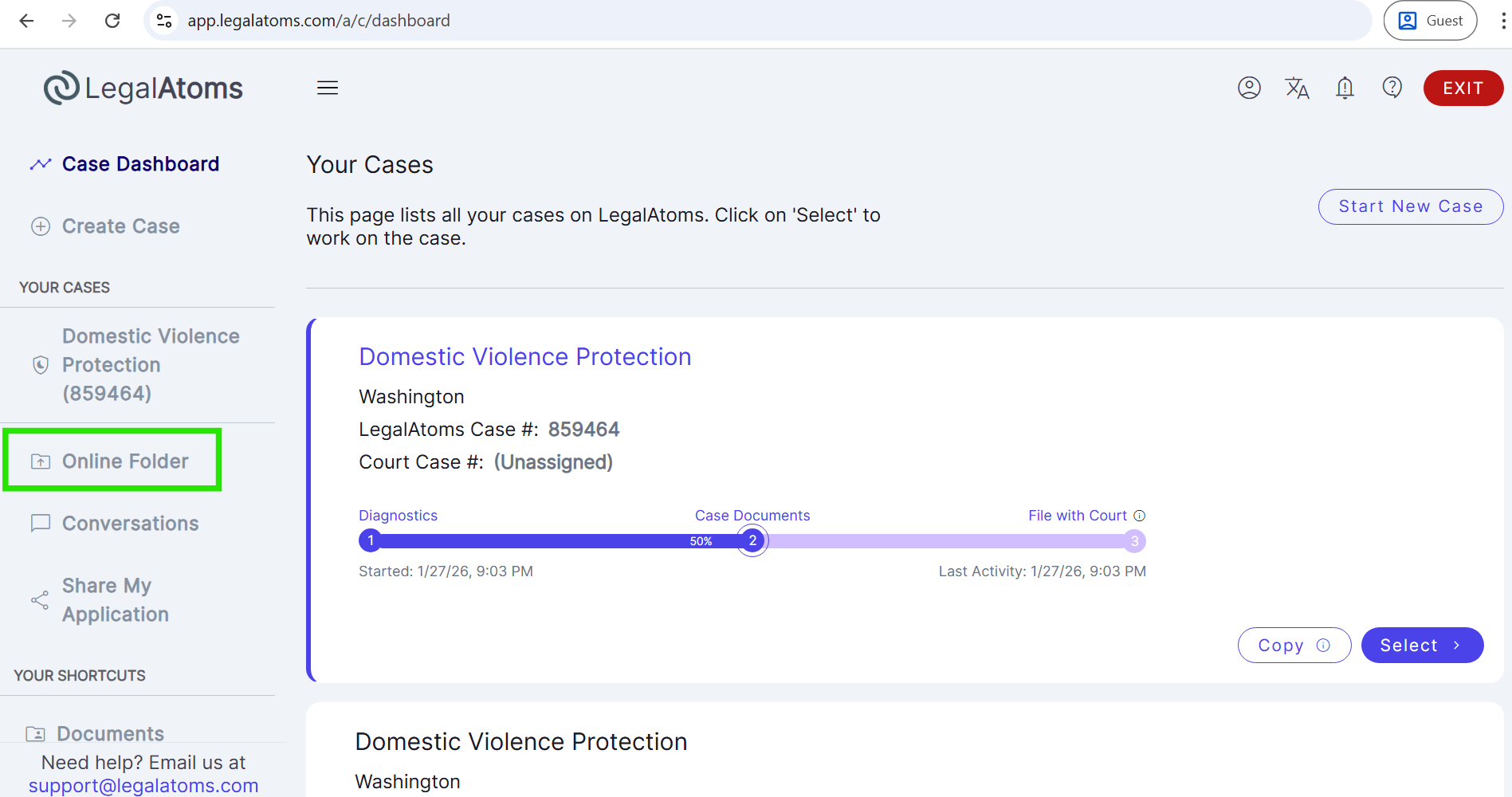
- You will land on the Client Dashboard.
- From the left sidebar, click Online Folder.
- The Online Folder page will open, allowing you to view any previously uploaded files.
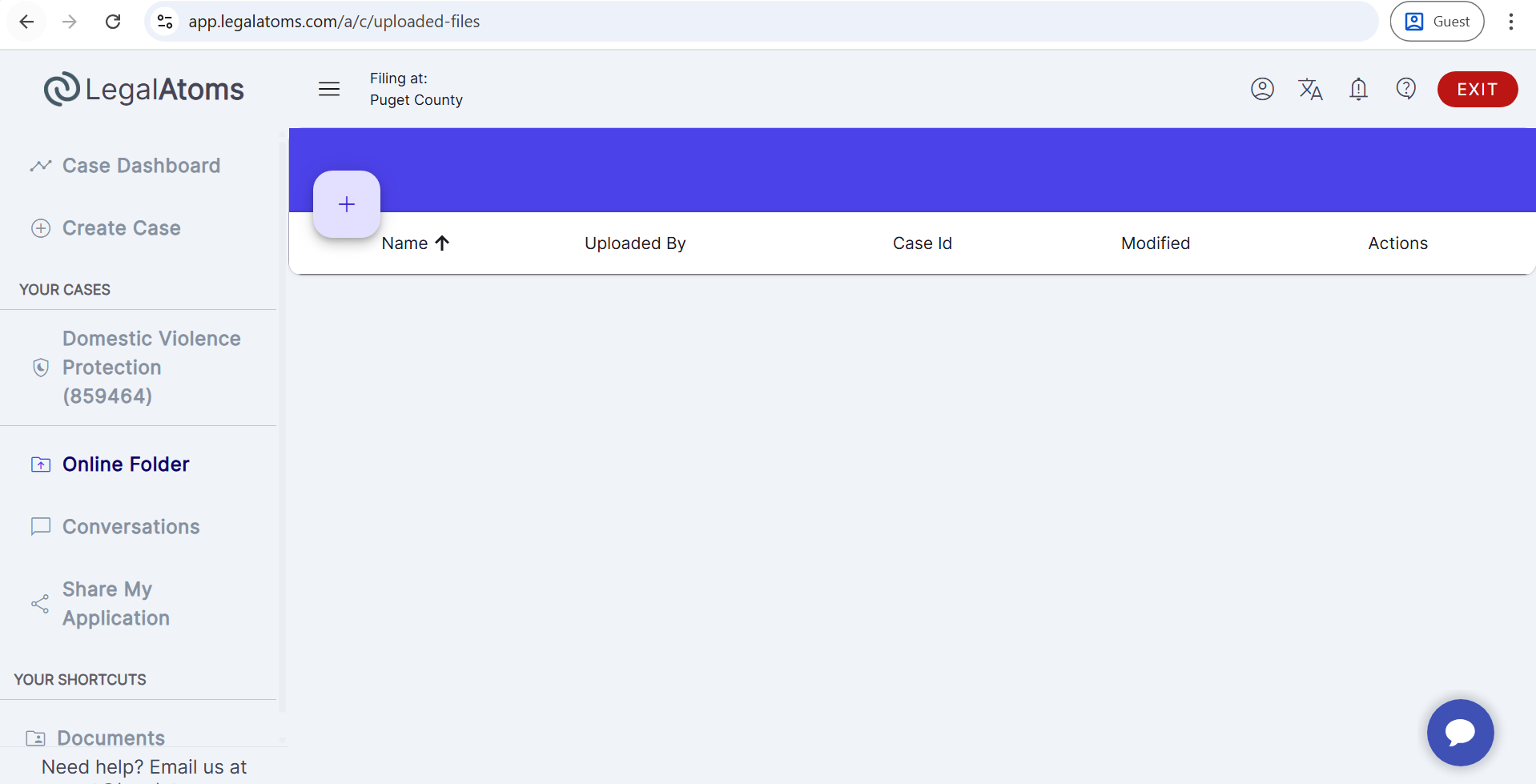
Uploading a File to the Online Folder
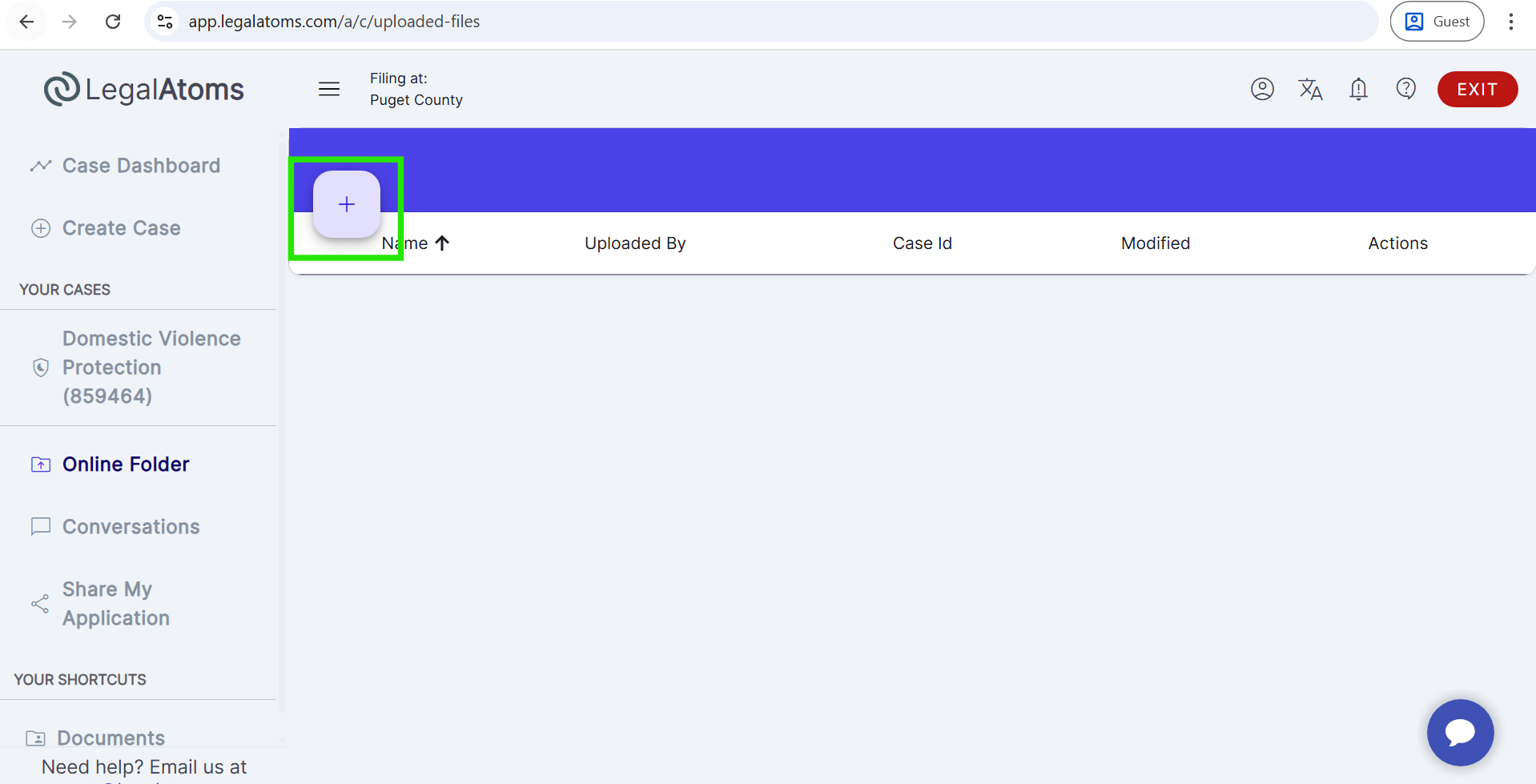
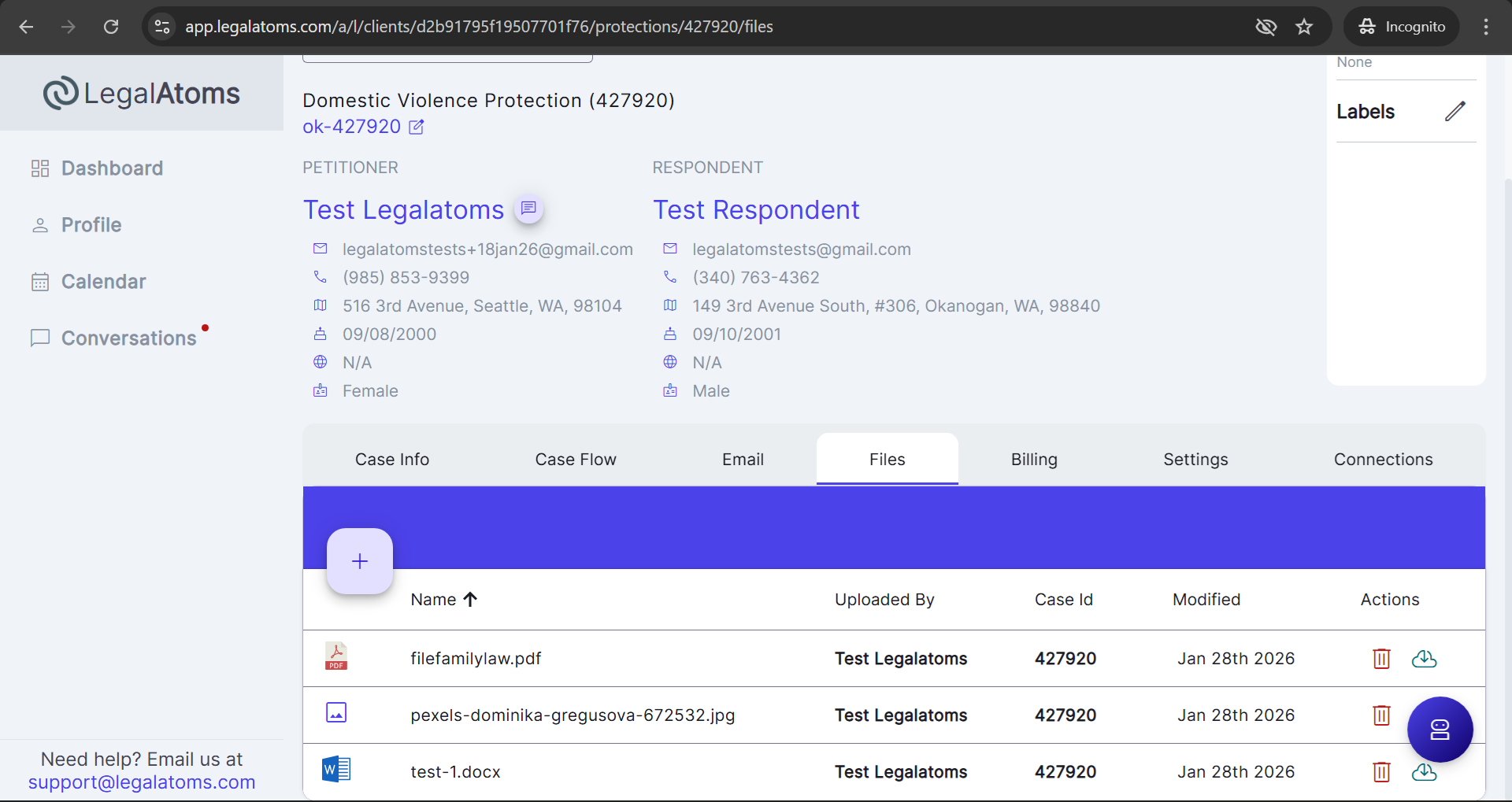
- On the Online Folder page, click the Upload (+) button.
- Select the file from your device.
- Confirm the upload.
- The file will appear in the list once the upload is complete.
You can upload common file types such as Word documents, PDFs, and image files (e.g., JPG, PNG). The maximum allowed file size is 25 MB per file.
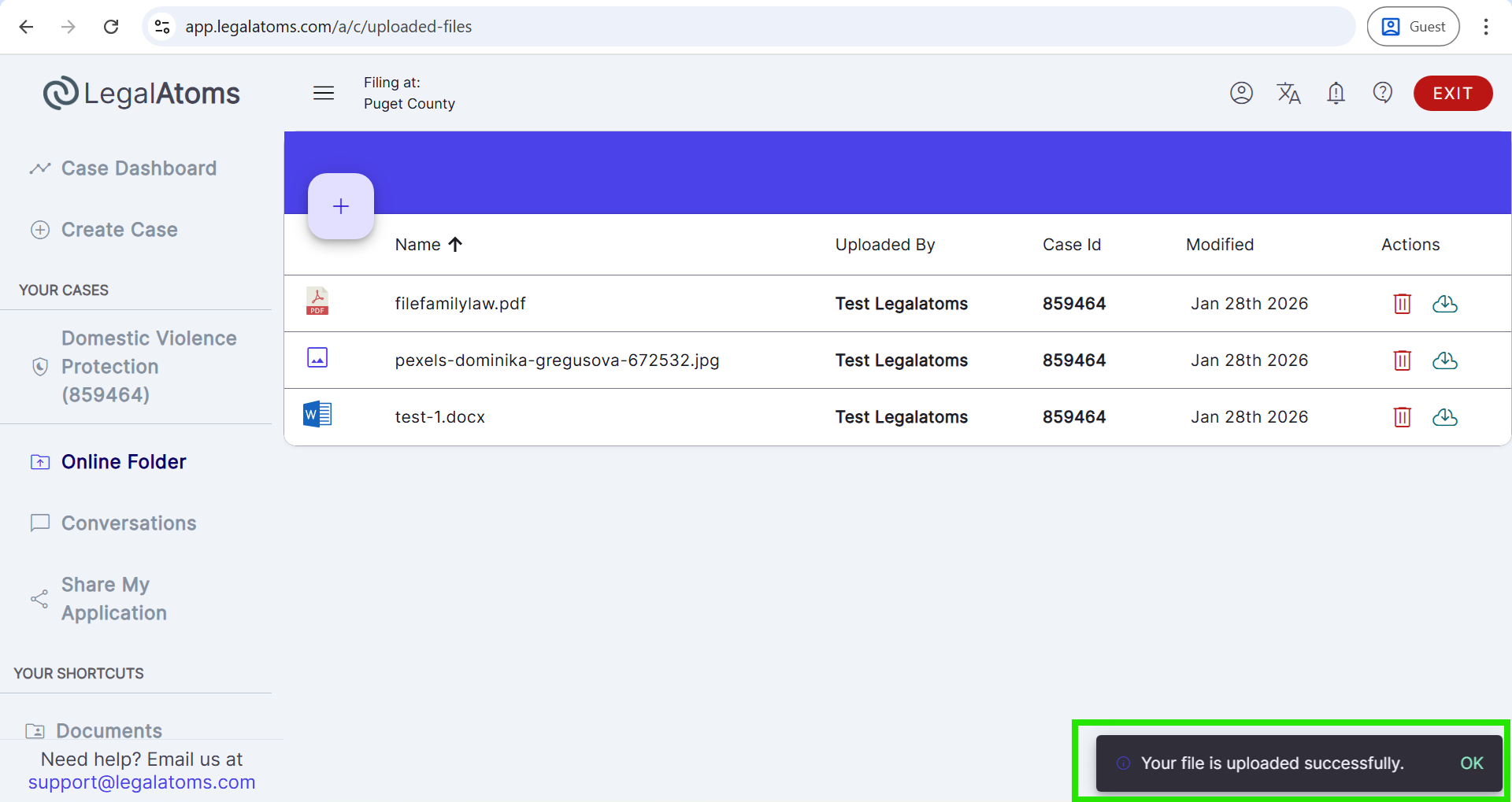
Notifications After File Upload
Once a file is successfully uploaded:
- The professional will receive an in-app notification confirming the client has uploaded files. By clicking on the in-app notification professional lands on the files page.
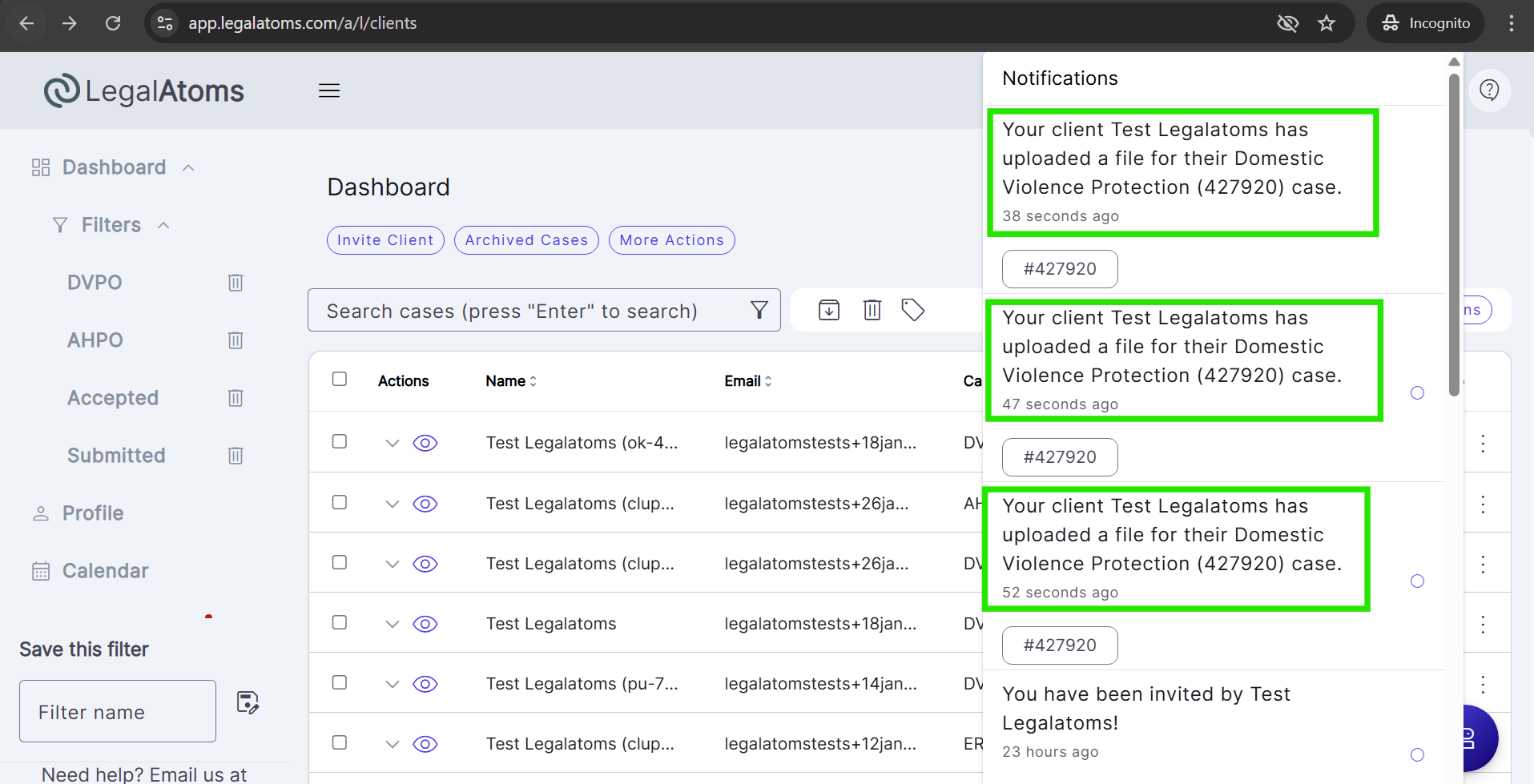
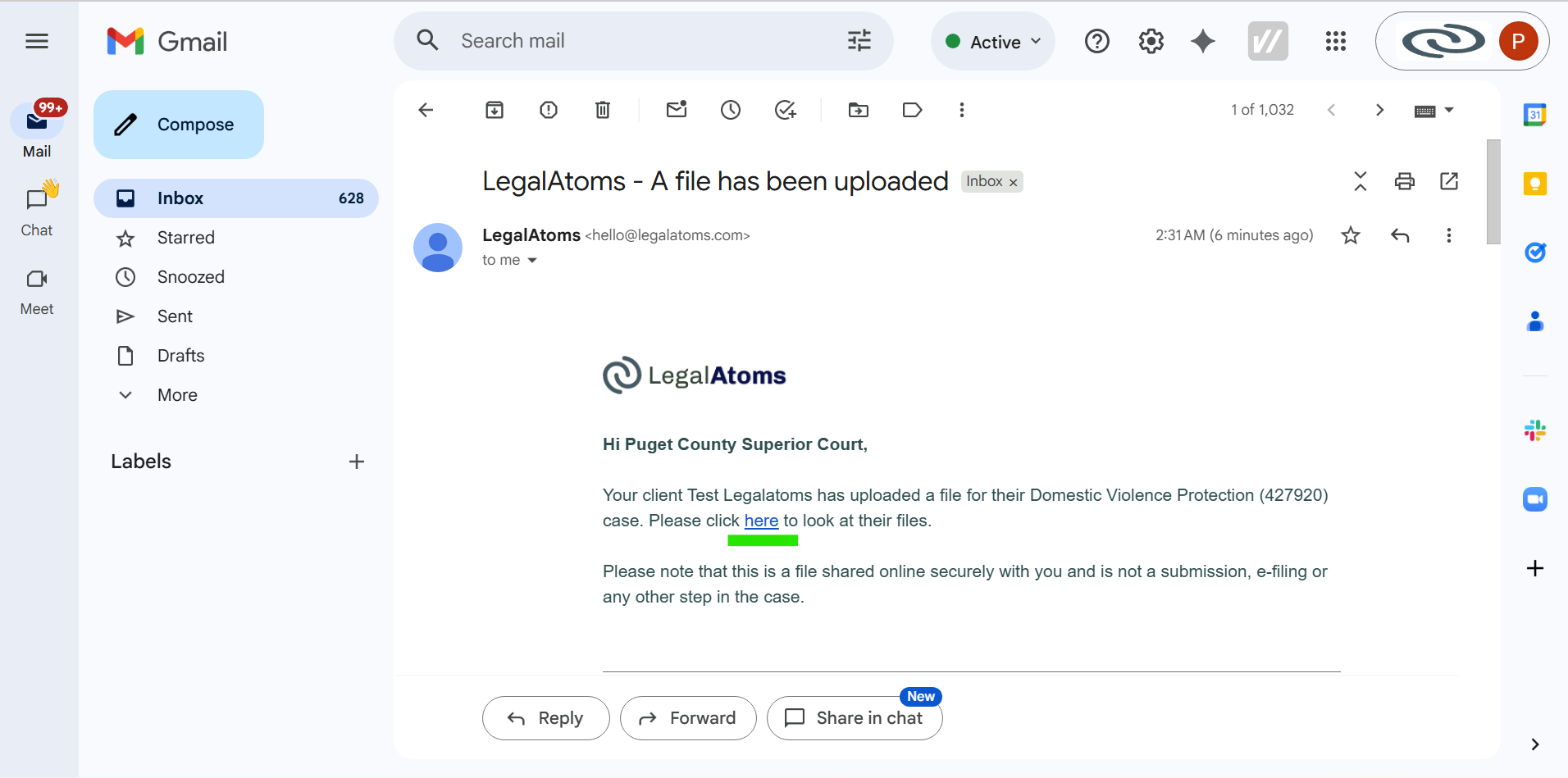
- An email notification (A file has been uploaded) is automatically sent to the professional associated with your case.
This ensures that the connected professional or clerk is immediately informed and can review the uploaded document without delay.