
Submitting Exhibits as a Respondent
Published
If you are the respondent on a case, you can add exhibits — supporting files such as photos, letters, or documents — after the initial filing has been submitted. You upload your files, submit them, and the clerk reviews and accepts them before they become part of the case. This guide walks through the whole flow.
Where this is available: Exhibits are available on cases where your court has enabled them. If you don’t see the + Exhibits button, your court may not have exhibits turned on.
Before you start
The + Exhibits button only shows once all of the following are true. If you don’t see it, check these first:
- You are signed in and on the case as the respondent. You must have an account and be added to the case as the respondent.
- The case was filed through LegalAtoms. Exhibits are not available on cases filed through an external court e-filing system.
- The first filing has already been submitted. Exhibits are an extra submission that comes after the initial filing.
- The hearing has not started yet. Once the hearing begins, uploading and submitting are closed. Files you already submitted stay viewable.
Opening the exhibits panel
Open your case and go to the Hearing step in the case timeline. This is where you add exhibits.
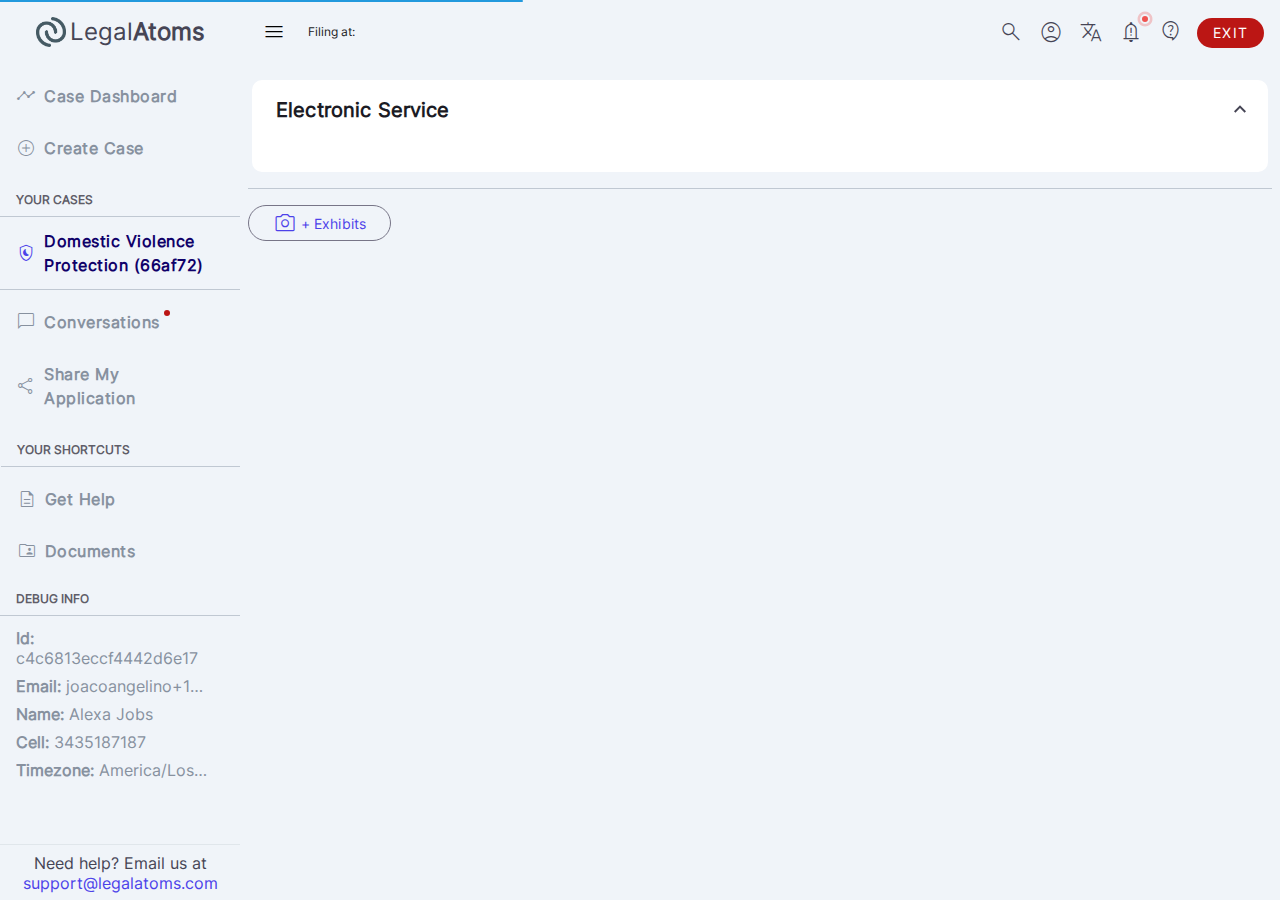
Choose + Exhibits. A Respondent Exhibits panel opens and a short confirmation appears: “Exhibits section added.”
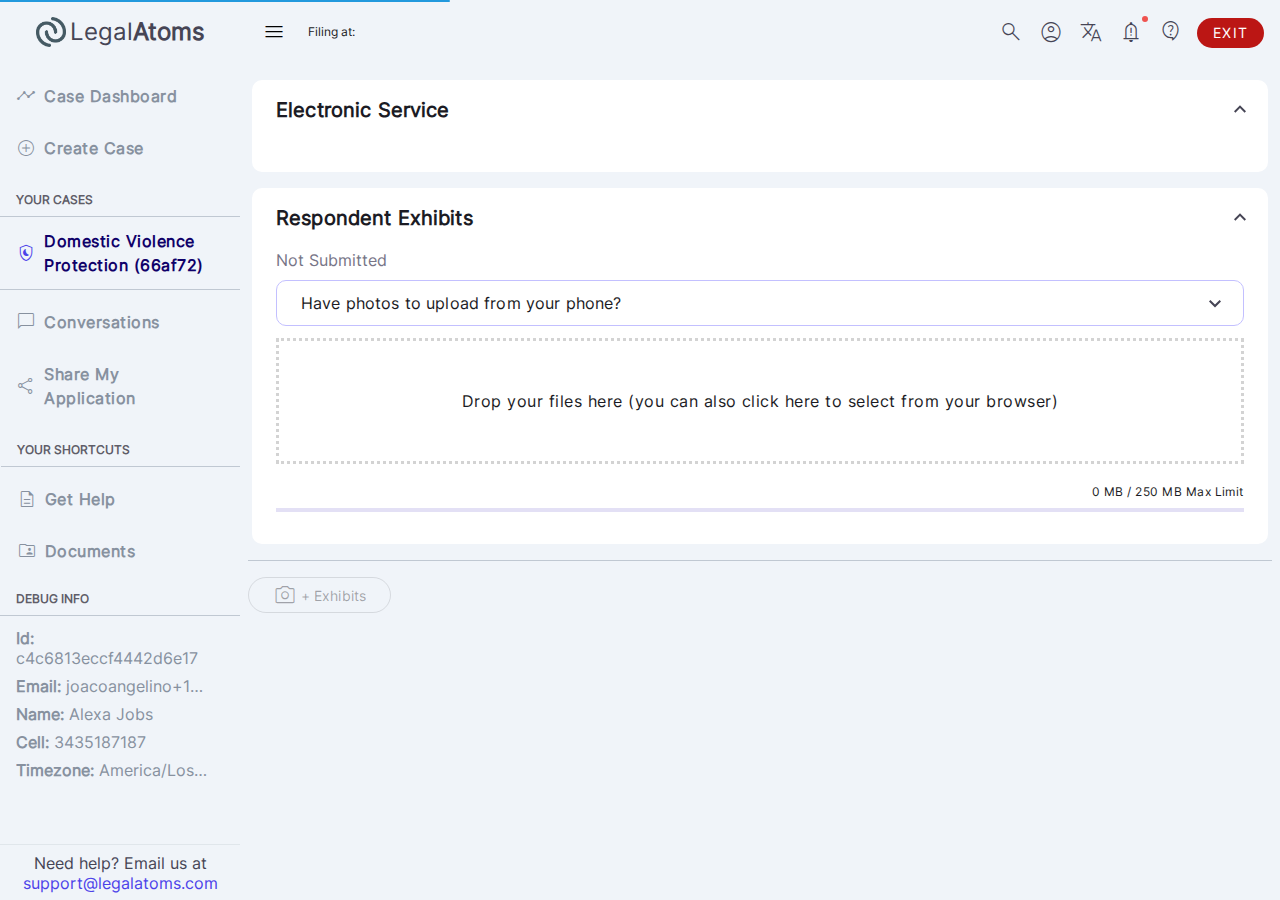
If you already started a set of exhibits and haven’t submitted it, the + Exhibits button stays disabled. Finish and submit that set first — you only start a new set after the current one is submitted.
Adding your files
In the Respondent Exhibits panel:
- Drag and drop your files, or click to choose them.
- Accepted types are PDF, Word documents (DOC and DOCX), and images (PNG, JPG, JPEG, BMP, HEIC).
- On a computer or tablet, you can use the QR code / mobile upload option to send photos straight from your phone.
- A meter shows how much of the 250 MB limit you’ve used.
Before you submit, you can view, rename, or delete any file. You’ll see “Exhibits uploaded” as each file finishes.
Submitting your exhibits
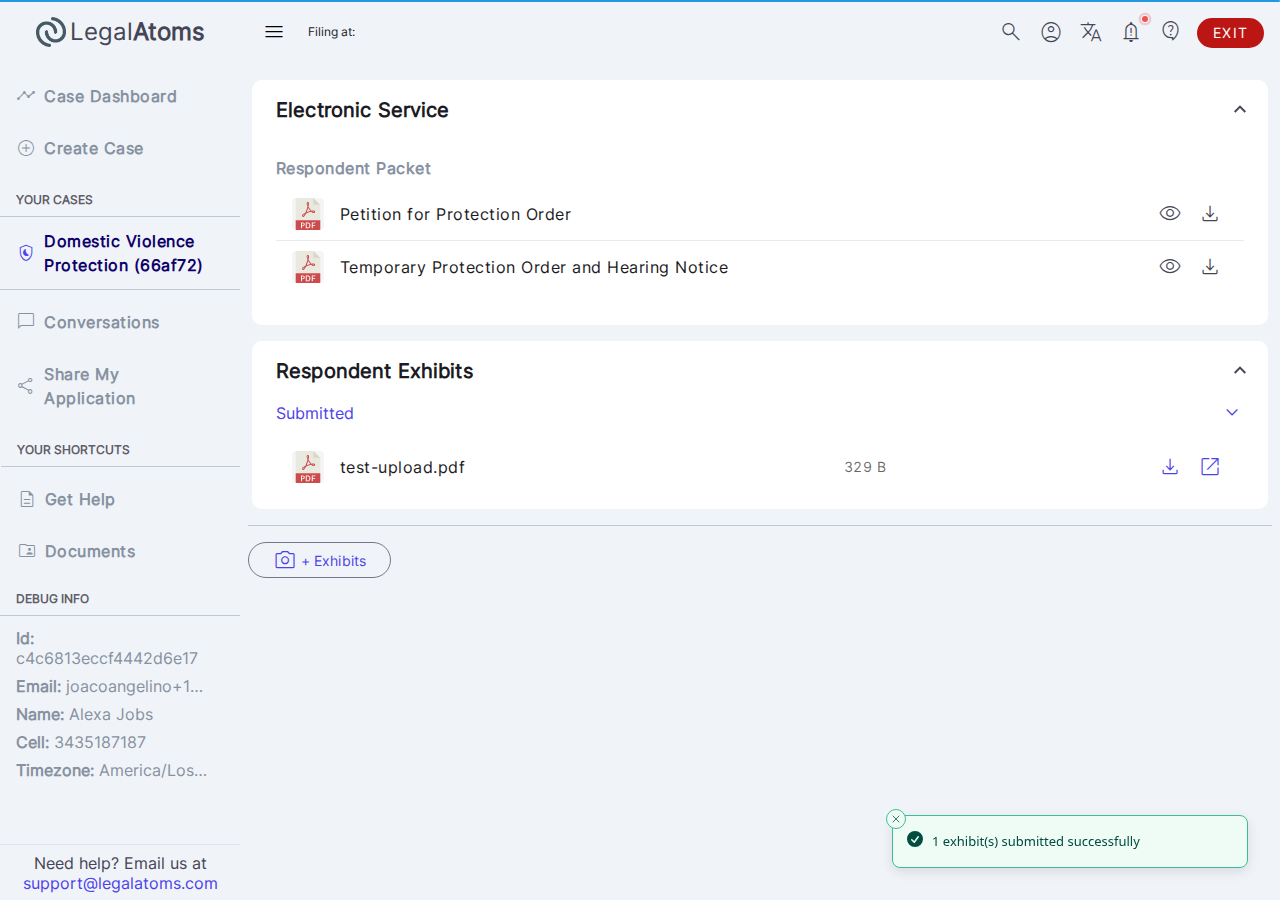
When everything is added, choose Submit Exhibits. You’ll see “Exhibits submitted.”
After you submit, you can no longer rename or delete files in that set. To add more files later, start a new + Exhibits set.
What happens after you submit
Your submitted exhibits go to the clerk, who accepts or rejects them. The clerk sees both parties’ exhibits, each labeled Petitioner or Respondent. The panel shows the status as it moves from Submitted to Accepted or Rejected.
- The petitioner can see your exhibits only after the clerk accepts them. A set that is rejected is never shared with the other side.
- Accepted exhibits are combined into the case’s exhibits document and included in the filing packet.
Troubleshooting
- I don’t see the + Exhibits button. Your court may not have exhibits enabled, the first filing hasn’t been submitted yet, the hearing has already started, or you aren’t signed in as the respondent on the case. See Before you start.
- The button is greyed out. You already have a set of exhibits that hasn’t been submitted, or a set is still being created. Submit the open one first.
- I can’t rename or delete a file. That file has already been submitted. Start a new set to add more.
- The petitioner says they can’t see my exhibits. They become visible to the petitioner only after the clerk accepts them.
Related: Submitting Exhibits as a Petitioner · Exhibits for Professionals