
How to Use the Parenting Plan Calendar
Published
The Parenting Plan Calendar allows users to create and adjust their parenting schedule through a simple calendar and chat-based experience.
Users can select a parenting schedule, review it on the calendar, and make changes by describing what they want in natural language.
Setting Up the Calendar
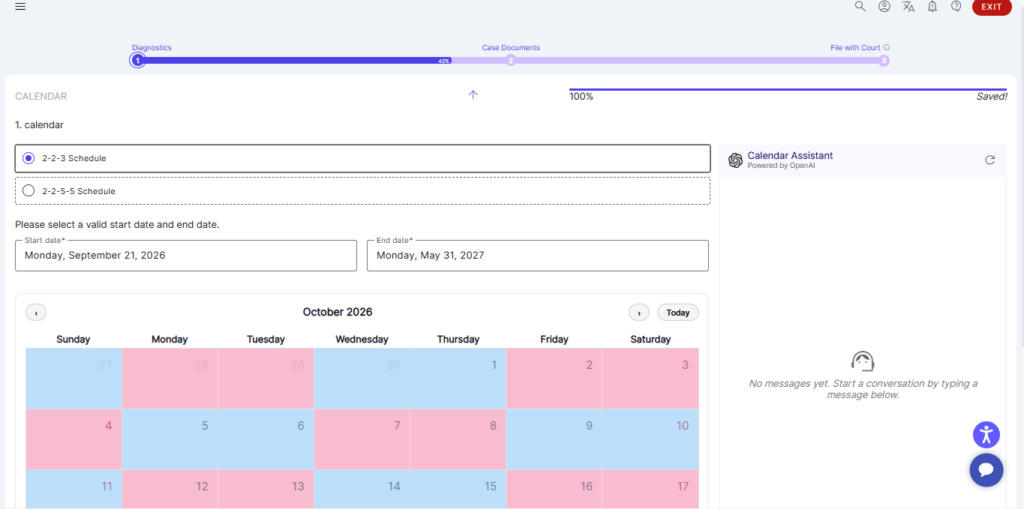
Before the calendar is displayed, the user first selects a parenting schedule and defines the date range for the parenting plan.
1. Select a Parenting Schedule
The user can select a predefined parenting schedule, such as:
- 2-2-3
- 2-2-5-5
2. Select Start and End Dates
After selecting the parenting schedule, the user enters:
- Start Date – the date when the parenting schedule begins.
- End Date – the date when the parenting schedule ends.
Once the parenting schedule and date range are selected, the calendar is generated and displayed for the specified period.
The calendar uses different colors to show which parent is assigned to each day.
Identifying the User as Mom or Dad
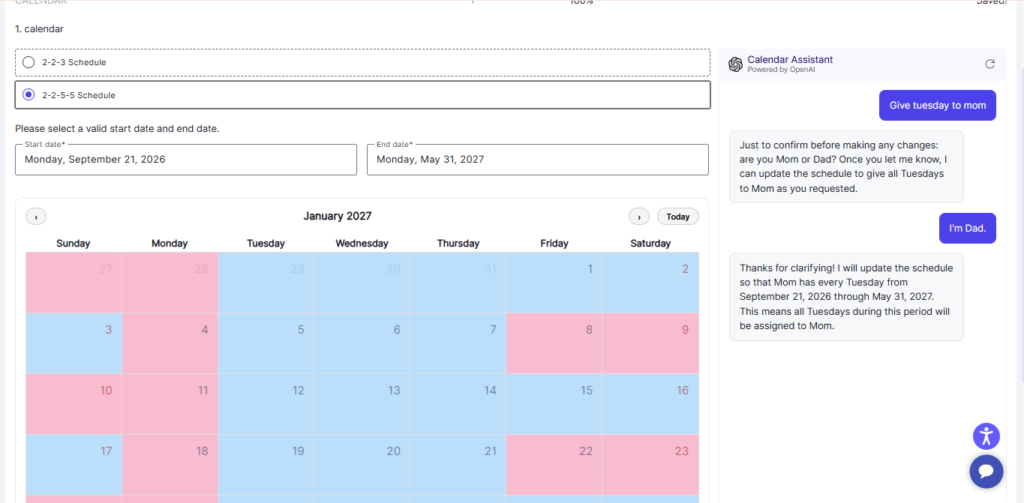
When the system cannot determine whether the user is Mom or Dad, it asks:
Are you Mom or Dad?
The user can respond with:
I’m Mom.
or
I’m Dad.
Once identified, the system uses that information when interpreting future calendar instructions. The user does not need to identify themselves again during the conversation.
Making Changes Through Chat
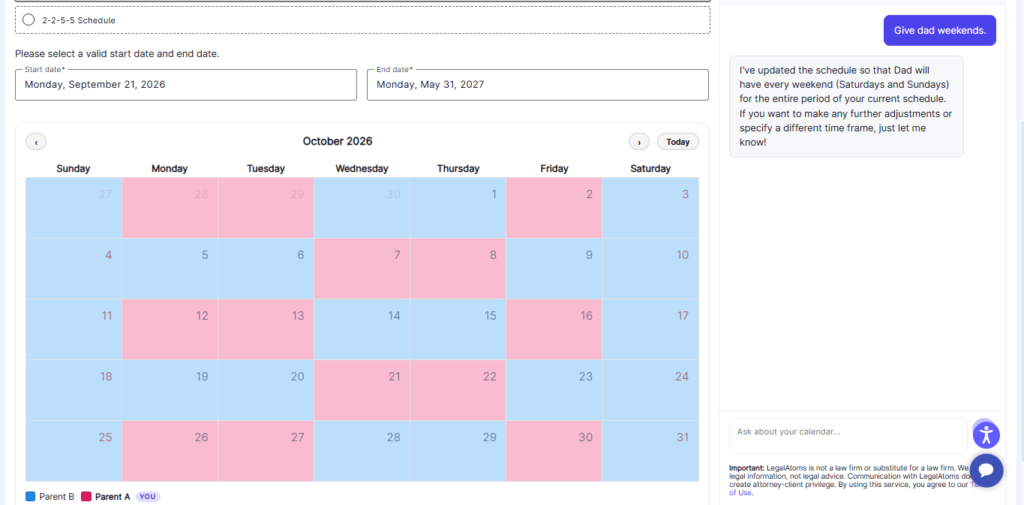
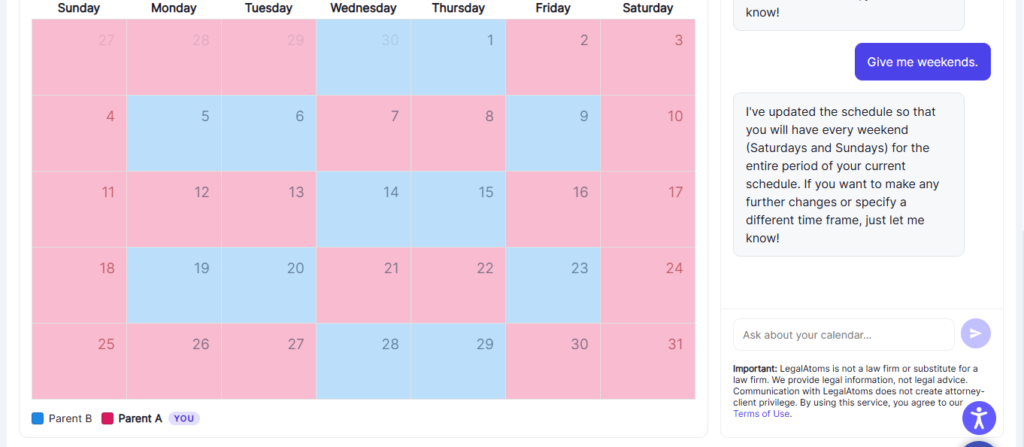
A user can make changes by describing what they want in natural language.
For example:
Give dad weekends.
Give me weekends.
Alternate weekends between mom and dad.
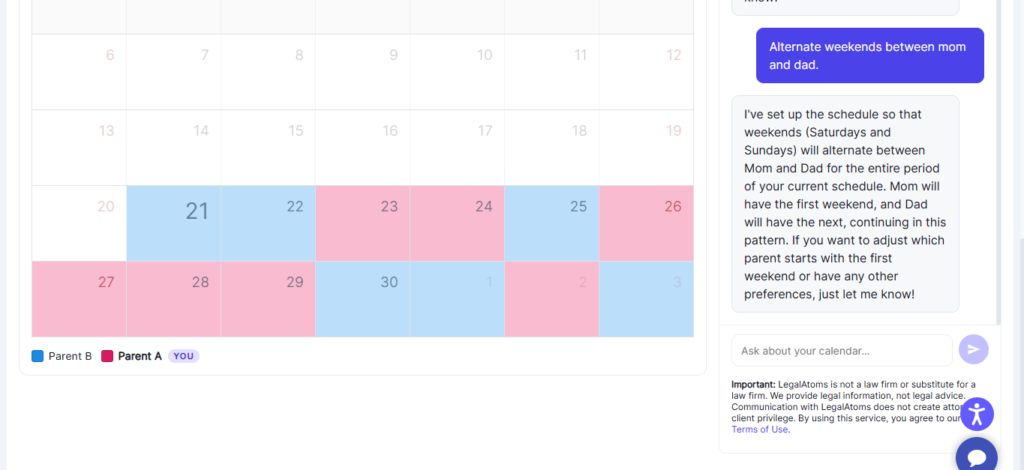
Give mom every Monday in April.
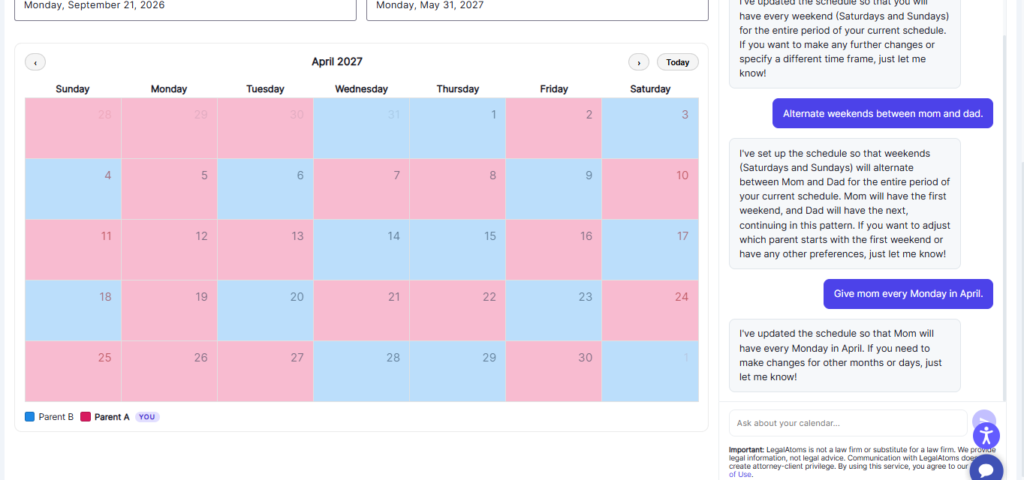
The calendar updates based on the user’s instructions.
Changing Specific Dates or Date Ranges
Users can modify specific dates or a range of dates.
For example:
Give mom Thanksgiving 2026.
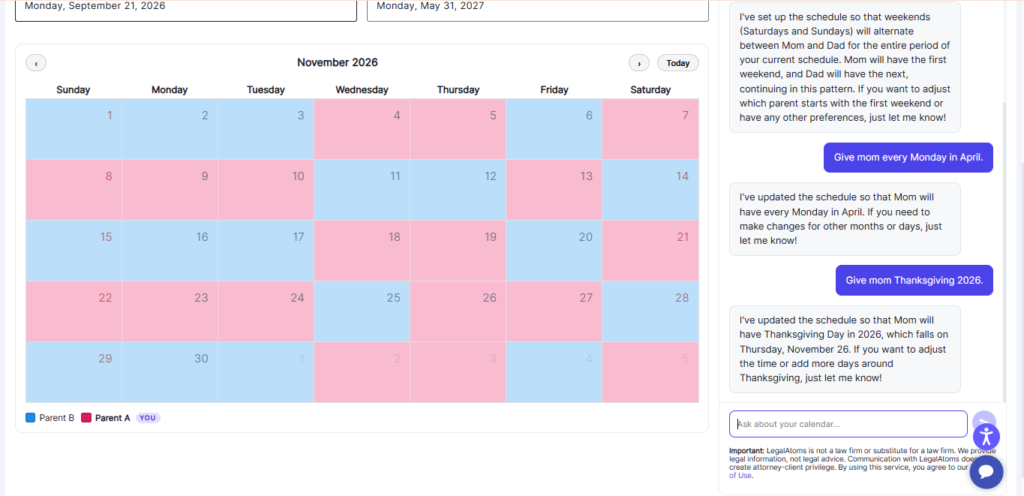
Switch Saturdays from mom to dad between Jan 15 and Jan 30, 2027.
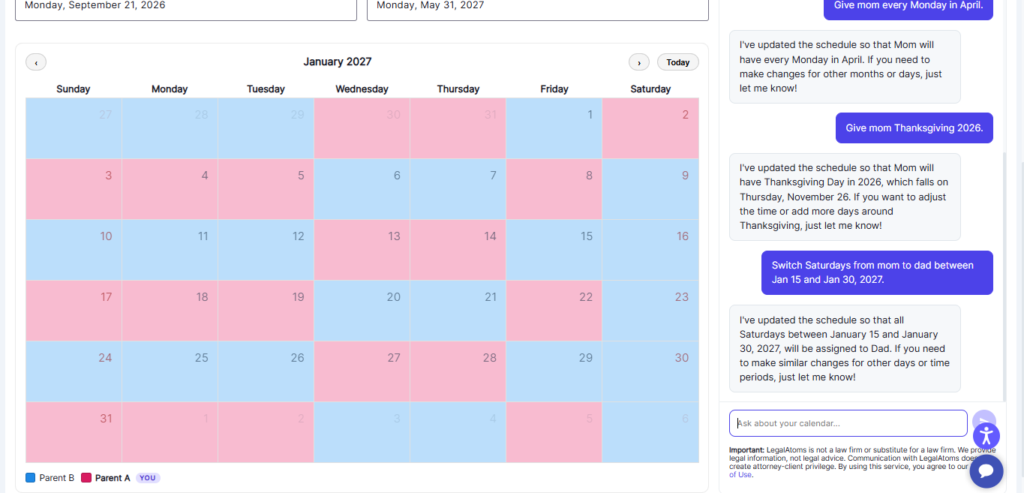
The requested changes are reflected directly on the calendar.
Making Multiple Changes
Users can continue chatting with the calendar and make multiple changes without restarting the setup.
Each new instruction is applied to the existing parenting schedule.
Resetting the Calendar Schedule
Users can reset the existing calendar schedule through the button Calendar Assistant AI chat.
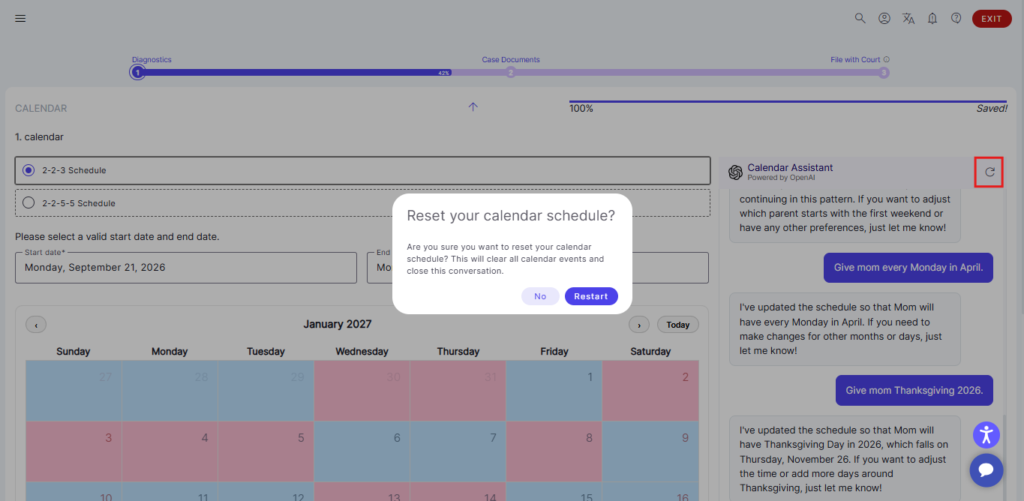
The calendar returns to its original schedule, allowing the user to start making changes again from the base parenting plan.
Changing the Schedule Type
Users can change the existing parenting schedule to a different schedule type through the question.
For example, if the current schedule is 2-2-3, the user can:
Change the schedule to 2-2-5-5.
The calendar updates to reflect the newly selected schedule type. Users can change the schedule type as needed while working with the calendar.
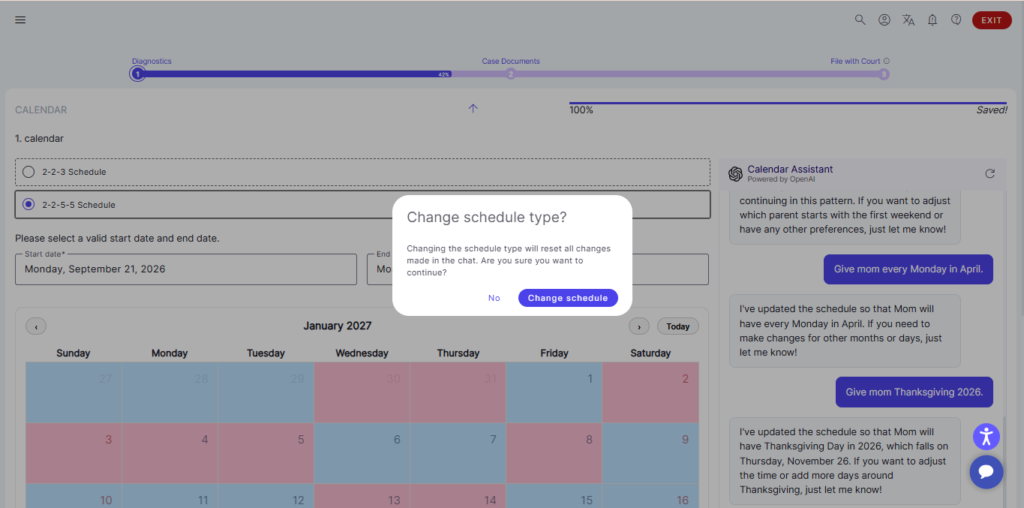
Changing the schedule type automatically reset the chat with AI.
Calendar Color Coding
The calendar uses different colors to make it easy for the user to see which parent is assigned to each day.
The calendar legend identifies the parent associated with each color. The parent currently using the calendar is identified with a YOU indicator.
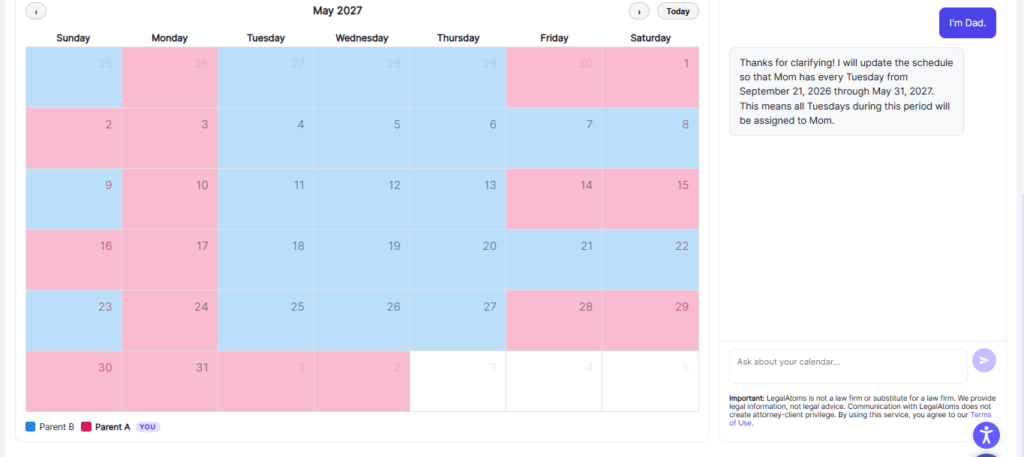
Natural Language Interaction
Users do not need to use a specific command format. They can describe the schedule they want in natural language, including schedule types, specific days, recurring patterns, date ranges, weekends, holidays, and reset requests.
The chat interface is designed to let users manage their parenting schedule conversationally while seeing the changes directly on the calendar.