
How to Clone an Existing Case from the Client Dashboard
Published
Case Clone (also referred to as Copy Case) is a feature designed to help clients quickly create a new case using an existing one. Instead of re-entering the same details again, this feature copies all previously entered answers into a new, separate case. This is especially useful when you need to refile a case, create a follow‑up filing, or correct information without affecting the original case.
The copied case is not automatically filed, regardless of the original case’s status. This gives you full control to review, update, and decide the next steps before filing.
When to Use Case Clone
You may want to use the Case Clone feature when:
- You need to file a similar or follow‑up case with the same information.
- The court asks you to refile a case as a new submission.
- You want to correct or update details without changing the original case.
- You want to save time by avoiding duplicate data entry.
Accessing the Copy Case Feature
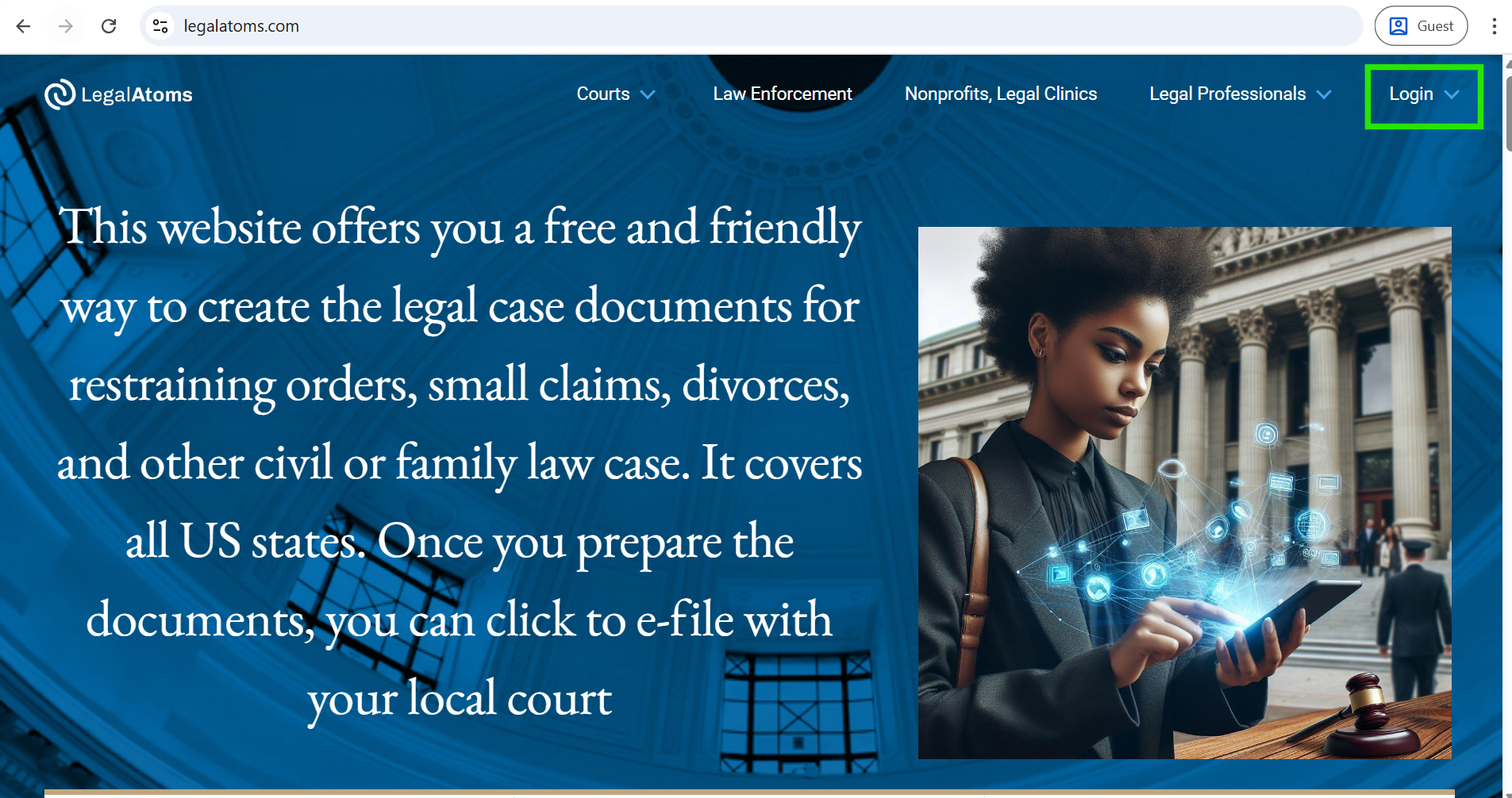
- Open this URL link in your browser. https://legalatoms.com/
- Click on the Login button
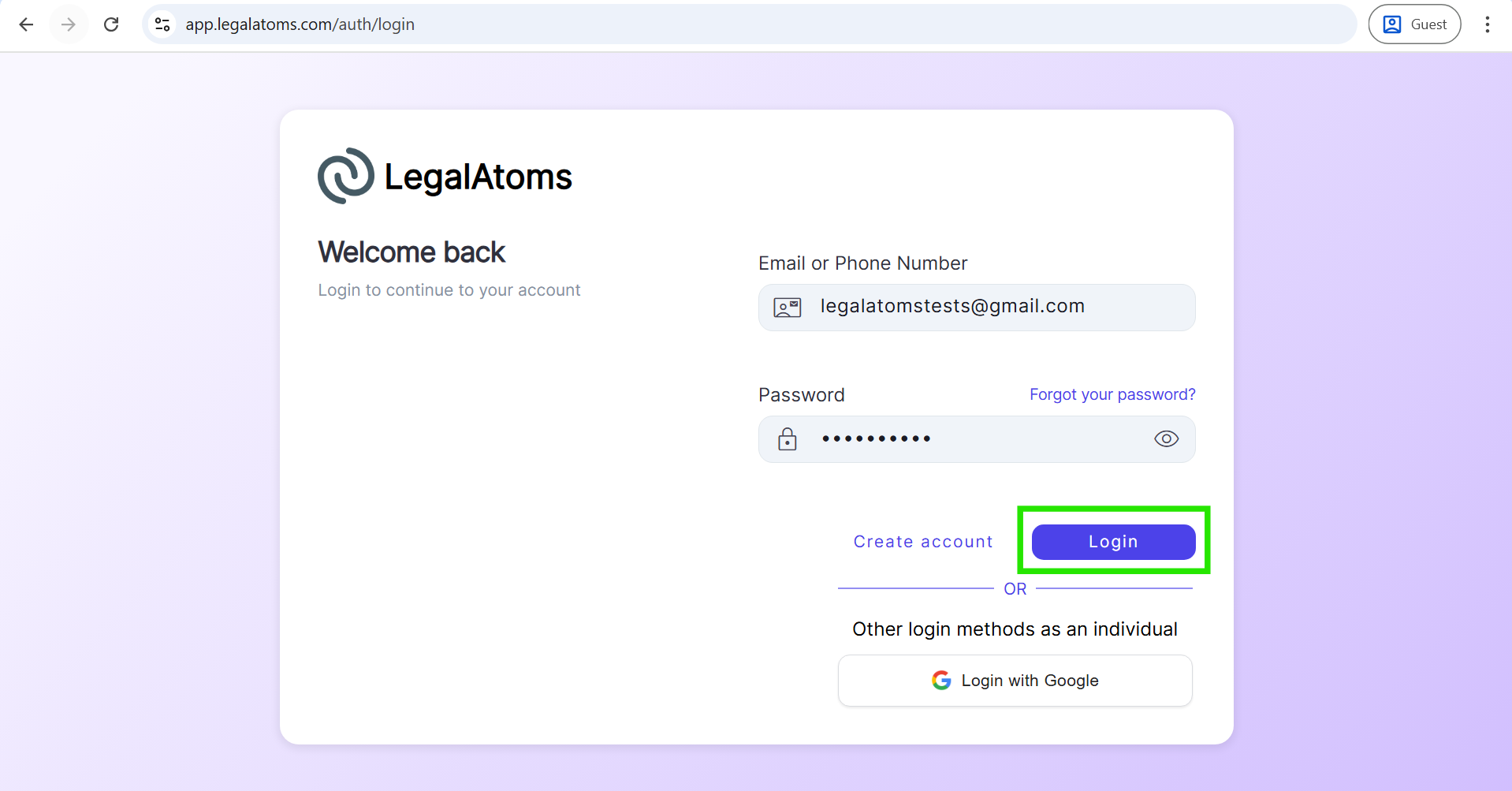
- Enter your registered email and password.
- Click on the Login button.
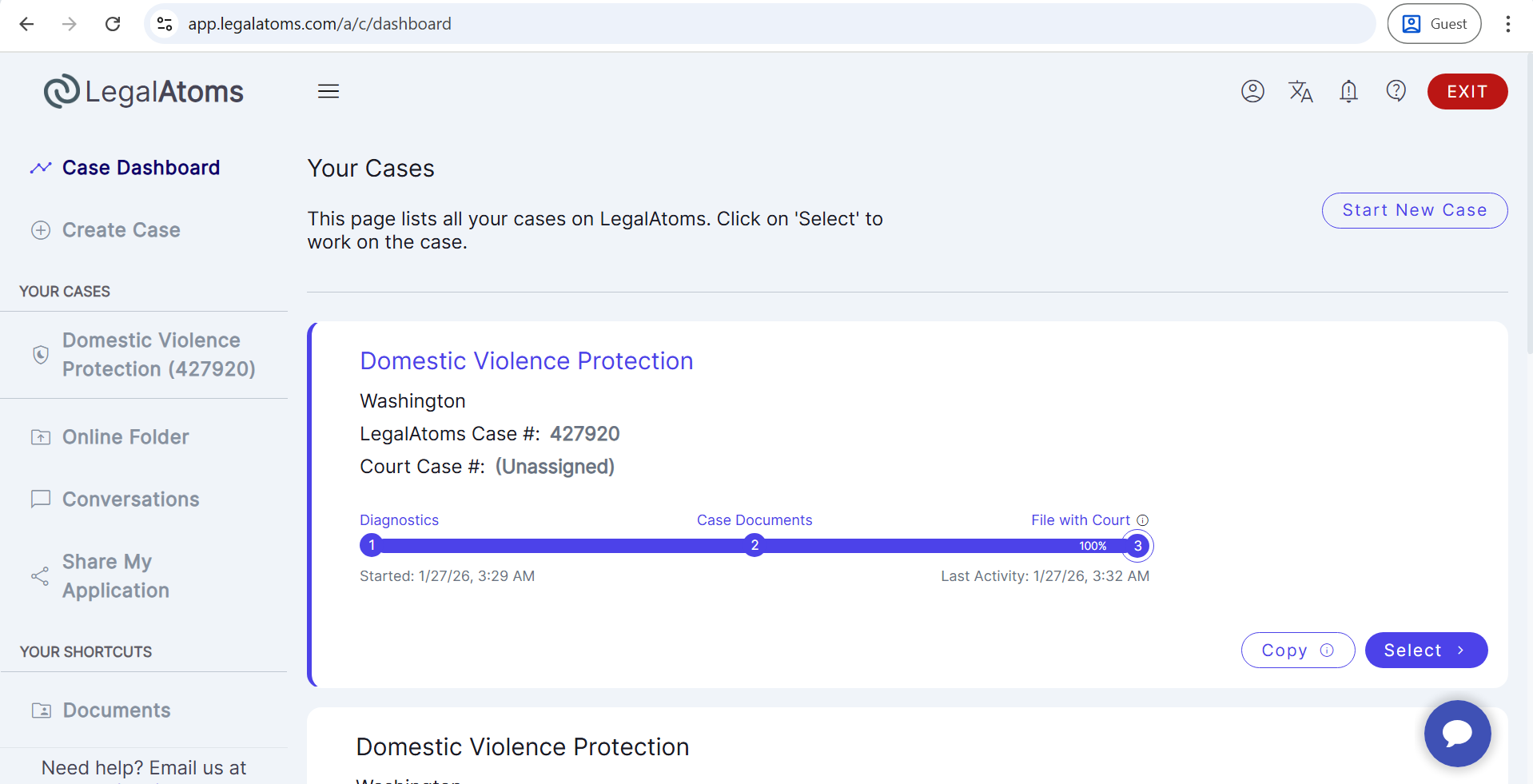
- You will land on the Client Dashboard.
- On the Dashboard, you will see the list of cases you have already created.
Copy Button Tooltip Information
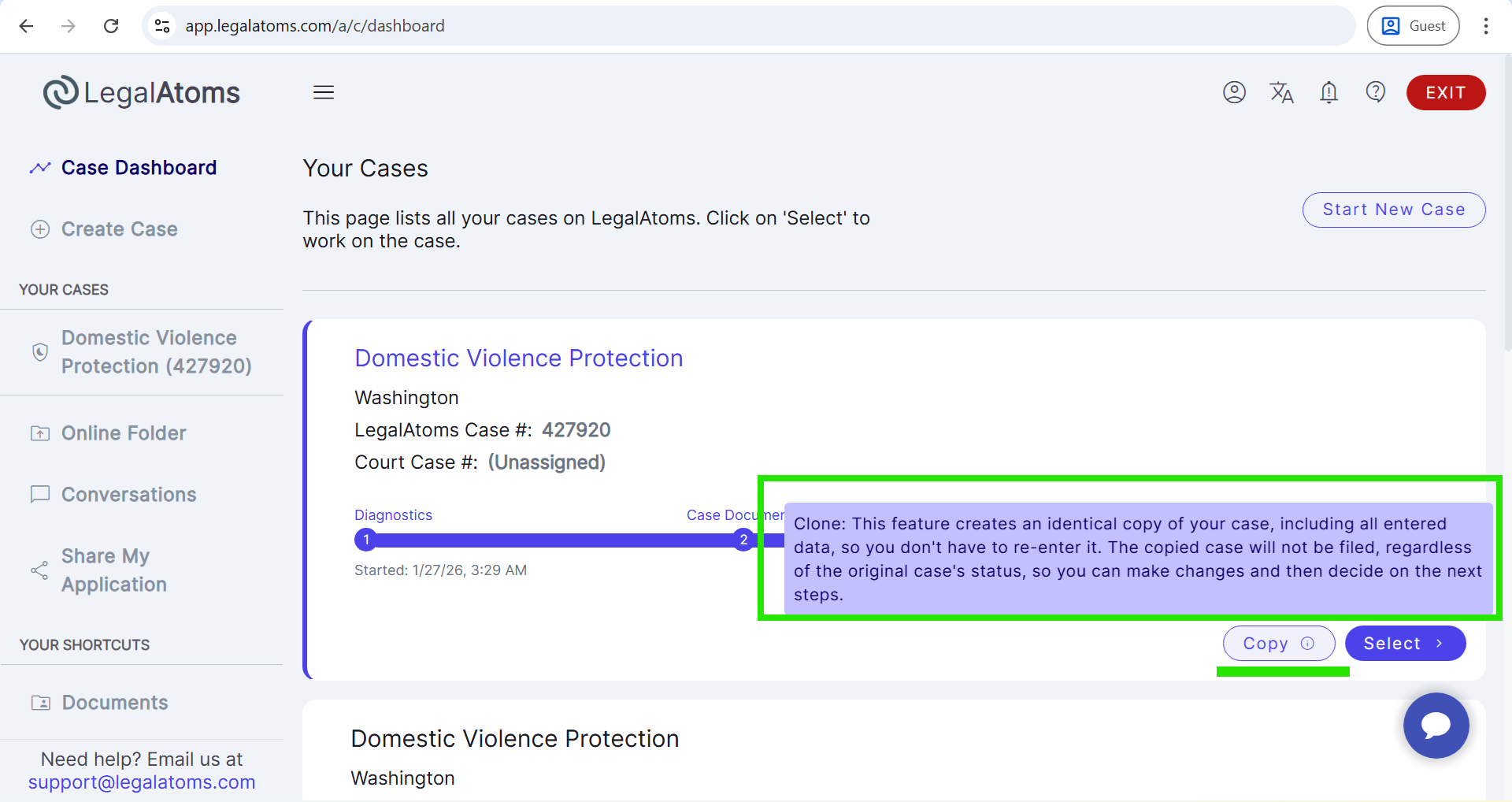
- Hover your mouse over the Copy button next to a case.
- A tooltip will appear with the following information:
Clone: This feature creates an identical copy of your case, including all entered data, so you don’t have to re-enter it. The copied case will not be filed, regardless of the original case’s status, so you can make changes and then decide on the next steps.
This tooltip helps you understand exactly what will and will not be copied before proceeding.
Steps to Clone (Copy) a Case
- On the Dashboard, locate the case you want to copy.
- Click the Copy button.
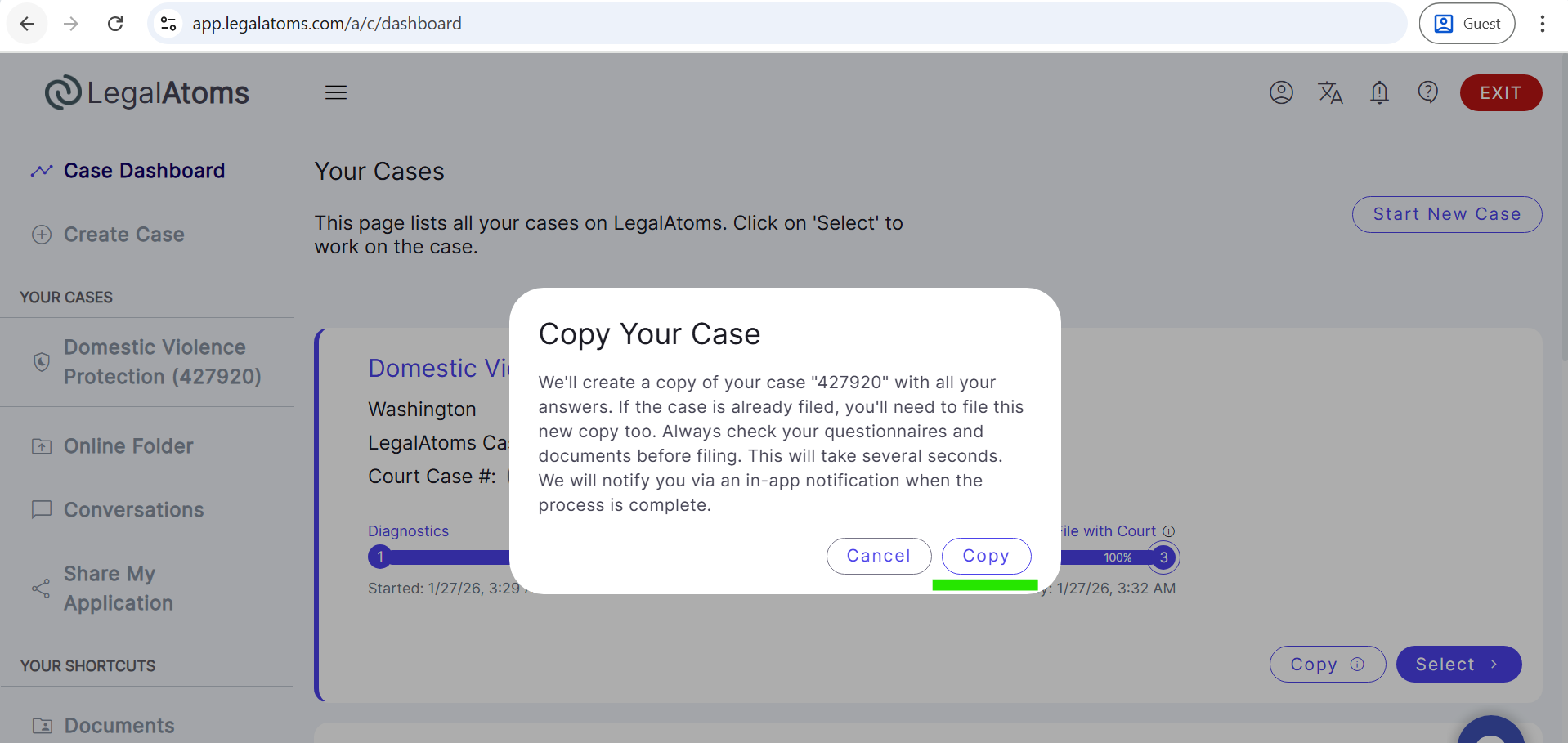
- A confirmation dialog will appear with the following message:
Copy Your Case
We’ll create a copy of your case “ae9aa9” with all your answers. If the case is already filed, you’ll need to file this new copy too. Always check your questionnaires and documents before filing. This will take several seconds. We will notify you via an in-app notification when the process is complete.
- Two buttons will be displayed:
- Cancel – to stop the copy process.
- Copy – to proceed with cloning the case.
Completing the Copy Process
- Click the Copy button to start the cloning process.
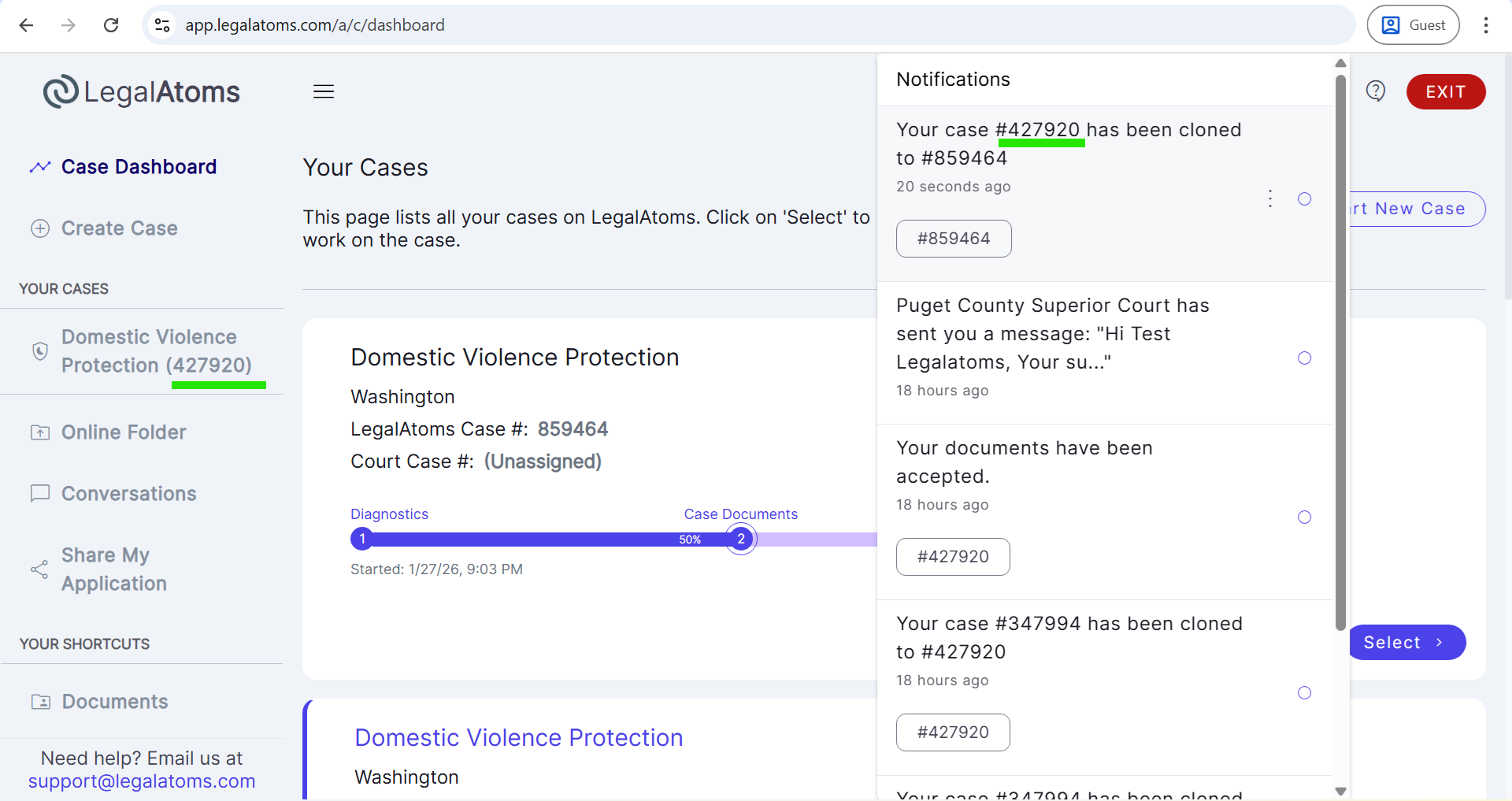
- The system will take a few seconds to create the duplicate case.
- Once completed, you will receive an in‑app notification confirming that the case copy is ready.
After the Case Is Cloned
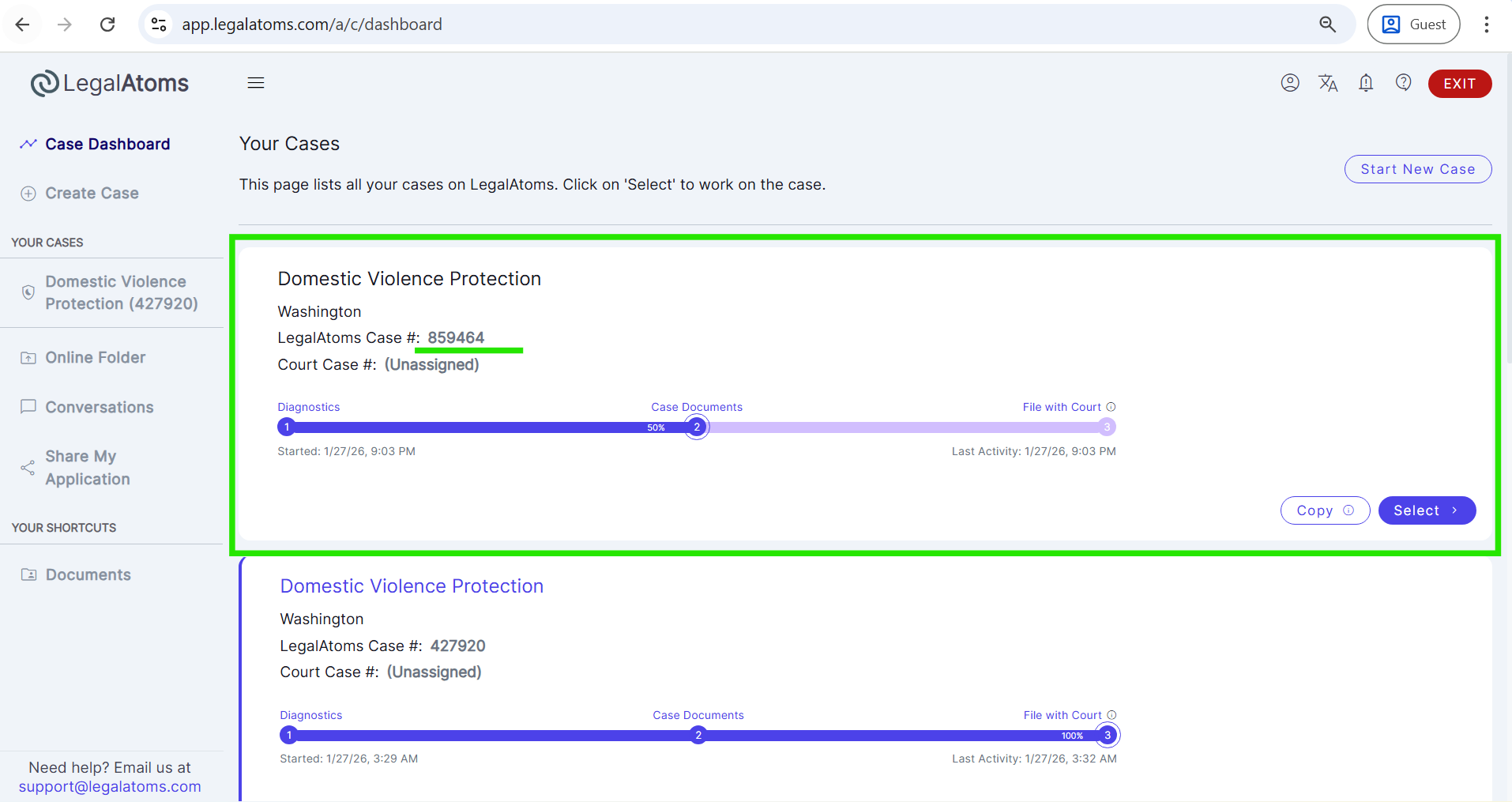
- A new case is created with all answers copied from the original case.
- The new case has its own unique case number.
- The copied case is not filed, even if the original case was filed.
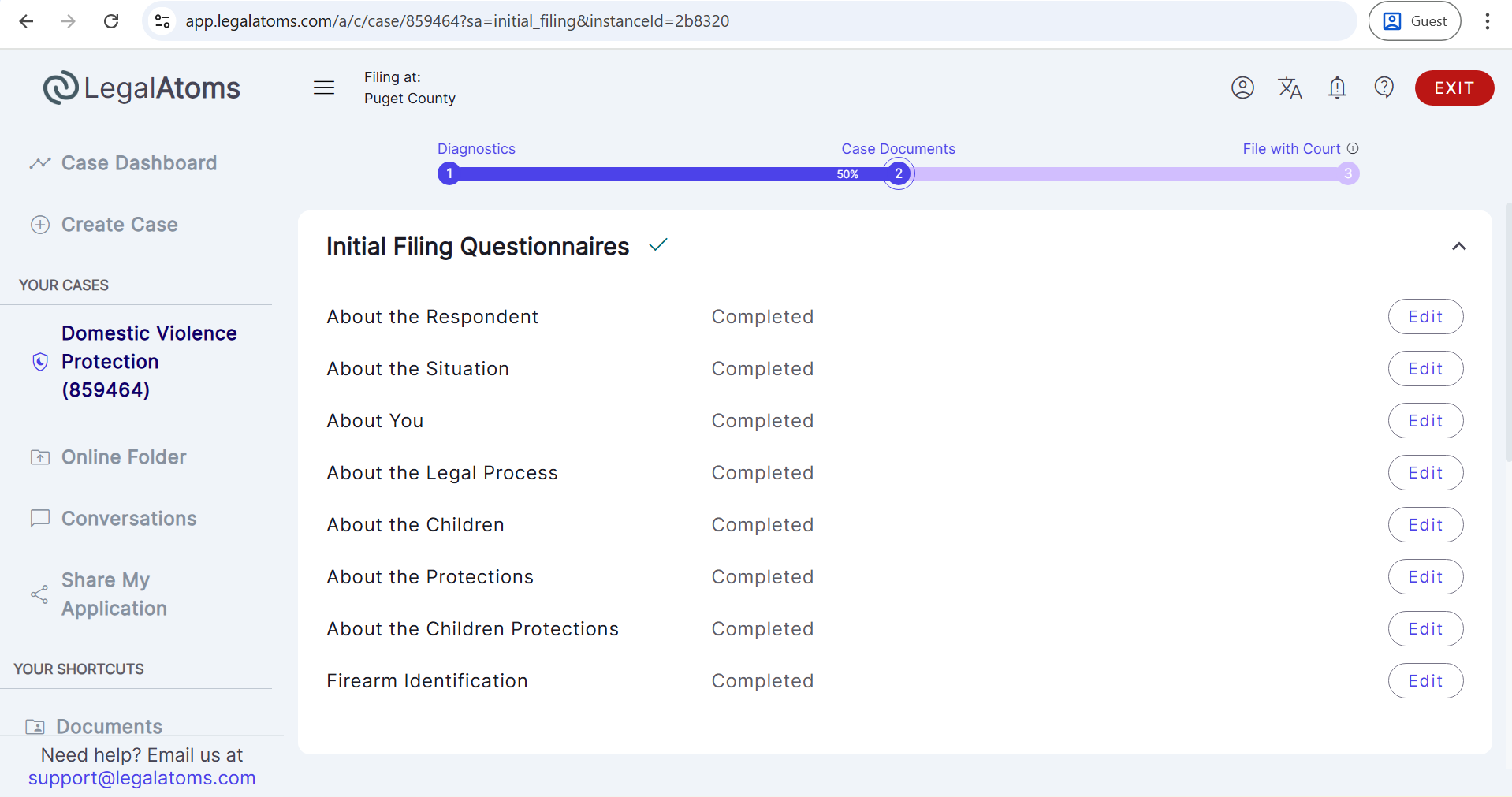
- You can review questionnaires, update information, regenerate documents, and file the case when ready.
Important Notes
- The original case remains unchanged.
- Always review questionnaires and generated documents before filing the copied case.
- Any required updates must be completed before submission.